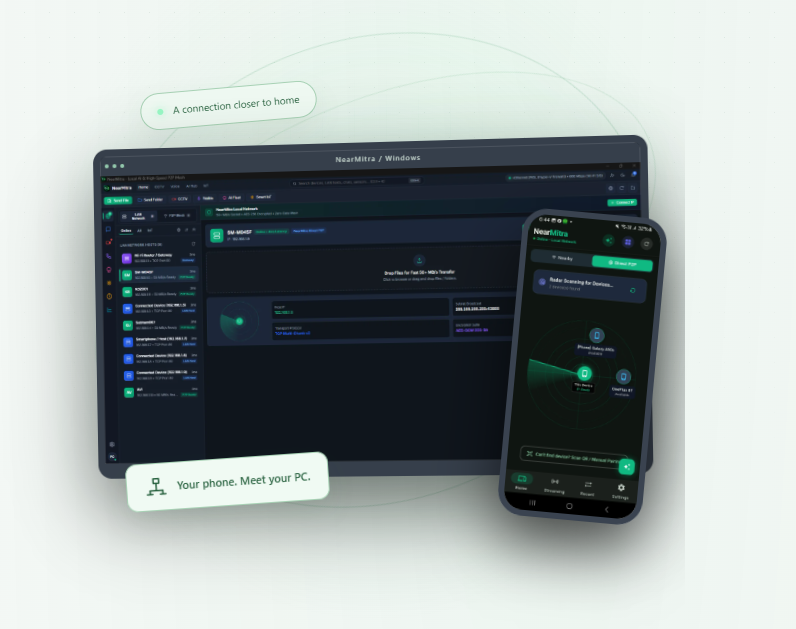
Transferring files between an Android phone and a Windows PC should be simple. Yet many users still depend on USB cables, cloud storage, messaging applications, or multiple third-party tools just to move a document, share a folder, or connect their devices. What if you could transfer files wirelessly, chat between devices, access your PC's local AI model from Android, and stream audio using a single open-source application?
NearMitra is a free, open-source Android and Windows connectivity application designed to bring these capabilities into one connected workspace. It combines Android-to-PC file sharing, nearby device discovery, local messaging, Ollama AI integration, voice and video calls, and Wi-Fi audio streaming, with an emphasis on direct local network connections and user-controlled permissions.
Whether you are a developer looking for a local AI companion, a student transferring documents between devices, or a Windows user searching for an alternative approach to phone-to-PC connectivity, NearMitra offers an interesting combination of practical features.
Quick Overview: NearMitra is an open-source connectivity tool for Android and Windows that supports local file sharing, messaging, approved AI engine access, and selected streaming features. It is published by FlutterFever and licensed under GPL-3.0-only.
1. What Is NearMitra?
NearMitra is a cross-platform communication and device-connectivity application that helps Android phones and Windows computers work together over a local network or supported peer-to-peer connection.
Unlike applications that focus exclusively on file transfer or screen connectivity, NearMitra brings several device-to-device interactions into a shared interface. Users can discover nearby devices, start conversations, transfer supported files and folders, and request access to selected features on another connected device.
One of its most distinctive capabilities is Nearby AI, which lets an approved Android device send prompts to an AI engine configured on a Windows computer. For example, a developer running Ollama on a desktop can access the configured model from their Android phone without running the language model directly on the mobile device.
The project follows a local-first approach. Basic nearby chat and file transfers do not require a cloud account, provided that the devices have a working supported connection.
Explore the application and its official documentation on the NearMitra official website.
2. Key Features of NearMitra for Android and Windows
Wireless File and Folder Sharing Between Android and PC
One of the primary reasons to use NearMitra is to transfer files between Android and Windows without repeatedly connecting a USB cable or uploading documents to cloud storage.
NearMitra supports file and folder sharing from compatible device conversations over a direct local connection. The Windows interface can display incoming transfer progress, transferred bytes, speed, and estimated remaining time when available.
Its file-sharing capabilities include:
- Wireless file transfer between supported Android and Windows devices.
- File and folder selection on compatible application builds.
- Direct local network connections when available.
- Transfer progress tracking within the device conversation.
- Access to received files from the Windows desktop workflow.
- Integrated messaging alongside file-sharing activities.
Actual transfer performance depends on Wi-Fi signal quality, storage speed, network congestion, and device hardware. NearMitra does not guarantee a fixed transfer speed.
Nearby Device Discovery and Local Connectivity
NearMitra helps users discover compatible devices on a reachable local network. Supported connection options include local LAN and Wi-Fi Direct or peer-to-peer links where available.
After discovering another device, users can select it, establish a supported connection, and access available features according to the permissions granted by the receiving device.
This local-first design is particularly useful for people who regularly move between their phone and computer at home, in an office, or in a development environment.
Nearby AI: Access Ollama Running on Windows from Android
NearMitra goes beyond ordinary file-sharing software by allowing users to access a configured AI engine running on another connected device.
With Nearby AI, a Windows computer can host an Ollama model while an approved Android phone acts as the conversation interface.
The basic process works as follows:
- Install and configure Ollama separately on the Windows computer.
- Select an installed AI model through NearMitra's My AI settings.
- Connect the Android phone to the Windows device through a supported nearby connection.
- On Windows, approve AI sharing for the selected Android device.
- Open Nearby AI on Android and send a prompt.
- The configured host processes the request and returns the generated response.
For Ollama, NearMitra supports streaming response chunks as the model generates its answer. This enables users to interact with a desktop-hosted model without installing that model on their Android device.
For example, developers can paste a code snippet into the conversation and ask for an explanation, or use the model to draft text and summarize information they choose to provide.
Important: Nearby AI does not automatically grant the model access to the computer's files, applications, or operating-system commands. It is a permission-controlled conversation interface, not a fully autonomous desktop agent. A direct nearby connection is required for this feature.
Local Chat Between Connected Devices
NearMitra also includes device-to-device messaging, allowing users to communicate within a connected device conversation instead of switching between separate messaging and file-transfer applications.
Supported conversation features include text sharing, file attachments, and selected actions such as replies, reactions, copying, and forwarding.
This combination can simplify workflows where users need to send instructions, share documents, and continue working across Android and Windows.
Voice Calls, Video Calls, and Camera Streaming
NearMitra includes supported voice and video communication features between connected devices. Depending on the application build and session, users can access controls for microphone, camera, and screen sharing.
Camera streaming and screen capture require relevant device permissions and feature-specific approval. The device owner remains responsible for granting access, and active sessions can be stopped when no longer needed.
These features make NearMitra more than a conventional file-transfer utility, although their availability and performance depend on the connected devices, network conditions, and supported session type.
Stream Windows PC Audio to Your Android Phone
Another interesting NearMitra feature is standalone Wi-Fi Audio, which allows a supported Windows audio session to be sent to an Android phone over a direct nearby connection.
To use it, open the Voice section in the Windows application and select the option to broadcast PC audio to the phone. The Android user can then open Streaming, select Wi-Fi Audio, and approve the incoming request.
NearMitra documents support for all-PC-app audio capture and a supported tab-capture option. It does not install a virtual audio driver, and playback depends on the active Windows audio output and available routing.
3. How to Download and Install NearMitra
NearMitra provides separate Android and Windows applications. The official project website links to its GitHub releases and source repository, allowing users to obtain published installation files or build the applications themselves.
Install NearMitra on Android
- Visit the official NearMitra website.
- Open the download section.
- Select the Android APK download option.
- Check the linked GitHub release for the published APK.
- Install the APK after reviewing the source and Android installation warning.
- Open NearMitra and grant the permissions required for the features you intend to use.
Android may ask for permission to install applications from the selected source. Only download installation files from trusted project releases, and avoid unofficial APK mirrors.
Install NearMitra on Windows
- Open the official NearMitra download page.
- Select the Windows x64 installer option.
- Download the published installer from the linked GitHub release.
- Review the publisher, release information, and any available file hashes.
- Run the installer and launch the Windows application.
- Connect the Windows PC and Android phone to a reachable local network.
- Discover and approve the selected device connection.
Windows installers may be unsigned, which can trigger Microsoft Defender SmartScreen warnings. Verify the release source before deciding whether to proceed.
Official Download Page: Download NearMitra for Android and Windows.
4. How to Transfer Files from Android to Windows with NearMitra
If your main goal is wireless Android-to-PC file transfer, the NearMitra workflow is straightforward once both devices are connected.
- Connect both devices: Open NearMitra on Android and Windows and ensure a supported LAN or peer-to-peer connection is available.
- Discover your PC: Find the Windows computer through NearMitra's device discovery interface.
- Open the conversation: Select the connected Windows device.
- Choose content: Use Send File or Send Folder, depending on the supported options in your build.
- Start the transfer: Select the content and initiate sharing.
- Monitor progress: Keep the connection active and follow the transfer progress.
- Access your files: Open the received content after transfer completion.
This approach is useful for transferring project files, documents, images, and other supported content without an intermediate cloud upload.
5. Does NearMitra Work Without Internet?
Yes, supported local features can work without an internet connection. Nearby chat and file sharing operate over a functioning local LAN or supported Wi-Fi Direct/P2P connection.
However, not every NearMitra feature is designed to work offline. The connection requirements differ by feature:
- Local chat and file transfer: A supported local network or direct P2P connection is required.
- Nearby AI with local Ollama: Requires a reachable nearby host with a configured and running AI engine.
- Standalone Wi-Fi Audio: Requires a supported direct nearby connection.
- Internet/WAN connectivity: Requires internet access and separately configured backend services.
- Cloud AI providers: May require internet access and follow their own data-handling policies.
NearMitra documents an optional WAN setup involving Firebase Realtime Database and WebRTC. This requires users or deployers to configure their own backend; it is not equivalent to a ready-to-use public cloud relay provided with every installation.
6. Is NearMitra a Good Alternative to Traditional Android-to-PC Sharing Tools?
Many device-connectivity applications specialize in a single task, such as transferring files, sending notifications, or controlling another screen. NearMitra takes a broader approach by combining local communication, supported media sessions, and AI engine sharing within one open-source project.
Its main advantages include a local-first architecture, the ability to inspect its source code, and a distinctive Nearby AI feature for people who already run models such as Ollama on Windows.
However, users should choose a connectivity application based on their actual requirements. NearMitra is not presented as a complete replacement for every feature found in Microsoft Phone Link, KDE Connect, LocalSend, or other established tools. Platform support, background reliability, transport security, and available integrations differ between projects.
For users specifically looking for Android-Windows file sharing combined with locally hosted AI access, NearMitra is a project worth evaluating.
7. Is NearMitra Safe and Private?
NearMitra emphasizes user-controlled permissions and an open-source implementation. File transfers, camera sharing, and AI engine access operate within the permissions and connectivity options supported by the project.
Nevertheless, local-first communication should not be confused with universal end-to-end encryption.
The official documentation explains that some local TCP-based communication paths are not universally end-to-end encrypted. Users should therefore prefer trusted networks and devices, understand the type of content being transferred, and avoid assuming all communications have identical security protections.
Nearby AI requests are sent to the selected host engine. When that engine uses a cloud AI provider, prompts may be handled according to the provider's policies.
Users should review the application's permissions and current release documentation before transferring sensitive material or granting access to cameras, microphones, or other device capabilities.
8. Why NearMitra Is Interesting for Flutter Developers
NearMitra is not just a utility for everyday users. Its open-source architecture also makes it an interesting project for developers exploring cross-platform communication.
The Android application uses Flutter with native Kotlin integration, while the Windows side uses Go and a web-based interface.
The project touches several technical areas that are valuable for software engineers:
- Flutter application development with Android-native integrations.
- Device discovery and peer-to-peer networking.
- Local TCP communication and file-transfer workflows.
- Permission management across connected devices.
- Desktop and mobile communication interfaces.
- Integration with locally hosted language models such as Ollama.
- Real-time messaging and media-session management.
For developers learning how Flutter can participate in a larger cross-device system, reviewing NearMitra's architecture and source repository may provide useful implementation insights.
9. NearMitra's Future: AI Agents and MCP Integration
The NearMitra roadmap describes a possible direction involving permission-controlled AI agents and Model Context Protocol (MCP) integration.
The proposed concept is to let an AI assistant request an action on a connected device while making the requested operation, target device, and permission scope visible to the user before execution.
These agent and MCP capabilities are roadmap concepts, not currently shipped features. Users should not interpret the roadmap as confirmation that NearMitra can already autonomously manage files or execute AI-controlled workflows across devices.
10. Who Should Use NearMitra?
NearMitra is particularly relevant to users who regularly work across Android and Windows and want to explore a unified local connectivity experience.
- Students: Transfer assignments, notes, and supported documents between phone and PC.
- Flutter developers: Explore an open-source Android application involving networking and native platform integration.
- AI developers: Access a configured Windows Ollama model from an approved nearby Android device.
- Remote and hybrid workers: Share supported files and communicate between connected devices.
- Open-source enthusiasts: Review, build, modify, or contribute to a GPL-licensed connectivity project.
- Windows power users: Experiment with nearby conversations, file transfers, and supported streaming capabilities.
Final Verdict: Should You Try NearMitra?
NearMitra offers an interesting combination of practical Android-Windows connectivity and locally hosted AI access. Its strongest distinguishing feature is the ability to bring file sharing, device messaging, selected media streaming, and permission-controlled AI conversations together in a single open-source project.
It is especially appealing to technically curious users and developers who want more control over how their devices communicate.
At the same time, users should evaluate its current platform support, permissions, network requirements, and security limitations before adopting it for sensitive or business-critical workflows.
If you are searching for a free Android-to-Windows file-sharing application with Ollama AI integration and local-first connectivity, NearMitra is worth exploring.
Explore NearMitra: Official NearMitra Website — Features, Downloads & Documentation.
Frequently Asked Questions About NearMitra
Is NearMitra free to use?
Yes. NearMitra is published as free, open-source software under the GPL-3.0-only license. Users can review its source code and obtain available builds through the official project resources.
Can I transfer files from Android to Windows without a USB cable?
Yes. NearMitra supports wireless file and folder sharing between compatible connected devices over supported local networking options.
Does NearMitra require an internet connection?
Not for supported nearby LAN chat and file transfers. Internet access is required for optional WAN connectivity and cloud-based services, while supported direct nearby connections can operate without a public internet connection.
Can I use Ollama on Windows from my Android phone?
Yes. NearMitra's Nearby AI feature allows an approved Android device to send prompts to a configured Ollama engine running on Windows. The Windows host must remain available through a supported direct nearby connection.
Does NearMitra support Windows-to-Android file sharing?
NearMitra provides file-sharing functionality across its supported Android and Windows applications, subject to the capabilities of the installed builds and active connection.
Can NearMitra stream PC audio to Android?
Yes. Its standalone Wi-Fi Audio feature supports broadcasting compatible Windows audio capture to an approved Android device over a supported nearby connection.
Is NearMitra an open-source Flutter project?
Yes. Its Android application uses Flutter with Kotlin integration, and its Windows implementation uses Go and web-based technologies. The project is published with open-source documentation.
Does NearMitra support AI agents and MCP?
AI agents and MCP integration are described as future roadmap concepts. They should not be considered available production features in the current application.
Where can I download NearMitra for Android and Windows?
Visit the official NearMitra website and open its download section to find the published Android APK and Windows installer links.