

Android Studio Download and Android SDK Setup steps for Flutter Development

If you want Flutter Android builds to work smoothly (debug APK, release AAB, emulator/device testing), you need two things set up correctly:
- Android Studio download + install (easiest way to get everything)
- Android SDK download and setup (SDK Platforms, Build-Tools, Platform-Tools, Command-line Tools)
Why Android Studio is needed for Flutter Android development
Flutter can run on Android only when your system has:
- Android SDK (platforms + build tools)
- ADB / Platform-Tools (for device connection and debugging)
- Java tooling (Android Studio bundles a compatible JDK in modern versions)
- Licenses accepted so Gradle can build without errors (Flutter checks this)
Before you start: Minimum system requirements (recommended)
Android Studio is heavy. For a smooth experience:
- 8 GB RAM minimum (16 GB+ recommended if you use Emulator)
- 64-bit Windows/macOS/Linux supported
- CPU virtualization enabled if you plan to use the Android Emulator
Step 1: Android Studio download (official and safest method)
Official download page
Use the official Android Studio site and install page:
- Android Studio download page
- Official install instructions + system requirements
Which version should you download?
- For most Flutter developers, install the latest Stable channel.
- If you are debugging a specific tooling issue, you can also access the archive/preview downloads.
Step 2: Install Android Studio (Windows / macOS / Linux)
Windows (quick steps)
- Run the installer you downloaded from the official page.
- Keep these selected:
- Android Studio
- Android SDK
- Android Virtual Device (optional but recommended)
- Finish installation and launch Android Studio
macOS (quick steps)
- Download the macOS package from the official page.
- Drag Android Studio into Applications.
- Launch Android Studio.
Linux (quick steps)
- Download Linux package from official site.
- Extract and run
studio.sh(Android’s install page includes guidance).
https //developer.android.com/studio
Step 3: Android SDK download and setup (inside Android Studio)
This is the most important part for Flutter Android builds.
Open SDK Manager
In Android Studio:
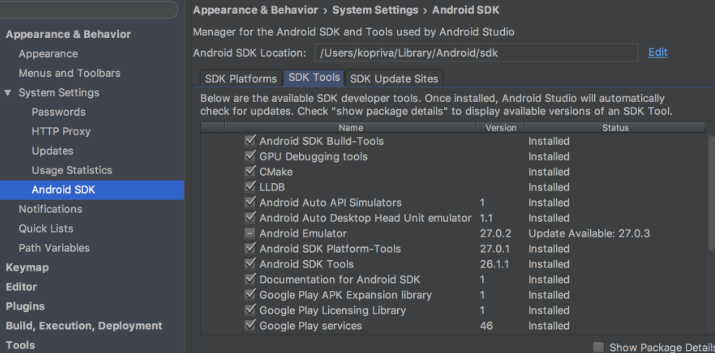
- Go to Tools → SDK Manager
SDK Platforms (install at least one)
Inside SDK Platforms tab:
- Install latest stable Android SDK Platform (recommended)
- You can also install a specific API level if your project requires it
Flutter’s official Android setup docs also point you to install required SDK components and then accept licenses.
SDK Tools (must-have list for Flutter)
Inside SDK Tools tab, ensure these are installed:
Must-have:
- Android SDK Platform-Tools (includes
adb) - Android SDK Build-Tools (required for building Android apps)
- Android SDK Command-line Tools (latest) (helps with sdkmanager / licenses / tooling)
Recommended:
- Android Emulator (if you want emulator testing)
- Google USB Driver (Windows only, for some devices)
Click Apply to install.
Step 4: Set ANDROID_HOME / ANDROID_SDK_ROOT (recommended)
Flutter can often detect SDK automatically, but setting the environment variables makes your setup stable across terminals, CI, and editors.
Find your SDK path
In Android Studio:
- SDK Manager shows Android SDK Location at the top.
Common defaults:
- Windows:
C:\Users\<YourUser>\AppData\Local\Android\Sdk - macOS:
/Users/<YourUser>/Library/Android/sdk - Linux:
/home/<YourUser>/Android/Sdk
Windows environment variables
Set:
ANDROID_SDK_ROOT= your SDK path
Add to Path:%ANDROID_SDK_ROOT%\platform-tools%ANDROID_SDK_ROOT%\cmdline-tools\latest\bin(if present)%ANDROID_SDK_ROOT%\tools\bin(older setups)
macOS / Linux (zsh/bash)
Add to ~/.zshrc or ~/.bashrc:
export ANDROID_SDK_ROOT="$HOME/Library/Android/sdk"   # macOS default
# export ANDROID_SDK_ROOT="$HOME/Android/Sdk"        # Linux defaultexport PATH="$PATH:$ANDROID_SDK_ROOT/platform-tools"
export PATH="$PATH:$ANDROID_SDK_ROOT/cmdline-tools/latest/bin"
Restart terminal after saving.
Step 5: Accept Android SDK licenses (Flutter requirement)
Run:
flutter doctor --android-licenses
Accept all prompts. This is explicitly recommended in Flutter’s Android setup docs.
Then verify:
flutter doctor
Read Articles: Flutter Doctor command — What is flutter doctor
Step 6: Install Flutter plugin in Android Studio (recommended workflow)
To build and run Flutter easily inside Android Studio, install the Flutter plugin:
Android Studio → Settings/Preferences → Plugins → Marketplace → search Flutter → Install → Restart
Like This:
Step 7: Create an Emulator (optional but recommended)
If you want emulator testing:
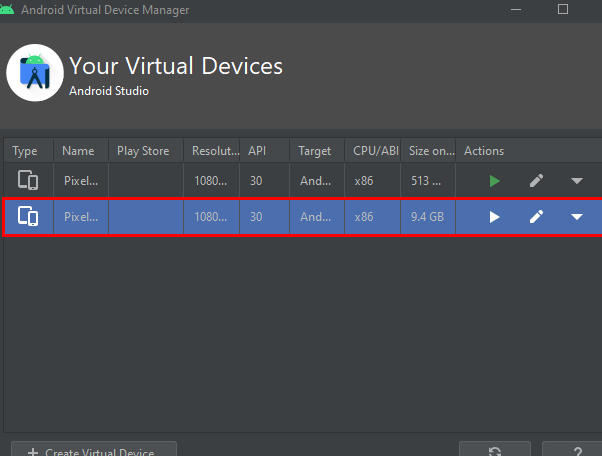
- Android Studio → Device Manager
- Create Virtual Device
- Choose a device + system image
- Ensure virtualization/hardware acceleration is enabled for best speed
Common errors and fixes (Flutter Android setup)
1) “sdkmanager tool not found”
Fix:
- Install Android SDK Command-line Tools (latest) from SDK Tools
- Ensure
cmdline-tools/latest/binis in PATH
Flutter troubleshooting mentions using SDK Manager to install cmdline-tools/build-tools/platforms.
2) “Android licenses not accepted”
Fix:
flutter doctor --android-licenses
3) Gradle build fails after installing SDK
Checklist:
- Install Build-Tools and at least one SDK Platform
- Confirm SDK path detected in
flutter doctor - Update Android Studio + SDK tools (Tools → SDK Manager)
Best practice setup for ranking + real-world development stability
If you want fewer build issues across projects:
- Keep Android Studio updated (stable channel)
- Always keep these updated in SDK Tools:
- Platform-Tools (
adb) - Build-Tools
- Command-line Tools
- Platform-Tools (
Read Articles : Download Flutter PDF Book – Free Beginner to Advanced Dart Programming Guide
FAQ: Android Studio download and Android SDK setup for Flutter Development in 2026
Not strictly, but it is the easiest way to get Android SDK + tools installed correctly and manage them via SDK Manager.
Yes, using command-line tools like sdkmanager, but most Flutter developers should use Android Studio SDK Manager for reliability.
Install the latest stable SDK Platform and required tools. If your project targets a specific API level, install that platform too.
At minimum:
Android SDK Platform
Platform-Tools
Build-Tools
Command-line Tools
https://developer.android.com/tools