

Debug vs Release Mode in Flutter – Complete Advanced Guide

When building a production-ready application, understanding Debug vs Release Mode in Flutter is essential. Many developers build apps in debug mode but fail to understand how Flutter release mode behaves differently in real-world production environments.
The difference between debug and release mode in Flutter directly affects:
- App performance
- Compilation strategy
- Code optimization
- Error handling
- Logging behavior
- App size
- Security exposure
In this in-depth guide, we will analyze Debug vs Release Mode in Flutter at a technical level, including runtime behavior, compiler optimizations, Dart VM differences, tree shaking, code obfuscation, and performance tuning strategies.
What Are Build Modes in Flutter?
Flutter provides three build modes:
- Debug Mode
- Profile Mode
- Release Mode
In this article, we focus primarily on Debug vs Release Mode in Flutter, but we will also briefly discuss Profile Mode.
Flutter Debug Mode – Detailed Explanation
Flutter debug mode is used during development. It prioritizes fast development cycles over performance.
Characteristics of Flutter Debug Mode
- Uses Just-In-Time (JIT) compilation
- Supports Hot Reload and Hot Restart
- Includes full debugging information
- Enables assertions
- Shows error overlays
- Includes Dart DevTools support
- Slower performance compared to release mode
- Larger runtime overhead
Command to Run in Debug Mode
flutter run
or
flutter run --debug
Debug mode is ideal for:
- UI building
- Feature development
- Testing widgets
- Iterative changes
Flutter Release Mode – Detailed Explanation
Flutter release mode is optimized for performance and production deployment.
Characteristics of Flutter Release Mode
- Uses Ahead-Of-Time (AOT) compilation
- Removes debug information
- Disables assertions
- Removes debug logs
- Performs tree shaking
- Smaller binary size
- High performance
- Production-ready build
Command to Build Release APK
flutter build apk --release
Command to Build App Bundle
flutter build appbundle --release
Release mode is designed for:
- Play Store submission
- App Store submission
- Production deployment
- Performance benchmarking
Read : How to Generate SHA1 Key in Flutter Using Gradlew
Debug vs Release Mode in Flutter – Technical Comparison
| Feature | Debug Mode | Release Mode |
|---|---|---|
| Compilation | JIT | AOT |
| Hot Reload | Yes | No |
| Assertions | Enabled | Disabled |
| Performance | Slower | Optimized |
| Logging | Visible | Removed |
| DevTools | Supported | Not Supported |
| Code Size | Larger | Smaller |
| Security | Low | Higher |
Understanding Debug vs Release Mode in Flutter is critical because performance behavior changes significantly.
JIT vs AOT Compilation in Flutter
This is the core difference in Debug vs Release Mode in Flutter.
JIT (Just-In-Time) – Debug Mode
- Compiles code at runtime
- Enables hot reload
- Faster development
- Slower execution
AOT (Ahead-Of-Time) – Release Mode
- Compiles code before execution
- Optimized machine code
- Faster startup time
- Better runtime performance
AOT compilation eliminates runtime compilation overhead.
Performance Differences: Debug vs Release Mode in Flutter
Many developers panic when their Flutter app feels slow in debug mode.
That is expected.
Why Debug Mode Is Slow
- Extra memory allocation
- Debug checks
- Assertions
- Widget rebuild tracking
- Performance overlay tools
Why Release Mode Is Faster
- Compiler optimizations
- Dead code elimination
- Tree shaking
- No debug checks
- Reduced logging
Testing performance only in debug mode is misleading. Always test performance in release mode.
Tree Shaking in Flutter Release Mode
Tree shaking removes unused code from the final build.
Benefits:
- Smaller APK size
- Reduced memory usage
- Faster app startup
- Better runtime efficiency
Tree shaking only happens in release mode.
Assertions in Debug vs Release Mode
Assertions are enabled in debug mode:
assert(value != null);
In release mode, assertions are completely removed.
This means you should never rely on assertions for production logic.
Logging Behavior in Debug vs Release Mode
In debug mode:
print("Debug log");
Logs are visible.
In release mode:
- Logs are removed
- Console output is disabled
- Performance improves
For production logging, use proper logging frameworks.
Code Obfuscation in Release Mode
To improve security in release mode:
flutter build apk --release --obfuscate --split-debug-info=/<directory>
This:
- Obfuscates Dart code
- Protects source logic
- Makes reverse engineering difficult
Debug mode does not support obfuscation.
Common Mistakes Developers Make
- Testing performance only in debug mode
- Forgetting to test release build before publishing
- Using print logs in production
- Relying on assertions for validation
- Ignoring app size differences
When to Use Debug Mode
Use debug mode for:
- UI development
- Testing widgets
- API integration testing
- Hot reload development
When to Use Release Mode
Use release mode for:
- Performance testing
- Play Store upload
- Security validation
- Production deployment
Read : How to Deploy Flutter App on Google Play
Profile Mode (Brief Overview)
Profile mode sits between debug and release.
Command:
flutter run --profile
It allows performance profiling without full debug overhead.
Use profile mode when:
- Measuring frame rendering
- Analyzing CPU usage
- Monitoring memory consumption
Production Optimization Checklist
Before building release:
- Remove debug prints
- Enable code obfuscation
- Use const constructors
- Optimize image assets
- Enable ProGuard (Android)
- Verify app size
- Test on physical device
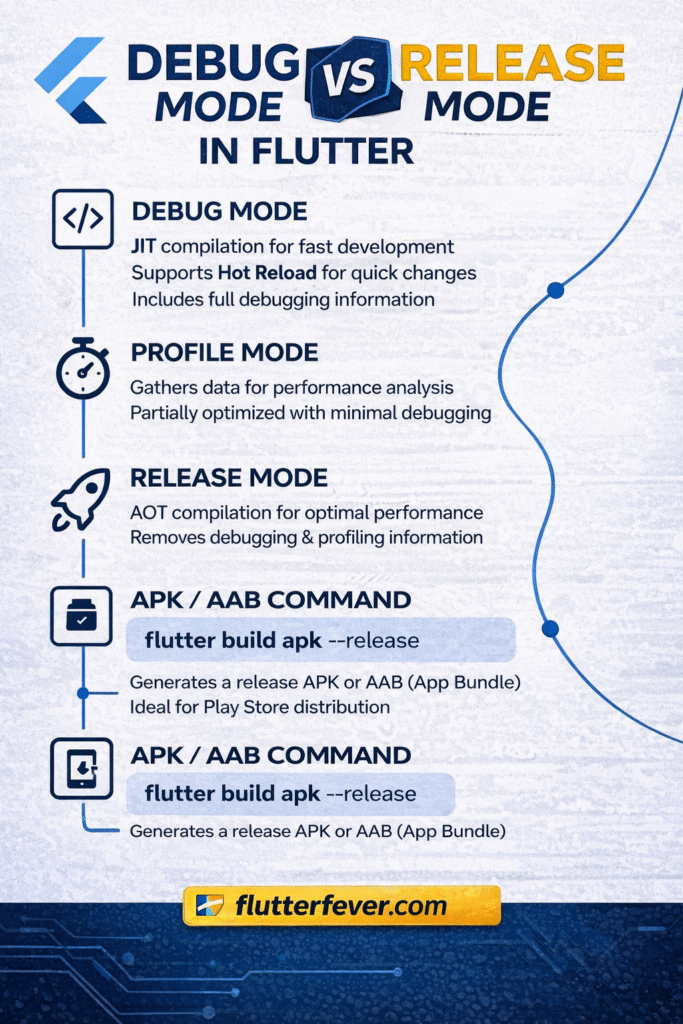
Flutter Build Modes Quick Summary
Flutter has three main build modes:
- Flutter Debug Mode: Development + hot reload
- Flutter Profile Mode: Performance profiling (near-release behavior)
- Flutter Release Mode: Production optimized build
Below are the most used Flutter commands for all modes.
1) Flutter Run Commands (Debug / Profile / Release)
Flutter Run Command (Default Debug Mode)
flutter run
This is the most common flutter run command and runs your app in Flutter debug mode.
Flutter Run in Debug Mode
flutter run --debug
Flutter Run in Profile Mode
flutter run --profile
Use this to measure performance (frame rendering, CPU, memory) in Flutter profile mode.
Flutter Run in Release Mode
flutter run --release
Use this to test real-world behavior in Flutter release mode (no debug overhead).
2) Flutter Build Commands (Android)
Flutter Build APK (Debug)
flutter build apk --debug
Flutter Build APK (Profile)
flutter build apk --profile
Flutter Build APK (Release)
flutter build apk --release
This is the most searched keyword command: flutter build apk release.
Flutter Build App Bundle (Release)
flutter build appbundle --release
Use this for Google Play Store. This is the standard flutter build appbundle command.
Flutter Build Split APKs by ABI (Smaller Size)
flutter build apk --release --split-per-abi
3) Flutter Build Commands (iOS)
Flutter Build iOS (Release)
flutter build ios --release
Flutter Build iOS Without Codesign
flutter build ios --release --no-codesign
Useful when building iOS without final signing step.
4) Flutter Build Commands (Web)
Flutter Build Web (Release)
flutter build web --release
Flutter Build Web with CanvasKit
flutter build web --release --web-renderer canvaskit
5) Flutter Build Commands (Windows / Desktop)
Flutter Build Windows (Release)
flutter build windows --release
Flutter Build MacOS (Release)
flutter build macos --release
Flutter Build Linux (Release)
flutter build linux --release
6) Flutter Doctor and Setup Commands
Flutter Doctor (Check Setup)
flutter doctor
Flutter Doctor Verbose
flutter doctor -v
This helps debug missing Android SDK, licenses, or toolchain issues.
Read Articles: Android Studio Download and Android SDK Setup steps for Flutter Development
7) Flutter Clean and Repair Commands
Flutter Clean (Fix Build Cache)
flutter clean
Flutter Pub Get
flutter pub get
Flutter Pub Upgrade
flutter pub upgrade
8) Flutter Device and Emulator Commands
List Connected Devices
flutter devices
List Available Emulators
flutter emulators
Launch Emulator
flutter emulators --launch <emulator_id>
9) Flutter Logs and Debugging Commands
View Flutter Logs
flutter logs
Analyze Code
flutter analyze
Run Tests
flutter test
10) Flutter Version & Channel Commands
Check Flutter Version
flutter --version
Upgrade Flutter
flutter upgrade
Switch Flutter Channel
flutter channel
Change to Stable Channel
flutter channel stable
flutter upgrade
11) Flutter Build with Obfuscation (Release Security)
Obfuscate Release Build
flutter build apk --release --obfuscate --split-debug-info=build/debug-info
This is a strong keyword section for:
flutter obfuscate release build, flutter split debug info, flutter security release mode
12) Flutter Build Number and Version Name Commands
Set Build Name and Build Number
flutter build apk --release --build-name=1.0.0 --build-number=10
Very useful for Play Store uploads.
Final Conclusion
Understanding Debug vs Release Mode in Flutter is essential for building high-performance applications. Debug mode prioritizes development speed using JIT compilation, while release mode focuses on performance and optimization using AOT compilation.
Always test your Flutter app in release mode before deploying to production. The difference between debug and release mode in Flutter directly affects startup time, runtime speed, app size, and security.
For production-grade Flutter development, mastering build modes is non-negotiable.
Read Articles : AWS Integration with Flutter: Complete Developer Guide
Frequently Asked Questions
Debug mode uses JIT compilation for development, while release mode uses AOT compilation for performance optimization.
Debug mode includes assertions, logging, and debugging tools, which reduce performance. Test in release mode for accurate performance.
Use:
flutter run –release
Or build:
flutter build apk –release
Yes. Debug logs and print statements are removed in release mode.
Yes. Always test performance and behavior in release mode before submitting to Play Store or App Store.
Profile mode allows performance profiling without debug overhead. It is useful for performance analysis.
No. Debug mode exposes debugging information and is not secure for production use.