

Download Flutter SDK (Windows) — Also for Mac & Linux

Flutter is Google’s UI toolkit for building Android, iOS, Web, Windows, macOS, and Linux apps from one codebase. In this guide you’ll learn how to download Flutter SDK on Windows, install it correctly, run flutter doctor, and set up Android Studio / VS Code. Then we’ll cover macOS and Linux in the same style.
Official Flutter install hub: Install Flutter
Official Flutter SDK Archive (Stable/older versions for Windows/macOS/Linux):
Official “Install with VS Code” option:
A. How to Download Flutter SDK in Windows (Official & Safe Method)
Step 1: Open the official Flutter install page
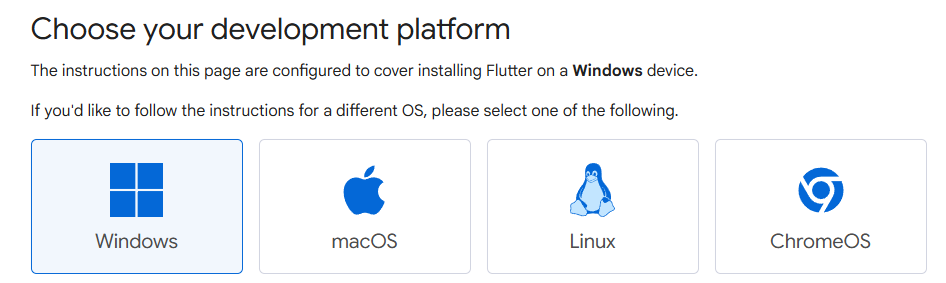
Go to the official docs page Install Flutter and choose Windows as your platform.
Step 2: Download the Flutter SDK (Windows ZIP)
For Windows, the Flutter SDK typically comes as a .zip file you download and extract. The official docs guide you to the right download path.
Alternative (recommended for specific versions):
If you want a specific stable version (or older version), use the Flutter SDK archive, which lists SDK builds for Windows, macOS, Linux by channel/version.
Step 3: Extract Flutter SDK to a clean folder
Extract the ZIP to a folder like:
C:\src\flutter(recommended)- Avoid locations like
C:\Program Files\(permission issues can happen)
B. How to Install Flutter on Windows (Complete Setup)
Step 1: Install Git (Required on Windows)
Flutter tools use Git under the hood, so install Git for Windows first. The official manual install checklist includes this prerequisite.
Step 2: Add Flutter to Windows PATH
You must add Flutter’s bin folder to PATH so flutter works anywhere.
- Open Environment Variables
- Start → search “Environment Variables” → “Edit the system environment variables”
- In System variables (or User variables), find Path → Edit
- Add this new entry:
C:\src\flutter\bin
Test it:
- Open PowerShell / CMD
- Run:
flutter --version
Read : How to Set Flutter Path in Windows (Step-by-Step Guide for Beginners)
Step 3: Run Flutter Doctor (your setup checklist)
Run:
flutter doctor
This command tells you what’s missing (Android SDK, licenses, etc.) and what’s already OK.
Read : How to check up proper Flutter installation Using Flutter Doctor Command
Step 4: Install Android Studio (for Android SDK + Emulator)
To build Android apps on Windows, you need:
- Android SDK
- Platform tools
- Emulator (optional but helpful)
Install Android Studio, then in SDK Manager install:
- Android SDK Platform
- Android SDK Build-Tools
- Android SDK Command-line Tools
- Platform-Tools
Read : How to install Android Studio and setup Android SDK for Faster Flutter development
Step 5: Accept Android Licenses (common missing step)
Run:
flutter doctor --android-licenses
Accept all prompts, then re-run:
flutter doctor
Step 6: Create & Run Your First Flutter App (Windows)
In terminal:
flutter create hello_fluttercd hello_flutterflutter run
If you want to target Windows desktop, enable it (Flutter doctor will guide you). For platform setup references, official docs include platform integration guides (like macOS/Linux setup pages).
Read Articles : Download Flutter PDF Book – Free Beginner to Advanced Dart Programming Guide
C. Easiest Method (Optional): Install Flutter Using VS Code
If you want an easier guided install path, Flutter provides an official “Install with VS Code” flow that helps download and set up Flutter quickly.
D. Flutter Installation on macOS (Download + Setup)
Step 1: Download Flutter SDK (macOS)
Use the Link install hub and choose macOS.
Or use the Flutter SDK archive for exact versions.
Step 2: Extract & Move Flutter Folder
Example:
~/development/flutter
Step 3: Add Flutter to PATH (zsh default)
Edit ~/.zshrc:
export PATH="$PATH:~/development/flutter/bin"
Then:
source ~/.zshrc
Read Articles : How to Set Flutter Path in Windows (Step-by-Step Guide for Beginners)
Step 4: Run flutter doctor
flutter doctor
Step 5: iOS setup (Xcode required)
If you plan to build iOS apps:
- Install Xcode
- Run Xcode once, accept licenses
- Install CocoaPods (if required by your workflow)
For macOS desktop platform setup reference:
E. Flutter Installation on Linux (Download + Setup)
Step 1: Download Flutter SDK (Linux)
Use the Link install hub and select Linux.
Or pick a specific version from the SDK archive.
Step 2: Extract Flutter
Example:
~/development/flutter
Step 3: Add Flutter to PATH
Edit ~/.bashrc (or your shell config):
export PATH="$PATH:$HOME/development/flutter/bin"
Then:
source ~/.bashrc
Step 4: Run Flutter Doctor
flutter doctor
Step 5: Linux desktop requirements
Linux desktop apps may require system packages (GTK, build tools, etc.). Flutter’s Linux platform setup page lists what you need based on distro and target.
Read Articles : How to create flutter project using command line with different parameter?
For Windows Direct Flutter sdk Download Link
For Mac OS Direct Flutter sdk Download Link
Flutter Download For Windows, Linux, MacOS, Chrome OS Archive stable version:
https://docs.flutter.dev/install/archive
Keywords Include
- how to install flutter on windows
- download flutter sdk for windows
- flutter sdk download windows 10 / windows 11
- flutter installation step by step
- flutter doctor fix issues
- install flutter on mac
- install flutter on linux
- flutter setup android studio windows
- add flutter to path windows
Read Articles : How to Build Your First App with Flutter: Beginner-Friendly Step-by-Step Tutorial
If you are downloading the Flutter SDK for the first time, make sure you also follow the complete Flutter installation process for Windows, set the correct Flutter path in your system, install Git properly, and configure Android Studio or VS Code before running your first project. Many beginners download the SDK successfully but still face issues later while using flutter doctor, setting the Flutter SDK path, or managing versions through FVM. To avoid those setup errors, it is a good idea to also read our guides on Flutter installation on Windows, Flutter doctor command fixes, Android Studio SDK path setup, and FVM for Flutter development.
FAQ (Windows + macOS + Linux) Download Flutter SDK
Use Flutter’s official documentation install page for your OS, or the official SDK archive for exact versions. Flutter official SDK
Yes—Flutter provides an official “Install with VS Code” flow to guide installation and setup.
If you want to build iOS apps, yes. If you only build Android/Web, you can skip Xcode (but flutter doctor will still mention it).
You can code in VS Code, but you still need the Android SDK to build/run Android apps. Android Studio is the easiest way to install and manage it.
flutter doctor do? It checks your full development setup (Flutter SDK, Android toolchain, IDE plugins, connected devices) and tells you exactly what’s missing.
Flutter SDK itself requires around 2–3 GB, but with Android Studio and emulator, it may take up to 10–15 GB.
Flutter is frequently updated. You can check the latest version using:
flutter –version
Yes, Flutter SDK allows developers to build both Android and iOS apps using the same codebase. It can also support web and desktop apps.
Yes, Flutter SDK is completely free and open source. Developers can use it for personal as well as commercial projects.
If flutter.bat is missing from the bin folder after extraction, Flutter docs say your antivirus software may have quarantined it. In that case, trust the Flutter SDK directory in your antivirus and extract the archive again.
After downloading Flutter SDK, extract it, add the SDK’s bin directory to PATH, reopen the terminal, and run flutter --version and dart --version to validate the setup. Then continue by setting up at least one target platform such as Android, web, or desktop.
Flutter’s upgrade/install guidance suggests using a shorter SDK path such as C:\Flutter if you run into long-path related issues.
or Read : How to Set Flutter Path in Windows (Step-by-Step Guide for Beginners)
If you face a Flutter SDK download problem on Windows, download the latest stable SDK from the official Flutter install pages or SDK archive, extract it to a simple folder path, and avoid locations with spaces, special characters, or admin restrictions.
Install Xcode command-line tools first, then download Flutter from the official install flow.
After setup, open Terminal and verify with flutter doctor
Install required packages like curl, git, unzip, xz-utils, and zip first.
Then download the Flutter SDK and check installation using flutter doctor.
Note : This is the Flutter SDK Download Process (No need install dart sdk) if you want download Only Dart SDK : Dart SDK Download for Windows, Linux and Mac
Fix Flutter Installation Error
Read Articles : Flutter Install Error Fixes Guide for Windows, Mac & Linux
if you need install different version of FLUTTER SDK DOWNLOAD Then :
Read Articles: Flutter FVM – Complete Guide to FVM (Flutter Version Management)
Are you confused about Dart SDK and Flutter SDK ? : Dart SDK vs Flutter SDK: Architecture, Differences, and How Flutter Uses Dart