

Flutter SDK Archive Download in 2026 – Older Versions Flutter SDK

In the fast-evolving ecosystem of cross-platform development, Flutter has positioned itself as one of the most reliable UI toolkits for building high-performance mobile, web, and desktop applications from a single codebase. However, as Flutter evolves rapidly with stable, beta, and master releases, developers frequently encounter compatibility issues between SDK versions, plugins, CI pipelines, and production builds.
That is where the Flutter SDK Archive – Download Older Versions Flutter SDK becomes critically important.
This comprehensive guide explores:
- What the Flutter SDK Archive is
- Why and when developers need older Flutter versions
- How to download older Flutter SDK versions
- Risks and best practices
- Introduction to FVM (Flutter Version Management)
- Enterprise-level workflow recommendations
- Frequently Asked Questions (FAQ)
If you are building production-grade apps, maintaining legacy projects, or managing multiple Flutter apps like enterprise systems , understanding version control at SDK level is non-negotiable.
What is Flutter SDK Archive?
The Flutter SDK Archive is the official collection of all previous stable, beta, and dev versions of the Flutter SDK maintained by the Flutter team.
It allows developers to:
- Download older stable releases
- Access specific patch versions
- Maintain legacy app compatibility
- Reproduce production environments
Official Source:
Flutter releases are available via the Flutter GitHub repository and official storage channels.
Why Do Developers Need Older Flutter SDK Versions?
1. Production App Stability
When an app is already live in production, upgrading Flutter blindly can:
- Break plugins
- Introduce build errors
- Change rendering behavior
- Impact performance
Enterprise apps often freeze Flutter versions until thorough QA is completed.
Read Articles: How to Design Flutter Enterprise App Architecture in 2026: Scalable & AI-Ready App Systems
2. Plugin Compatibility Issues
Many third-party packages support specific Flutter versions only.
Example scenarios:
- A payment SDK only supports Flutter 3.16
- A map library breaks in Flutter 3.19
- Native Android/iOS plugins fail due to Gradle/Xcode updates
In such cases, downloading older Flutter SDK versions becomes necessary.
3. Legacy Project Maintenance
If you maintain older client projects:
- The original Flutter version must be preserved
- Upgrading may cause dependency conflicts
- Regression risk increases
Many agencies and SaaS companies maintain 3–5 Flutter versions simultaneously.
4. CI/CD Pipeline Reproducibility
In professional development environments:
- CI servers lock specific Flutter versions
- Docker images use fixed SDK versions
- Reproducible builds require exact SDK matching
Without version control, debugging becomes extremely difficult.
5. Breaking Changes in Major Updates
Flutter major releases sometimes include:
- Rendering engine updates
- Dart version upgrades
- Deprecated APIs removal
- Platform embedding changes
Older projects may fail after such updates.
When Should You Use an Older Flutter SDK?
You should consider downloading older Flutter SDK versions when:
- You receive unexplained build failures after upgrading
- Plugins show compatibility errors
- iOS or Android build pipelines break
- Your production app was originally built with a specific version
- You need to replicate an issue reported in an older version
Avoid downgrading without analysis. Always evaluate impact first.
How to Download Older Versions of Flutter SDK
Method 1: Using Flutter SDK Archive (Manual Download)
- Visit the official Flutter releases page:
https://github.com/flutter/flutter/releases - Select the desired version (e.g., 3.16.9)
- Download for your OS:
- Windows (.zip)
- macOS (.zip)
- Linux (.tar.xz)
- Extract to a separate folder (e.g.,
flutter_3.16.9) - Update PATH temporarily if required
- Run:
flutter --version
Method 2: Using Git (Advanced Method)
If Flutter was installed via Git:
cd flutter
git fetch
git checkout 3.16.9
flutter doctor
Read Articles : Flutter Doctor command — What is flutter doctor (2026 Complete Guide)
This switches your Flutter SDK to a specific version tag.
Risks of Using Older Flutter Versions
While older SDKs are sometimes necessary, there are trade-offs:
- Security vulnerabilities
- Missing performance improvements
- Incompatibility with latest Android/iOS SDKs
- New device compatibility issues
- Deprecated Gradle/Xcode support

Therefore, use older versions strategically — not permanently.
Read : What’s New in Flutter 3.47? Simple Guide to the Latest Flutter SDK Update
Download Flutter SDK Archive
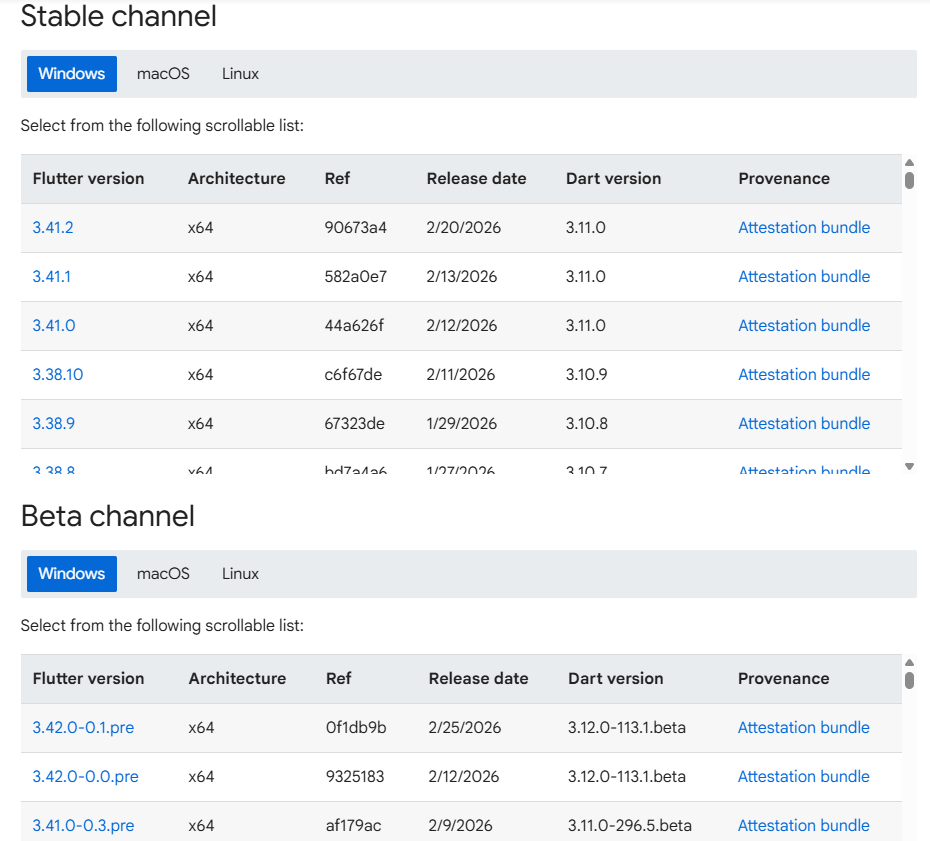
after click the above button or this link : https://docs.flutter.dev/install/archive
a screen will be appear like this image now choose Suitable version of Flutter SDK for Youd OS
Read Articles : Flutter Install Error Fixes Guide for Windows, Mac & Linux
Introducing FVM – Flutter Version Management
Managing multiple Flutter versions manually is messy.
That is where FVM (Flutter Version Management) becomes essential.
FVM allows you to:
- Install multiple Flutter versions
- Assign a specific version per project
- Avoid global PATH switching
- Maintain clean version isolation
What is FVM?
FVM is a CLI tool that simplifies Flutter version management per project.
Instead of changing your global Flutter version, FVM:
- Downloads SDK versions
- Links them per project
- Maintains version config in
.fvmfolder
This is industry standard for teams handling multiple apps.
How to Install FVM
Install using Dart:
dart pub global activate fvm
Verify installation:
fvm --version
Installing Specific Flutter Version Using FVM
fvm install 3.16.9
Use version in project:
fvm use 3.16.9
Run Flutter commands:
fvm flutter run
fvm flutter build apk
Why FVM is Recommended for Enterprise Projects
In multi-project environments like:
- Agri-tech apps
- Delivery apps
- SaaS dashboards
- Legacy client apps
FVM ensures:
- Project isolation
- Team version consistency
- CI stability
- Developer onboarding simplicity
Professional Flutter teams rarely manage SDK versions manually anymore.
Read Articles: Flutter FVM – Complete Guide to FVM (Flutter Version Management)
Best Practices for Managing Flutter SDK Versions
- Always commit
pubspec.lock - Document SDK version in README
- Use FVM for team projects
- Avoid upgrading before testing on staging
- Freeze version before production release
- Maintain version compatibility matrix
Flutter SDK Archive vs FVM – Which One Should You Use?
| Scenario | Use Archive | Use FVM |
|---|---|---|
| One-time downgrade | Yes | Optional |
| Multiple projects | No | Yes |
| Enterprise teams | No | Yes |
| CI/CD setup | Limited | Recommended |
| Long-term version control | No | Yes |
Conclusion:
Archive is for downloading.
FVM is for managing.
Final Thoughts
Understanding Flutter SDK Archive – Download Older Versions Flutter SDK is essential for any serious Flutter developer.
Whether you manage:
- Startup-level apps
- Enterprise-grade systems
- Multiple production apps
- Long-term SaaS products
SDK version control directly impacts stability, performance, and scalability.
Professional teams treat SDK version management as infrastructure — not an afterthought.
Read Articles : Flutter Developer Roadmap 2026: Complete Skill Path, Career Scope, and Future Trends
Frequently Asked Questions
Official GitHub Releases page of Flutter SDK.
Yes, but not recommended long-term due to security and compatibility risks.
Yes, but managing PATH manually is complex. FVM is preferred.
No. FVM works per project without disturbing global setup.
No. Always test on staging first.
Yes. FVM integrates smoothly into automated pipelines.
Stable: Production-ready
Beta: Feature testing
Master: Active development branch
Yes, in 2026 you can still download older Flutter SDK versions from the official archive. Flutter provides archived builds for Windows, macOS, and Linux.
Yes, the Flutter SDK Archive is part of Flutter’s official documentation website. It is the recommended place to get previous Flutter releases.
Older Flutter versions are useful for compatibility reasons, reproducing bugs, testing legacy projects, or matching a project’s existing toolchain. The official archive page explicitly mentions compatibility and bug investigation as reasons to use previous releases.
Yes, as long as you use the official Flutter SDK archive. Flutter docs direct users to the archive for previous releases and recommend staying updated when possible.
Yes. The official Flutter SDK archive includes Flutter SDK packages for Windows, macOS, and Linux.
Flutter’s manual install flow says to download the SDK bundle from the archive, extract it to your chosen folder, and then configure the SDK path and environment as needed.
If your project breaks after upgrading, download the older matching version from the SDK archive.
You can also compare changes in the release notes before switching versions.
Find the version in the archive, then move to your Flutter SDK folder and switch to that version.
Flutter’s upgrade docs explain switching to a specific version with git checkout
Replace current SDK with an older version or use flutter downgrade.
Run flutter upgrade to move to the latest stable version.
Are you confused about Dart SDK and Flutter SDK ? : Dart SDK vs Flutter SDK: Architecture, Differences, and How Flutter Uses Dart
Latest Flutter SDK: Flutter 3.47