

Flutter Scratch Card Package : How to Create Google Pay Style Reward Scratch Card in Flutter

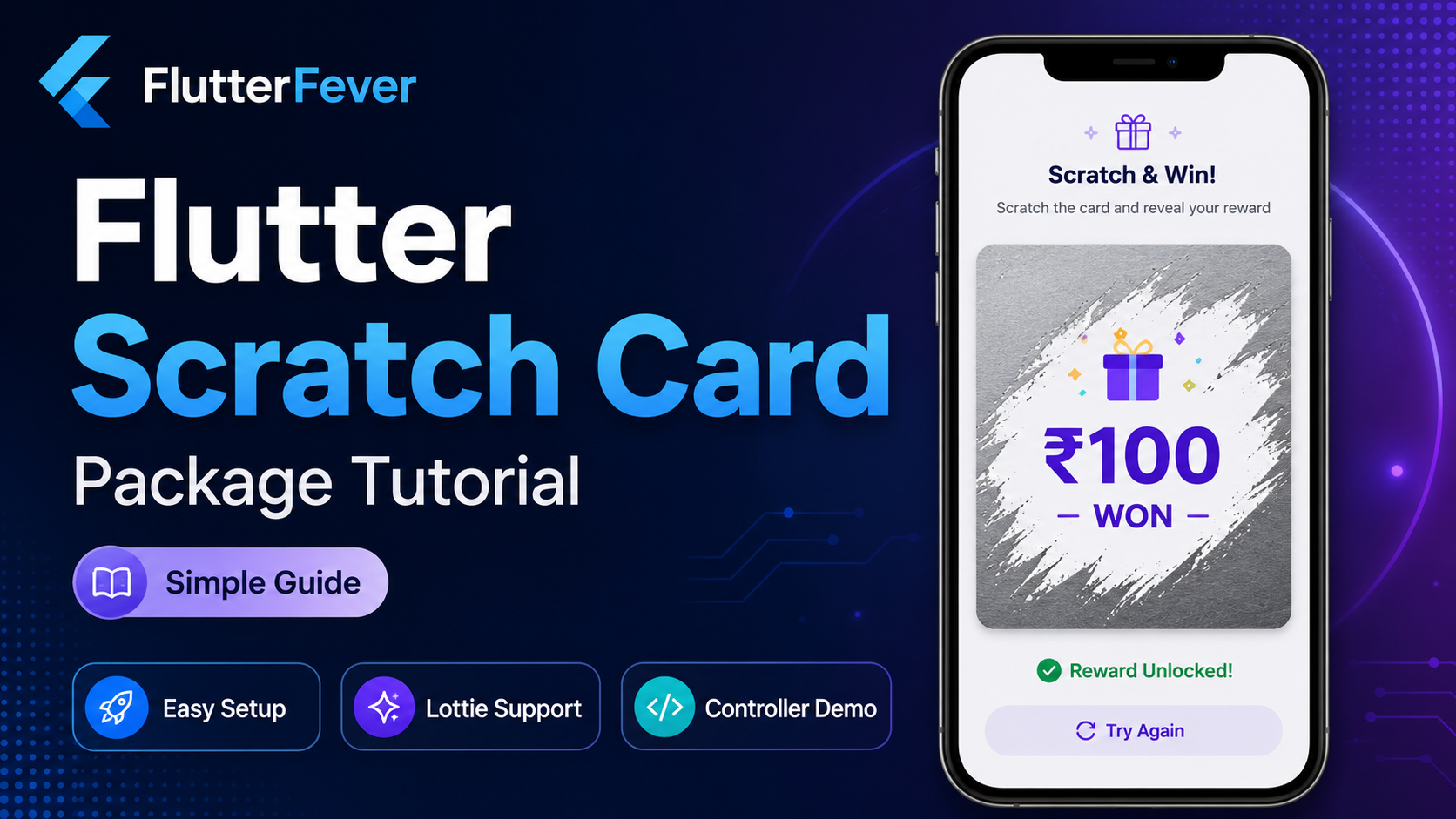
Scratch cards are one of the most engaging UI features in mobile apps. You have probably seen them in apps like Google Pay, PhonePe, Paytm, shopping apps, gaming apps, cashback apps, and loyalty reward apps.
A scratch card creates curiosity.
Users do not immediately see the reward. They need to scratch the card with their finger, and after scratching, the hidden reward is revealed. This small interaction can make your Flutter app feel more premium, interactive, and fun.
In this article, we will learn how to create a scratch card in Flutter using the flutter_scratch_card package.
The package version currently listed on pub.dev is flutter_scratch_card 1.0.1. It supports Flutter and platforms including Android, iOS, Linux, macOS, web, and Windows. The package is described as a production-ready customizable scratch card widget with image overlays, Lottie celebrations, and progress triggers.
What Is flutter_scratch_card?
flutter_scratch_card is a Flutter package that helps developers create customizable scratch card widgets.
With this package, you can build reward cards similar to:
- Google Pay cashback scratch card
- Coupon reveal card
- Lucky draw card
- Spin and win reward reveal
- Festival offer card
- Wallet cashback reward
- Referral bonus reveal card
- E-commerce discount coupon
The package includes features such as advanced overlays, image overlays, brush size control, progress tracking, milestone triggers, Lottie/GIF celebrations, haptic feedback, and controller-based reveal/reset actions.
Why Use a Scratch Card in Flutter Apps?
Scratch cards are useful when you want to increase user engagement.
For example, you can use a scratch card in:
- Cashback app
- Grocery delivery app
- Shopping app
- Fintech app
- Food delivery app
- Learning app
- Gaming app
- Loyalty reward app
- Referral system
- Festival offer campaign
- Coupon reward page
Instead of directly showing:
You won ₹50 cashbackYou can show:
Scratch to reveal your rewardThis creates excitement and improves the user experience.
Key Features of flutter_scratch_card
The flutter_scratch_card package provides several modern features.
1. Custom Scratch Overlay
You can use a simple color overlay such as grey, silver, blue, or any custom color.
Example:
scratchColor: Colors.grey2. Image Overlay
You can use an image as the scratch layer. This is useful for creating a realistic metallic scratch card effect.
Example:
overlayImageAsset: 'assets/scratch_texture.png'The package supports texture-style image overlays through overlayImageAsset.
3. Brush Size Control
You can control how large the scratch brush should be.
Example:
brushSize: 30A larger brush reveals the card faster. A smaller brush gives a more detailed scratch effect.
4. Progress Tracking
The package can track how much area has been scratched.
Example:
threshold: 0.7This means when the user scratches 70% of the card, the reward can be fully unlocked.
5. Milestone Triggers
You can trigger an event at specific scratch progress levels.
Example:
progressTriggers: const [0.2, 0.5, 0.8]The package supports milestone triggers such as 20%, 50%, or 80% scratch progress.
6. Lottie and GIF Animation
You can show celebration animations when the reward is unlocked.
Example:
animationType: ScratchAnimationType.lottie,
animationAsset: 'assets/confetti.json',
The package supports animated rewards using Lottie and GIF animations.
Free tool: Lottie JSON Viewer for Flutter – Preview, Validate and Generate Flutter Lottie Code
7. Haptic Feedback
The package also supports built-in haptic feedback, which gives users a vibration-like tactile response while scratching.
8. ScratchController
You can reveal or reset the card programmatically using ScratchController.
Example:
controller.reveal();
controller.reset();
The package documentation shows that ScratchController can manage reveal, reset, and current progress.
Installation
Add the package in your pubspec.yaml file:
dependencies:
  flutter:
    sdk: flutter

  flutter_scratch_card: ^1.0.1
  lottie: ^3.1.2
The package page mentions lottie as a dependency required for Lottie animations.
Then run:
flutter pub getBasic Flutter Scratch Card Example
Let’s create a simple scratch card.
Step 1: Import Package
import 'package:flutter/material.dart';
import 'package:flutter_scratch_card/flutter_scratch_card.dart';
Step 2: Create Basic Scratch Card
ScratchCard(
  brushSize: 30,
  threshold: 0.7,
  onThreshold: () {
    debugPrint("Reward Unlocked!");
  },
  child: Image.asset('assets/reward.png'),
)
In this example:
brushSize: 30controls the scratch brush size.threshold: 0.7means the reward unlocks after 70% scratch.onThresholdruns when the threshold is reached.childis the reward content hidden behind the scratch layer.
This basic usage is also shown in the package documentation.
Complete Scratch Card App Example
Here is a full Flutter example.
import 'package:flutter/material.dart';
import 'package:flutter_scratch_card/flutter_scratch_card.dart';

class ScratchCardDemoPage extends StatelessWidget {
  const ScratchCardDemoPage({super.key});

  @override
  Widget build(BuildContext context) {
    return Scaffold(
      backgroundColor: const Color(0xfff4f6fb),
      appBar: AppBar(
        title: const Text('Flutter Scratch Card'),
        centerTitle: true,
      ),
      body: Center(
        child: Container(
          width: 320,
          height: 180,
          decoration: BoxDecoration(
            borderRadius: BorderRadius.circular(24),
            boxShadow: [
              BoxShadow(
                color: Colors.black.withOpacity(0.12),
                blurRadius: 24,
                offset: const Offset(0, 12),
              ),
            ],
          ),
          child: ClipRRect(
            borderRadius: BorderRadius.circular(24),
            child: ScratchCard(
              brushSize: 35,
              threshold: 0.6,
              scratchColor: Colors.grey,
              onThreshold: () {
                debugPrint('Reward unlocked');
              },
              child: Container(
                decoration: const BoxDecoration(
                  gradient: LinearGradient(
                    colors: [
                      Color(0xff1565C0),
                      Color(0xff42A5F5),
                    ],
                  ),
                ),
                child: const Center(
                  child: Column(
                    mainAxisAlignment: MainAxisAlignment.center,
                    children: [
                      Text(
                        'Congratulations!',
                        style: TextStyle(
                          color: Colors.white,
                          fontSize: 22,
                          fontWeight: FontWeight.bold,
                        ),
                      ),
                      SizedBox(height: 10),
                      Text(
                        'You won ₹100 cashback',
                        style: TextStyle(
                          color: Colors.white,
                          fontSize: 18,
                        ),
                      ),
                    ],
                  ),
                ),
              ),
            ),
          ),
        ),
      ),
    );
  }
}
This creates a simple reward scratch card with a hidden cashback message.
Premium Scratch Card with Image Overlay
A solid grey overlay works, but a real scratch card usually has a silver or metallic texture.
You can add a texture image:
ScratchCard(
  overlayImageAsset: 'assets/images/scratch_texture.png',
  brushSize: 32,
  threshold: 0.6,
  autoReveal: true,
  onThreshold: () {
    debugPrint('Reward revealed');
  },
  child: const Center(
    child: Text(
      '₹250 WON',
      style: TextStyle(
        fontSize: 32,
        fontWeight: FontWeight.bold,
      ),
    ),
  ),
)
You also need to register the image asset in pubspec.yaml:
flutter:
  assets:
    - assets/images/scratch_texture.png
Scratch Card with Lottie Confetti Animation
For a premium reward experience, you can add celebration animation.
First, add your Lottie file:
flutter:
  assets:
    - assets/animations/confetti.json
    - assets/images/scratch_texture.png
Then use:
ScratchCard(
  overlayImageAsset: 'assets/images/scratch_texture.png',
  animationType: ScratchAnimationType.lottie,
  animationAsset: 'assets/animations/confetti.json',
  progressTriggers: const [0.5],
  autoReveal: true,
  threshold: 0.6,
  child: Container(
    decoration: const BoxDecoration(
      gradient: LinearGradient(
        colors: [
          Color(0xff0F2027),
          Color(0xff203A43),
          Color(0xff2C5364),
        ],
      ),
    ),
    child: const Center(
      child: Text(
        '₹500 WON',
        style: TextStyle(
          color: Colors.white,
          fontSize: 34,
          fontWeight: FontWeight.bold,
        ),
      ),
    ),
  ),
)
Here:
animationTypedefines the animation type.animationAssetdefines the animation file.progressTriggers: const [0.5]starts the animation at 50% scratch.threshold: 0.6reveals the reward at 60%.autoReveal: truefades out the overlay after reaching the threshold.
The package documentation includes a similar premium example using image overlay, Lottie animation, progress triggers, auto reveal, and threshold.
Using ScratchController
Sometimes you may want to reveal or reset the scratch card using buttons.
For example:
- User clicks “Reveal Now”
- User clicks “Try Again”
- Admin wants to reset reward
- User gets new scratch card after claiming reward
You can use ScratchController.
final ScratchController controller = ScratchController();Then pass it to the widget:
ScratchCard(
  controller: controller,
  brushSize: 30,
  threshold: 0.6,
  child: const Center(
    child: Text(
      'You won a coupon!',
      style: TextStyle(fontSize: 24),
    ),
  ),
)
Reveal card:
controller.reveal();Reset card:
controller.reset();Check progress:
debugPrint(controller.progress.toString());The package documentation confirms that ScratchController supports reveal(), reset(), and current progress checking.
Complete Controller Example
import 'package:flutter/material.dart';
import 'package:flutter_scratch_card/flutter_scratch_card.dart';

class ControlledScratchCardPage extends StatefulWidget {
  const ControlledScratchCardPage({super.key});

  @override
  State<ControlledScratchCardPage> createState() =>
      _ControlledScratchCardPageState();
}

class _ControlledScratchCardPageState extends State<ControlledScratchCardPage> {
  final ScratchController scratchController = ScratchController();

  @override
  Widget build(BuildContext context) {
    return Scaffold(
      backgroundColor: const Color(0xfff5f6fa),
      appBar: AppBar(
        title: const Text('Scratch Controller Demo'),
      ),
      body: Padding(
        padding: const EdgeInsets.all(20),
        child: Column(
          mainAxisAlignment: MainAxisAlignment.center,
          children: [
            SizedBox(
              height: 180,
              width: double.infinity,
              child: ClipRRect(
                borderRadius: BorderRadius.circular(22),
                child: ScratchCard(
                  controller: scratchController,
                  brushSize: 35,
                  threshold: 0.6,
                  scratchColor: Colors.blueGrey,
                  onThreshold: () {
                    ScaffoldMessenger.of(context).showSnackBar(
                      const SnackBar(
                        content: Text('Reward unlocked!'),
                      ),
                    );
                  },
                  child: Container(
                    color: Colors.white,
                    child: const Center(
                      child: Text(
                        'Flat 50% OFF',
                        style: TextStyle(
                          fontSize: 30,
                          fontWeight: FontWeight.bold,
                          color: Colors.deepPurple,
                        ),
                      ),
                    ),
                  ),
                ),
              ),
            ),
            const SizedBox(height: 30),
            Row(
              children: [
                Expanded(
                  child: ElevatedButton(
                    onPressed: () {
                      scratchController.reveal();
                    },
                    child: const Text('Reveal'),
                  ),
                ),
                const SizedBox(width: 16),
                Expanded(
                  child: OutlinedButton(
                    onPressed: () {
                      scratchController.reset();
                    },
                    child: const Text('Reset'),
                  ),
                ),
              ],
            ),
          ],
        ),
      ),
    );
  }
}
Important Parameters of flutter_scratch_card
| Parameter | Type | Use |
|---|---|---|
child | Widget | The hidden reward/content below the scratch layer |
overlayImageAsset | String? | Image texture for scratch overlay |
scratchColor | Color | Solid overlay color fallback |
animationType | ScratchAnimationType | none, gif, or lottie |
animationAsset | String? | Path of GIF or Lottie animation |
progressTriggers | List<double> | Milestone triggers such as 0.2, 0.5, 0.8 |
threshold | double | Reveal trigger percentage |
brushSize | double | Scratch brush diameter |
enableHaptics | bool | Enable or disable vibration feedback |
controller | ScratchController? | Programmatic reveal/reset control |
These parameters are listed in the package documentation.
Real App Use Cases
1. Cashback App
User completes payment → Scratch card appears → User scratches → Cashback revealedExample reward:
You won ₹25 cashback2. E-commerce Coupon App
User places order → Scratch card unlocks → Discount coupon appearsExample reward:
Use code SAVE1003. Food Delivery App
User orders food → Gets scratch card → Wins free delivery couponExample reward:
Free delivery on next order4. Learning App
Student completes lesson → Scratch reward → Gets badge or bonus pointsExample reward:
You earned 50 learning points5. Referral App
User refers friend → Scratch card unlocks → Referral bonus appearsExample reward:
You earned ₹100 referral bonusBest UI Tips for Scratch Card Design
1. Use Premium Card Shape
Use rounded corners:
BorderRadius.circular(24)2. Use Gradient Reward Background
gradient: LinearGradient(
  colors: [
    Color(0xff6A11CB),
    Color(0xff2575FC),
  ],
)
3. Use Clear CTA Text
Before scratching, show:
Scratch hereAfter scratching, show:
You won ₹1004. Add Animation
Use Lottie confetti animation for a premium experience.
5. Use Haptic Feedback
Keep haptics enabled for better interaction:
enableHaptics: true6. Keep Reward Text Large
Reward should be instantly visible after scratching.
Common Errors and Fixes
Error 1: Asset Not Found
If your overlay image or Lottie animation does not load, check pubspec.yaml.
Correct format:
flutter:
  assets:
    - assets/images/scratch_texture.png
    - assets/animations/confetti.json
Then run:
flutter pub getError 2: Lottie Animation Not Playing
Make sure you added:
lottie: ^3.1.2Also check that the animation file path is correct.
Error 3: Scratch Card Not Visible
Check if the card has proper height and width.
Use:
SizedBox(
  width: 320,
  height: 180,
  child: ScratchCard(...)
)
Error 4: Overlay Is Too Hard to Scratch
Increase brush size:
brushSize: 45Or reduce threshold:
threshold: 0.5Error 5: Reward Reveals Too Quickly
Reduce brush size or increase threshold:
brushSize: 25,
threshold: 0.8,
Best Practices for Production Apps
For production apps, do not generate rewards only on the frontend.
Wrong approach:
Reward generated inside Flutter app onlyBetter approach:
Backend decides reward → Flutter displays scratch card → User scratches → Claim API confirms rewardRecommended flow:
1. User completes eligible action
2. Backend creates reward
3. Flutter shows scratch card
4. User scratches card
5. App reveals reward
6. User taps claim
7. Backend confirms claim
8. Reward is added to wallet/account
This prevents fraud and reward manipulation.
Read : Flutter Crossword Package: Build Interactive Word Puzzle Games in Flutter
Backend Flow for Reward Scratch Card
For real apps, use backend tables like:
scratch_rewardsPossible columns:
id
user_id
reward_type
reward_value
coupon_code
status
created_at
claimed_at
expires_at
Possible status:
pending
revealed
claimed
expired
Example API flow:
GET /api/user/scratch-reward
POST /api/user/scratch-reward/reveal
POST /api/user/scratch-reward/claim
This makes your reward system secure and scalable.
Flutter Scratch Card Package Pros
The package is useful because it offers:
- Simple ScratchCard widget
- Image overlay support
- Lottie/GIF support
- Progress tracking
- Milestone triggers
- Haptic feedback
- Controller support
- Multi-platform Flutter support
- MIT license
The pub.dev page lists the package license as MIT and dependencies as Flutter and Lottie.
Things to Check Before Production Use
The package is useful, but before using any package in a production app, check:
- Package maintenance status
- GitHub repository activity
- Open issues
- Compatibility with your Flutter SDK
- Web performance
- iOS and Android testing
- Asset loading performance
- App size impact due to Lottie/GIF files
On pub.dev, the publisher is currently shown as an unverified uploader, so review the package carefully before using it in sensitive production apps.
Complete Example Prompt for AI-Assisted Flutter Development
You can use this prompt with Gemini, ChatGPT, or any AI coding assistant:
Create a Flutter reward scratch card screen using flutter_scratch_card package.

Requirements:
1. Use flutter_scratch_card: ^1.0.1
2. Show a premium scratch card UI
3. Use image overlay for scratch texture
4. Use Lottie confetti animation
5. Reveal reward after 60% scratch
6. Add Reveal and Reset buttons using ScratchController
7. Use clean reusable widgets
8. Add proper asset setup instructions
9. Explain the code
Final Flutter Scratch Card Example for Reward App
import 'package:flutter/material.dart';
import 'package:flutter_scratch_card/flutter_scratch_card.dart';

class RewardScratchCardScreen extends StatefulWidget {
  const RewardScratchCardScreen({super.key});

  @override
  State<RewardScratchCardScreen> createState() =>
      _RewardScratchCardScreenState();
}

class _RewardScratchCardScreenState extends State<RewardScratchCardScreen> {
  final ScratchController controller = ScratchController();
  bool isUnlocked = false;

  void _onRewardUnlocked() {
    if (isUnlocked) return;

    setState(() {
      isUnlocked = true;
    });

    ScaffoldMessenger.of(context).showSnackBar(
      const SnackBar(
        content: Text('Congratulations! Reward unlocked.'),
      ),
    );
  }

  void _resetCard() {
    setState(() {
      isUnlocked = false;
    });
    controller.reset();
  }

  @override
  Widget build(BuildContext context) {
    return Scaffold(
      backgroundColor: const Color(0xffeef2f7),
      appBar: AppBar(
        title: const Text('Reward Scratch Card'),
        centerTitle: true,
      ),
      body: Padding(
        padding: const EdgeInsets.all(22),
        child: Column(
          mainAxisAlignment: MainAxisAlignment.center,
          children: [
            Text(
              isUnlocked ? 'Reward Unlocked' : 'Scratch to reveal your reward',
              style: const TextStyle(
                fontSize: 22,
                fontWeight: FontWeight.w800,
              ),
              textAlign: TextAlign.center,
            ),
            const SizedBox(height: 24),

            SizedBox(
              width: double.infinity,
              height: 200,
              child: ClipRRect(
                borderRadius: BorderRadius.circular(28),
                child: ScratchCard(
                  controller: controller,
                  brushSize: 36,
                  threshold: 0.6,
                  autoReveal: true,
                  enableHaptics: true,
                  scratchColor: Colors.blueGrey,
                  animationType: ScratchAnimationType.lottie,
                  animationAsset: 'assets/animations/confetti.json',
                  progressTriggers: const [0.5],
                  onThreshold: _onRewardUnlocked,
                  child: Container(
                    decoration: const BoxDecoration(
                      gradient: LinearGradient(
                        colors: [
                          Color(0xff1D976C),
                          Color(0xff93F9B9),
                        ],
                        begin: Alignment.topLeft,
                        end: Alignment.bottomRight,
                      ),
                    ),
                    child: const Center(
                      child: Column(
                        mainAxisAlignment: MainAxisAlignment.center,
                        children: [
                          Text(
                            'You Won',
                            style: TextStyle(
                              color: Colors.white,
                              fontSize: 24,
                              fontWeight: FontWeight.w600,
                            ),
                          ),
                          SizedBox(height: 8),
                          Text(
                            '₹100 Cashback',
                            style: TextStyle(
                              color: Colors.white,
                              fontSize: 34,
                              fontWeight: FontWeight.w900,
                            ),
                          ),
                        ],
                      ),
                    ),
                  ),
                ),
              ),
            ),

            const SizedBox(height: 28),

            Row(
              children: [
                Expanded(
                  child: ElevatedButton(
                    onPressed: () {
                      controller.reveal();
                      _onRewardUnlocked();
                    },
                    child: const Text('Reveal'),
                  ),
                ),
                const SizedBox(width: 16),
                Expanded(
                  child: OutlinedButton(
                    onPressed: _resetCard,
                    child: const Text('Reset'),
                  ),
                ),
              ],
            ),
          ],
        ),
      ),
    );
  }
}
Conclusion
The flutter_scratch_card package is a useful Flutter package for creating modern, interactive, and engaging scratch card experiences. You can use it to build cashback cards, coupon reveal cards, referral rewards, festival offers, loyalty rewards, and gaming-style prize reveals.
It supports important features like scratch overlay color, image texture overlay, brush size control, threshold reveal, milestone triggers, Lottie/GIF celebrations, haptic feedback, and ScratchController.
For simple apps, you can use it directly with a hidden reward widget. For production apps, connect it with a secure backend reward system so that users cannot manipulate rewards from the frontend.
Overall, if you want to create a Google Pay style scratch card in Flutter, flutter_scratch_card is a strong package to try.
FAQs
flutter_scratch_card is a useful package for creating customizable scratch cards in Flutter with overlay images, Lottie/GIF animation, progress triggers, haptic feedback, and controller support.
You can create a scratch card using the ScratchCard widget from the flutter_scratch_card package. Add hidden content as the child, then configure brush size, threshold, scratch color, or overlay image.
Yes. You can create a Google Pay style reward card using flutter_scratch_card, image overlay, progress threshold, and Lottie confetti animation.
Yes. The package supports Lottie and GIF animation for reward celebration effects.
Yes. You can use ScratchController and call:controller.reveal();
Yes. Use:controller.reset();
No. For real apps, generate and validate rewards from the backend. Flutter should only display and reveal the reward.