

How to Use Gemini in Android Studio for Flutter App Development: Complete Beginner to Advanced Guide 2026

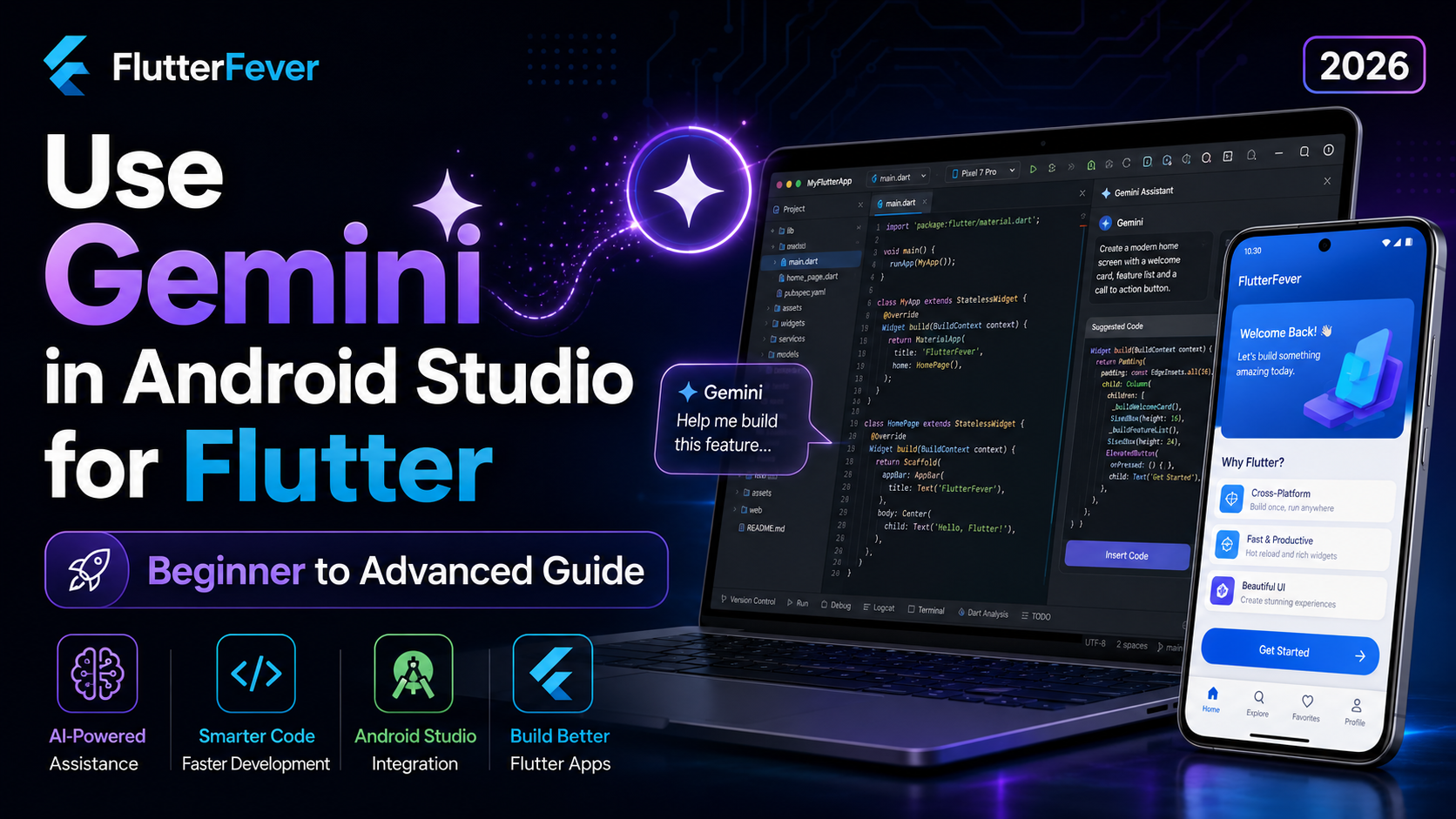
Artificial Intelligence is changing the way developers write, debug, test, and improve mobile applications. For Flutter developers, one of the most useful AI tools today is Gemini in Android Studio. It works directly inside Android Studio and helps developers generate code, understand errors, improve UI, fix bugs, refactor logic, and learn Flutter concepts faster.
For a beginner, Gemini can act like a learning partner. For an experienced Flutter developer, it can work like a productivity assistant. It cannot replace your development knowledge, but it can reduce repetitive work, speed up debugging, and help you think through better architecture.
Google officially describes Gemini in Android Studio as an AI-powered coding companion that can answer development questions, generate code, find resources, and support best practices. It is also designed for Android development tasks such as Gradle troubleshooting, Logcat analysis, crash analysis, and UI help. Flutter support has also improved significantly, and Google’s Flutter team announced first-class Dart and Flutter support for Gemini in Android Studio in 2025.
In this complete guide, we will learn how to use Gemini in Android Studio for Flutter app development from beginner to advanced level.
What Is Gemini in Android Studio?
Gemini in Android Studio is an AI coding assistant built into Android Studio. It helps developers by understanding natural language prompts and giving useful answers related to coding, debugging, project structure, UI design, errors, and best practices.
For Flutter developers, Gemini can help with:
- Writing Dart code
- Creating Flutter widgets
- Explaining Flutter errors
- Improving UI layouts
- Refactoring messy code
- Generating model classes
- Creating API service classes
- Understanding state management
- Fixing Gradle or Android build errors
- Writing tests
- Explaining package usage
- Improving performance
Android Studio’s Gemini features include code assistance, agent-style help, dependency updates, next edit suggestions, API key support, and project-aware development features.
Why Flutter Developers Should Use Gemini
Flutter development is fast, but modern Flutter apps are no longer simple. A real production app may include authentication, APIs, Firebase, push notifications, state management, local storage, deep linking, payments, maps, animations, and Play Store deployment.
Gemini can help developers at every stage of the Flutter development lifecycle.
For example, a beginner can ask:
Explain StatelessWidget and StatefulWidget with simple examples.
An intermediate developer can ask:
Convert this Flutter UI into a reusable widget.
An advanced developer can ask:
Refactor this GetX controller into a clean service-controller-repository structure.
This makes Gemini useful for learning, building, debugging, and scaling Flutter applications.
Important: Gemini Is an Assistant, Not a Replacement
Before using Gemini seriously, every Flutter developer should understand one thing: Gemini can make mistakes.
AI-generated Flutter code may look correct but still have logical problems, performance issues, deprecated package usage, or weak architecture. You should always review the code before using it in production.
Use Gemini for speed, explanation, and direction, but keep your own development judgment active.
A good rule is:
Ask Gemini to generate, but you should verify, test, and improve.
Requirements Before Using Gemini for Flutter Development
To use Gemini in Android Studio for Flutter development, you should have:
- Android Studio installed
- Flutter SDK configured
- Dart plugin enabled
- Flutter plugin enabled
- A working Flutter project
- Internet connection
- Gemini access in Android Studio
- Google account or Gemini API key, depending on your setup
Flutter’s documentation explains that Android Studio and IntelliJ can be used for Flutter development with the required Flutter and Dart plugins.
How to Enable Gemini in Android Studio
The exact UI may vary depending on your Android Studio version, but the general process is:
- Open Android Studio.
- Open your Flutter project.
- Look for the Gemini panel or AI assistant option.
- Sign in with your Google account if required.
- Accept the required terms.
- Start asking coding questions in the Gemini chat panel.
Google’s official guide says you can also add your own Gemini API key through:
File > Settings > Tools > AI > Model Providers > Gemini
From there, you can click Get a Gemini API key, create or retrieve your key from Google AI Studio, enter it in Android Studio, and select the models you want to enable.
Read : Android Studio AI: Complete Guide to Building Apps with AI-Powered Project Generation
Should You Add a Gemini API Key?
For normal learning and basic code help, you may not need a custom API key. But advanced developers may want to add one for better limits or larger context.
Google’s official Gemini setup page notes that adding an API key can expand the context window and allow pay-per-token usage.
This can be useful when your Flutter project is large and you want Gemini to understand more files, more code, or more complex architecture.
Privacy Considerations for Flutter Developers
When using AI tools inside your IDE, privacy matters. Your Flutter project may contain API keys, Firebase config files, private business logic, client data, or backend URLs.
Google provides documentation about data and privacy for Gemini in Android Studio. It says data is handled according to Google’s Privacy Policy and Gemini Privacy Notice, while business usage through Gemini Code Assist follows Google Cloud privacy terms.
Google also explains that developers can use an .aiexclude file or disable context sharing to control what project files Gemini can access. Paid plans are stated not to use your code for model training, according to Google’s Android Developers blog.
For production Flutter projects, avoid sharing:
- API keys
- Payment secrets
- Firebase private credentials
- Admin panel credentials
- Database passwords
- Client confidential logic
- Unreleased business strategy
Beginner Level: How Freshers Can Use Gemini for Flutter
1. Learn Flutter Concepts with Gemini
If you are new to Flutter, Gemini can explain concepts in simple language.
You can ask:
Explain Flutter widget tree in simple language with one small example.Or:
What is the difference between StatelessWidget and StatefulWidget in Flutter?
Explain like I am a beginner.
Gemini can break down concepts such as:
- Widget tree
- BuildContext
- Scaffold
- MaterialApp
- State management
- setState
- Navigation
- Forms
- API calling
- Async/await
- FutureBuilder
- StreamBuilder
This is very helpful when you are learning Flutter from zero.
2. Generate Simple Flutter UI
Suppose you want to create a login page. You can ask Gemini:
Create a simple Flutter login screen with email field, password field,
login button, and create account text. Use clean modern UI.
Gemini may generate code like this:
import 'package:flutter/material.dart';

class LoginPage extends StatelessWidget {
  const LoginPage({super.key});

  @override
  Widget build(BuildContext context) {
    return Scaffold(
      backgroundColor: const Color(0xfff7f8fa),
      body: Center(
        child: SingleChildScrollView(
          padding: const EdgeInsets.all(24),
          child: Container(
            padding: const EdgeInsets.all(24),
            decoration: BoxDecoration(
              color: Colors.white,
              borderRadius: BorderRadius.circular(20),
              boxShadow: [
                BoxShadow(
                  color: Colors.black.withOpacity(0.08),
                  blurRadius: 20,
                  offset: const Offset(0, 10),
                ),
              ],
            ),
            child: Column(
              mainAxisSize: MainAxisSize.min,
              children: [
                const Text(
                  'Welcome Back',
                  style: TextStyle(
                    fontSize: 26,
                    fontWeight: FontWeight.bold,
                  ),
                ),
                const SizedBox(height: 24),
                TextField(
                  decoration: InputDecoration(
                    labelText: 'Email',
                    border: OutlineInputBorder(
                      borderRadius: BorderRadius.circular(14),
                    ),
                  ),
                ),
                const SizedBox(height: 16),
                TextField(
                  obscureText: true,
                  decoration: InputDecoration(
                    labelText: 'Password',
                    border: OutlineInputBorder(
                      borderRadius: BorderRadius.circular(14),
                    ),
                  ),
                ),
                const SizedBox(height: 24),
                SizedBox(
                  width: double.infinity,
                  height: 50,
                  child: ElevatedButton(
                    onPressed: () {},
                    child: const Text('Login'),
                  ),
                ),
              ],
            ),
          ),
        ),
      ),
    );
  }
}
This code may not be perfect for production, but it gives you a starting point.
3. Ask Gemini to Explain Code
Freshers often copy code but do not understand it. Instead of blindly copying, ask Gemini:
Explain this Flutter code line by line in beginner-friendly language.This helps you understand:
- Why Scaffold is used
- What Column does
- Why SingleChildScrollView prevents overflow
- How TextField works
- What BoxDecoration does
- Why SizedBox is used for spacing
This method helps you grow as a developer instead of becoming dependent on AI.
4. Fix Basic Flutter Errors
If you get an error like:
A RenderFlex overflowed by 40 pixels on the bottom.You can ask Gemini:
I am getting this Flutter error:
A RenderFlex overflowed by 40 pixels on the bottom.
Why is this happening and how can I fix it?
Gemini may suggest using:
- SingleChildScrollView
- Expanded
- Flexible
- ListView
- Proper spacing
- Smaller widgets
- Responsive layout
This is one of the best uses of Gemini for beginners.
Intermediate Level: Using Gemini for Real Flutter App Development
1. Generate Reusable Widgets
As your app grows, you should avoid repeating UI code. Gemini can help convert repeated code into reusable widgets.
Prompt:
Convert this Flutter container code into a reusable CustomCard widget
with title, subtitle, icon, and onTap callback.
Example output:
class CustomCard extends StatelessWidget {
  final String title;
  final String subtitle;
  final IconData icon;
  final VoidCallback onTap;

  const CustomCard({
    super.key,
    required this.title,
    required this.subtitle,
    required this.icon,
    required this.onTap,
  });

  @override
  Widget build(BuildContext context) {
    return InkWell(
      onTap: onTap,
      borderRadius: BorderRadius.circular(18),
      child: Container(
        padding: const EdgeInsets.all(18),
        decoration: BoxDecoration(
          color: Colors.white,
          borderRadius: BorderRadius.circular(18),
          boxShadow: [
            BoxShadow(
              color: Colors.black.withOpacity(0.06),
              blurRadius: 16,
              offset: const Offset(0, 8),
            ),
          ],
        ),
        child: Row(
          children: [
            Icon(icon, size: 34),
            const SizedBox(width: 16),
            Expanded(
              child: Column(
                crossAxisAlignment: CrossAxisAlignment.start,
                children: [
                  Text(
                    title,
                    style: const TextStyle(
                      fontSize: 17,
                      fontWeight: FontWeight.w700,
                    ),
                  ),
                  const SizedBox(height: 4),
                  Text(
                    subtitle,
                    style: TextStyle(
                      color: Colors.grey.shade600,
                    ),
                  ),
                ],
              ),
            ),
          ],
        ),
      ),
    );
  }
}
This makes your Flutter project cleaner and easier to maintain.
2. Create Model Classes from JSON
When working with APIs, you often receive JSON data. Gemini can create Dart model classes quickly.
Prompt:
Create a Dart model class for this JSON with fromJson and toJson methods.Example JSON:
{
  "id": 1,
  "name": "Flutter Course",
  "price": 999,
  "is_active": true
}
Gemini can generate:
class Course {
  final int id;
  final String name;
  final double price;
  final bool isActive;

  Course({
    required this.id,
    required this.name,
    required this.price,
    required this.isActive,
  });

  factory Course.fromJson(Map<String, dynamic> json) {
    return Course(
      id: json['id'] ?? 0,
      name: json['name'] ?? '',
      price: (json['price'] ?? 0).toDouble(),
      isActive: json['is_active'] ?? false,
    );
  }

  Map<String, dynamic> toJson() {
    return {
      'id': id,
      'name': name,
      'price': price,
      'is_active': isActive,
    };
  }
}
This saves time and reduces typing mistakes.
Use Free tool: JSON to Dart Model Generator – Convert JSON to Dart Class Online for Flutter Instantly
3. Generate API Service Code
Prompt:
Create a Flutter API service class using http package.
It should fetch a list of products from an API and handle errors properly.
Example:
import 'dart:convert';
import 'package:http/http.dart' as http;

class ProductApiService {
  final String baseUrl;

  ProductApiService({required this.baseUrl});

  Future<List<dynamic>> fetchProducts() async {
    final url = Uri.parse('$baseUrl/products');

    try {
      final response = await http.get(url);

      if (response.statusCode == 200) {
        final data = jsonDecode(response.body);
        return data['products'] ?? [];
      } else {
        throw Exception('Failed to load products: ${response.statusCode}');
      }
    } catch (e) {
      throw Exception('Network error: $e');
    }
  }
}
After Gemini generates the code, you should check:
- Is the base URL correct?
- Is the response structure correct?
- Are null values handled?
- Is error handling enough?
- Does it match your backend API?
4. Use Gemini for State Management
Gemini can help with different Flutter state management options such as:
Example prompt:
Explain when to use GetX, Provider, Riverpod, and Bloc in Flutter.
Give practical examples for each.
Another prompt:
Create a GetX controller for product list with loading, error,
fetchProducts method, and observable product list.
Example GetX controller:
import 'package:get/get.dart';

class ProductController extends GetxController {
  final isLoading = false.obs;
  final errorMessage = ''.obs;
  final products = <dynamic>[].obs;

  Future<void> fetchProducts() async {
    try {
      isLoading.value = true;
      errorMessage.value = '';

      await Future.delayed(const Duration(seconds: 1));

      products.value = [
        {'name': 'Flutter Course', 'price': 999},
        {'name': 'Dart Course', 'price': 499},
      ];
    } catch (e) {
      errorMessage.value = 'Failed to load products';
    } finally {
      isLoading.value = false;
    }
  }
}
This is useful, but for production apps you should use proper model classes and repository patterns.
Advanced Level: Using Gemini Like a Professional Flutter Developer
1. Refactor Code into Clean Architecture
Advanced Flutter apps should not keep everything inside UI files. You can ask Gemini to refactor code into a better structure.
Prompt:
Refactor this Flutter code into clean architecture.
Use separate folders for data, domain, presentation, models,
repositories, services, and controllers.
A good Flutter architecture may look like:
lib/
 ├── core/
 │    ├── constants/
 │    ├── errors/
 │    ├── network/
 │    └── utils/
 ├── features/
 │    └── products/
 │         ├── data/
 │         │    ├── models/
 │         │    ├── repositories/
 │         │    └── services/
 │         ├── domain/
 │         │    └── entities/
 │         └── presentation/
 │              ├── controllers/
 │              ├── pages/
 │              └── widgets/
 └── main.dart
Gemini can suggest structure, but you should adapt it according to your project size.
2. Improve Performance with Gemini
Flutter performance issues often come from:
- Large widget rebuilds
- Unoptimized ListView
- Heavy images
- Too many nested widgets
- Calling API inside build method
- Not using const widgets
- Poor state management
- Memory leaks from controllers
Prompt:
Review this Flutter widget and suggest performance improvements.
Focus on rebuilds, const widgets, scrolling, and memory usage.
Gemini may suggest:
- Add
constwhere possible - Split widgets into smaller components
- Use
ListView.builder - Avoid unnecessary Obx or setState wrapping
- Dispose controllers
- Cache images
- Avoid heavy logic inside build method
3. Debug Android Build and Gradle Errors
Flutter developers often face Android build errors, Gradle issues, Kotlin version conflicts, SDK version mismatch, and plugin compatibility problems.
Gemini in Android Studio is especially useful here because it is integrated with Android development workflows. Google says Gemini can help fix Gradle build errors and analyze Logcat issues inside Android Studio.
Prompt:
I am getting this Gradle error in my Flutter project.
Explain the cause and give step-by-step solution.
Error:
[paste full error here]
Best practice: always paste the complete error, not just one line.
Include:
- Flutter version
- Android Studio version
- compileSdk version
- minSdk version
- Kotlin version
- Gradle version
- Package causing issue
Read : How to Fix “Gradle Build Failed” Error in Flutter (Complete Guide 2026)
4. Use Gemini for Logcat Debugging
When your Flutter app crashes on Android, Logcat can show native Android errors.
Prompt:
Analyze this Logcat error from my Flutter app and explain the root cause.
Also give the exact files I should check.
Gemini can help identify:
- Permission issues
- Firebase configuration problems
- Google services errors
- Activity launch issues
- Deep link problems
- Plugin initialization errors
- AndroidManifest mistakes
This is very useful for production debugging.
5. Generate Unit Tests and Widget Tests
Testing is often ignored by Flutter developers, but it becomes important for professional apps.
Prompt:
Write Flutter widget tests for this login screen.
Test empty email, invalid password, and successful login button tap.
Gemini can help you create:
- Unit tests
- Widget tests
- Mock services
- Controller tests
- Repository tests
- Validation tests
Example:
import 'package:flutter_test/flutter_test.dart';

bool isValidEmail(String email) {
  return email.contains('@') && email.contains('.');
}

void main() {
  test('valid email returns true', () {
    expect(isValidEmail('test@example.com'), true);
  });

  test('invalid email returns false', () {
    expect(isValidEmail('testexample.com'), false);
  });
}
For advanced apps, combine Gemini with your own testing strategy.
6. Use Gemini to Improve UI/UX
You can describe your desired UI and ask Gemini to generate a Flutter layout.
Prompt:
Create a modern Flutter dashboard UI for a grocery delivery app.
It should have search bar, category chips, banner, product cards,
bottom navigation, and clean spacing.
For better results, mention:
- App type
- Target users
- Color theme
- Layout style
- Required sections
- State management preference
- Whether UI should be responsive
- Whether code should be separated into widgets
Better prompt:
Create a production-quality Flutter home page for a grocery delivery app.
Use orange gradient theme, reusable widgets, ListView.builder,
category chips, search bar, offer banner, and product cards.
Keep code clean and beginner-friendly.
Specific prompts create better code.
Best Gemini Prompts for Flutter Developers
Prompt for UI Generation
Create a clean Flutter UI for [screen name].
Use modern design, proper spacing, reusable widgets,
responsive layout, and comments for important parts.
Prompt for Error Fixing
I am getting this error in my Flutter project:
[paste error]

Explain why this error happens and give exact steps to fix it.
Also mention which file I should change.
Prompt for Code Refactoring
Refactor this Flutter code to make it clean, reusable, and production-ready.
Do not remove existing functionality.
Improve naming, structure, null safety, and performance.
Prompt for API Integration
Create Flutter API integration for this endpoint:
[API details]

Use model class, service class, error handling, loading state,
and clean UI integration.
Prompt for State Management
Create a Flutter screen using [GetX/Riverpod/Provider/Bloc].
Include loading, success, empty state, and error state.
Keep the code clean and scalable.
Prompt for Firebase
Explain how to integrate Firebase Authentication in Flutter.
Give step-by-step setup and clean login/signup code.
Prompt for Deep Linking
Explain how to implement deep linking in Flutter for Android.
If app is installed, open specific screen.
If not installed, redirect to Play Store.
Prompt for App Store Deployment
Create a checklist for publishing my Flutter app on Google Play Store.
Include signing, app bundle, metadata, privacy policy, and testing.
How to Get Better Answers from Gemini
Gemini gives better answers when your prompt is clear. Do not write vague prompts like:
Make app.Instead, write:
Create a Flutter login page using GetX.
It should include email, password, validation, loading button,
error message, and navigation to home page after successful login.
Use clean code and separate controller.
A good prompt should include:
- What you want
- Which technology you are using
- Your state management choice
- Your UI style
- Your error message, if any
- What should not be changed
- Whether you want beginner explanation or production code
Common Mistakes While Using Gemini for Flutter
1. Copy-Pasting Without Understanding
This is the biggest mistake. Gemini can generate code fast, but you must understand what it does.
2. Not Checking Deprecated Code
Sometimes AI may suggest older package usage. Always check package documentation.
3. Ignoring Error Handling
Generated code may work for success cases but fail during network errors, null data, or invalid responses.
4. Mixing Too Many Architectures
Do not ask Gemini to use GetX, Bloc, Provider, and Riverpod in the same small project. Choose one approach.
5. Sharing Sensitive Data
Never paste private API keys, Firebase secrets, admin credentials, or client data into AI chat.
6. Not Testing on Real Device
Even if Gemini-generated code runs on emulator, test on a real Android device before release.
Practical Workflow: How I Recommend Using Gemini for Flutter Development
A professional Flutter developer can use Gemini in this workflow:
Step 1: Plan the Feature
Prompt:
I want to build a product listing feature in Flutter.
Create a feature plan with UI, API, model, state management,
error handling, and folder structure.
Step 2: Generate Model and Service
Ask Gemini to create model and API service separately.
Step 3: Generate Controller or Provider
Ask for loading, error, success, and empty states.
Step 4: Generate UI
Ask for clean UI using reusable widgets.
Step 5: Refactor
Ask Gemini to improve code quality.
Step 6: Test
Ask Gemini to generate test cases.
Step 7: Review Manually
You should check logic, naming, architecture, security, and performance.
This workflow is much better than asking Gemini to generate a full app in one prompt.
Example: Using Gemini to Build a Flutter Product List Screen
You can give this full prompt:
Create a Flutter product listing screen for an ecommerce app.
Requirements:
1. Use GetX state management.
2. Show loading indicator while fetching products.
3. Show empty state if no products are available.
4. Show error message if API fails.
5. Use Product model with id, name, image, price, and rating.
6. Use ProductApiService for API call.
7. Use reusable ProductCard widget.
8. Keep UI modern and clean.
9. Explain the code after generating it.
This prompt is detailed, so Gemini is more likely to generate useful code.
Gemini for Flutter UI Design
Gemini can help you create screens such as:
- Splash screen
- Onboarding screen
- Login screen
- Signup screen
- Home page
- Product listing page
- Cart page
- Checkout page
- Profile page
- Order tracking page
- Admin dashboard screen
- Delivery partner screen
- Chat screen
- Notification screen
For UI design, always mention:
Use proper spacing, rounded corners, shadow, responsive layout,
and reusable widgets.
For production UI, also mention:
Do not hardcode everything. Keep colors and text styles reusable.Gemini for Flutter Backend Integration
Gemini can help you connect Flutter with:
- Laravel API
- Node.js API
- Firebase
- Supabase
- Appwrite
- Django backend
- FastAPI backend
- REST API
- GraphQL API
Example prompt:
Create Flutter code to connect with Laravel REST API.
Use token-based authentication, login API, save token locally,
and attach token in Authorization header for future requests.
This is very useful when building real apps.
Gemini for Firebase in Flutter
Gemini can guide you in:
- Firebase setup
- Firebase Auth
- Firestore
- Firebase Storage
- Firebase Messaging
- Push notifications
- Firebase Analytics
- Crashlytics
Google also provides a codelab for building a Gemini-powered Flutter app using Firebase AI Logic, including Firebase setup, Riverpod providers, and chat service implementation.
This means you can use Gemini in two ways:
- Use Gemini inside Android Studio to help write Flutter code.
- Integrate Gemini API inside your Flutter app to build AI-powered app features.
Both are different use cases.
Difference Between Gemini in Android Studio and Gemini API in Flutter App
Many beginners get confused here.
Gemini in Android Studio
This is used by developers while coding.
It helps you:
- Write code
- Debug code
- Understand errors
- Refactor files
- Generate UI
- Improve productivity
Gemini API in Flutter App
This is used inside your app as a feature.
It helps users:
- Chat with AI
- Generate text
- Analyze content
- Create AI assistant features
- Build smart app experiences
For example, if you are building an agriculture app, Gemini API can help farmers ask crop-related questions. If you are building an education app, Gemini API can help students understand topics.
Google’s Gemini API documentation explains that developers can generate content using Gemini models and work with long context, structured outputs, and multimodal input.
Advanced Use Case: Building AI Features in Flutter with Gemini API
If you want to integrate Gemini inside your Flutter app, you need a different setup.
Basic flow:
Flutter App → Backend or Firebase AI Logic → Gemini API → Response to AppFor security, do not directly expose your API key inside the Flutter app. Mobile apps can be reverse-engineered. A safer approach is to use a backend server or Firebase AI Logic.
Google’s Android AI documentation explains Gemini Developer API integration using Firebase AI Logic for Android apps.
For Flutter, Firebase-based integration can be useful when building AI chat features, recommendation systems, or intelligent assistants.
Read : How to Integrate AI Features in Flutter Apps in 2026
Best Use Cases of Gemini for Flutter Developers
For Freshers
- Learn Flutter basics
- Understand errors
- Generate simple UI
- Practice Dart syntax
- Learn widget tree
- Understand navigation
- Build small projects
For Intermediate Developers
- Create API integration
- Generate model classes
- Build reusable widgets
- Improve UI
- Add state management
- Debug common errors
- Create Firebase features
For Advanced Developers
- Refactor architecture
- Optimize performance
- Generate tests
- Analyze Gradle errors
- Improve CI/CD scripts
- Create scalable folder structure
- Review code quality
- Build AI-powered app features
Best Practices for Using Gemini in Android Studio
1. Give Context
Instead of:
Fix this.Write:
This is a Flutter GetX controller for order listing.
The loading state is not updating correctly.
Find the issue and fix it without changing existing functionality.
2. Ask for Explanation
Always ask:
Explain what you changed and why.3. Ask for Production-Ready Code
Use:
Make this production-ready with error handling, null safety,
clean naming, and reusable structure.
4. Review Security
Ask:
Review this code for security issues and API key exposure.5. Ask for Alternatives
Give me 3 better approaches to implement this feature in Flutter.
Compare them.
6. Ask Gemini to Find Edge Cases
What edge cases can break this Flutter feature?Complete Gemini Prompt Template for Flutter Developers
Use this template for better answers:
I am building a Flutter app.

Feature:
[Write feature name]

Current requirement:
[Explain what you want]

Tech stack:
- Flutter
- Dart
- State management: [GetX / Provider / Riverpod / Bloc]
- Backend: [Firebase / Laravel / Node.js / API]

Expected result:
[Explain output]

Important:
- Do not remove existing functionality.
- Use clean and scalable code.
- Add proper error handling.
- Explain the code after writing.
- Mention any package required.
This prompt structure works very well for professional development.
Limitations of Gemini in Flutter Development
Gemini is powerful, but it has limitations.
It may:
- Suggest outdated package versions
- Generate code that needs manual fixing
- Miss business logic
- Overcomplicate simple features
- Ignore your existing project structure
- Produce UI that looks generic
- Miss platform-specific issues
- Fail to understand incomplete prompts
So always run:
flutter analyze
flutter test
flutter run
And review the result manually.
Recommended Developer Checklist After Gemini Generates Code
Before using Gemini-generated code in a real Flutter app, check:
- Does the code compile?
- Is null safety handled?
- Are imports correct?
- Are package versions compatible?
- Is the UI responsive?
- Are loading and error states handled?
- Is API failure handled?
- Are controllers disposed properly?
- Is sensitive data protected?
- Does the code match your architecture?
- Does it pass
flutter analyze? - Does it work on real device?
Future of Gemini and Flutter Development
AI coding assistants will become more deeply integrated into IDEs. Gemini in Android Studio is already moving toward more project-aware and agentic development features. Google has also highlighted features such as Project Assistant in Canary builds, where Gemini can help generate app scaffolding and architecture from prompts and design mockups.
For Flutter developers, this means the future workflow may become faster:
Idea → Prompt → UI → Logic → Debugging → Testing → DeploymentBut successful developers will still need strong fundamentals in Dart, Flutter architecture, API integration, state management, testing, and performance optimization.
AI will help developers move faster, but skilled developers will decide what is correct.
Read : Android Studio Download and Android SDK Setup steps for Flutter Development
Conclusion
Gemini in Android Studio is one of the most useful AI tools for Flutter app development in 2026. It can help beginners learn Flutter faster, intermediate developers build features more efficiently, and advanced developers refactor, debug, test, and scale production apps.
You can use Gemini to generate Flutter UI, explain Dart code, fix errors, create models, build API services, improve performance, write tests, and understand complex Android build issues. But you should never blindly trust AI-generated code. Always review, test, and improve it according to your real project requirements.
For the best result, use Gemini as a coding partner, not as a complete replacement for your own development skills.
If you are serious about Flutter development, start using Gemini inside Android Studio today, but also keep improving your Flutter fundamentals. The combination of Flutter skills and AI-assisted development can make you a much faster and smarter app developer.
Read : Codex CLI, OpenAI Codex, ChatGPT Codex — How to Build Flutter Apps Smartly in 2026
FAQs
Yes. Gemini in Android Studio supports Flutter and Dart development. Google’s Flutter team announced first-class Dart and Flutter support for Gemini in Android Studio in 2025.
Yes. Beginners can use Gemini to understand Flutter concepts, explain errors, generate simple UI, and learn Dart code step by step.
Gemini can help generate parts of a Flutter app, but you should not depend on it blindly for a complete production app. Use it for planning, UI, logic, debugging, and refactoring, then manually test everything.
Yes. Gemini can explain and help fix Flutter errors, Dart errors, Gradle errors, Android build issues, and Logcat crashes.
Gemini inside Android Studio has the advantage of IDE integration and project context. ChatGPT can also help with Flutter coding, planning, and explanation. Many developers use both depending on the task.
Yes. Gemini in Android Studio supports Dart and Flutter development.
Yes. Gemini can help with Firebase Auth, Firestore, Firebase Messaging, Firebase Storage, Analytics, and Crashlytics setup.
Gemini in Android Studio helps you write code. To add AI features inside your app, you need Gemini API or Firebase AI Logic integration.
Be careful. Do not share API keys, passwords, private credentials, or sensitive client data. Use privacy controls such as context sharing settings or .aiexclude where needed.
The best way is to give clear prompts, ask for explanation, generate small parts of code, review the output, test it, and improve it according to your app architecture.