

How to Use Flutter Framework in DartPad: A Complete Beginner’s Guide

Flutter has rapidly become one of the most powerful frameworks for building cross-platform applications. Developers can create mobile, web, and desktop apps from a single codebase using the Dart programming language. However, beginners often struggle with setting up Flutter locally, configuring Android Studio or VS Code, installing SDKs, and managing dependencies.
This is where DartPad becomes extremely useful. DartPad is an online code editor created by the Dart and Flutter teams that allows developers to write and execute Dart and Flutter code directly in the browser without installing any tools. It is especially valuable for beginners who want to experiment with Flutter widgets, learn Dart syntax, and test UI layouts quickly.
In this article, we will explore how to use the Flutter framework in DartPad, understand when and why DartPad is useful, and see how beginners can start learning Flutter efficiently using this powerful online tool.
What is DartPad?
DartPad is a browser-based development environment designed for writing and executing Dart and Flutter code instantly.
Instead of installing the Flutter SDK and setting up a local environment, developers can open DartPad in their browser and start coding immediately.
Key capabilities of DartPad include:
- Writing and executing pure Dart programs
- Running Flutter UI examples
- Testing Flutter widgets
- Learning Dart syntax interactively
- Sharing code snippets with others
For beginners, DartPad acts as a lightweight playground where they can experiment with Flutter without worrying about complex installations.
Why DartPad is Important for Flutter Beginners
Many new developers abandon Flutter because the initial setup process can be complicated. DartPad eliminates this barrier and allows users to focus on learning the framework.
Here are some major benefits of using DartPad for Flutter development.
1. No Installation Required
With DartPad, you do not need to install:
- Flutter SDK
- Android Studio
- Emulator
- Device drivers
Everything runs directly in the browser, which makes it perfect for beginners who want to start learning quickly.
For run Flutter On Local Machine: Download Flutter SDK (Windows) — Also for Mac & Linux
2. Instant Code Execution
DartPad compiles and runs your Flutter code instantly. Developers can immediately see the result of their UI code without running a full project.
This is extremely useful for testing small widgets and learning Flutter layout concepts.
3. Interactive Learning
Flutter documentation and tutorials often provide DartPad examples so readers can modify code and understand how widgets behave.
This makes DartPad a powerful interactive learning platform.
4. Easy Code Sharing
DartPad allows developers to share runnable Flutter examples through links. This is helpful when:
- teaching Flutter
- demonstrating widgets
- debugging UI problems
- sharing learning examples
How to Use Flutter Framework in DartPad
Using Flutter in DartPad is very simple. Follow the steps below to start building Flutter UI directly in your browser.
Step 1: Open DartPad
Method 1 : You can use Dartpad online on Flutterfever.com just click on top menu Right side :
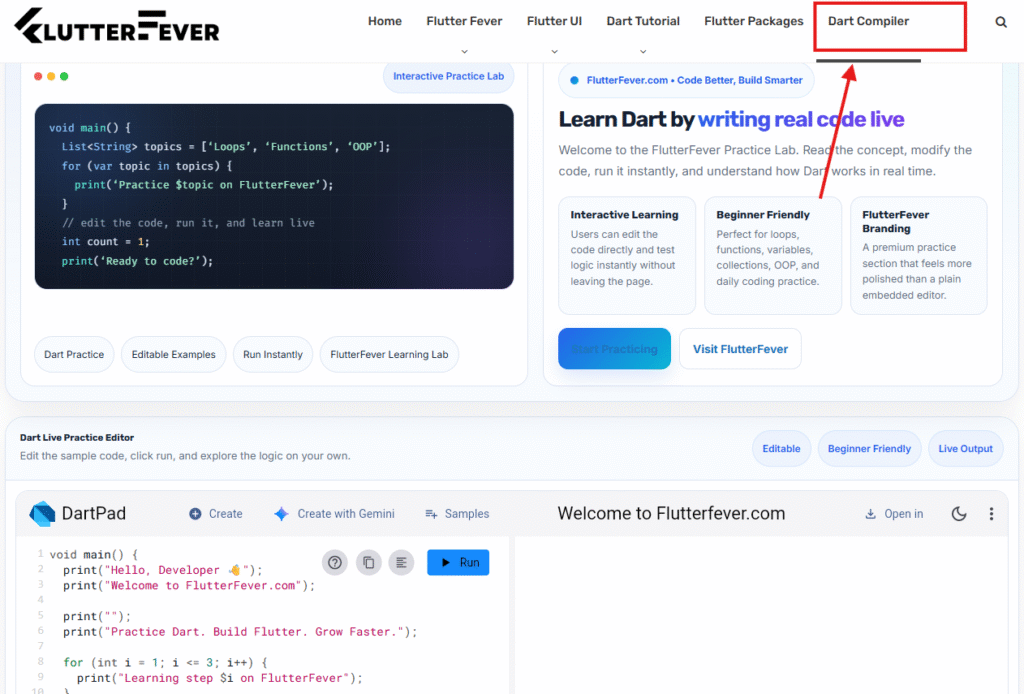
and then switch it dart to flutter like this :
Method 2:
Open your browser and visit:
This opens the DartPad editor interface.
Step 2: Enable Flutter Mode
By default, DartPad may open in Dart mode. To use Flutter:
- Click the “Flutter” option in the top menu.
- DartPad will load a Flutter template.
- The preview panel will appear on the right side.
This preview panel shows the running Flutter application.
Step 3: Understand the Flutter Template
When Flutter mode is enabled, DartPad provides a simple Flutter example similar to this structure:
import 'package:flutter/material.dart';void main() {
  runApp(MyApp());
}class MyApp extends StatelessWidget {
  @override
  Widget build(BuildContext context) {
    return MaterialApp(
      home: Scaffold(
        appBar: AppBar(title: Text("Flutter DartPad")),
        body: Center(
          child: Text("Hello Flutter"),
        ),
      ),
    );
  }
}
Important components in this code include:
runApp()
This function launches the Flutter application.
MaterialApp
Provides basic Material Design structure.
Scaffold
Creates a basic page layout with app bar and body.
Step 4: Run the Flutter Code
Click the Run button in DartPad.
The right panel will show the rendered Flutter UI instantly.
This allows developers to test UI changes quickly.
Step 5: Modify the UI
Now you can experiment with Flutter widgets. For example:
Change text:
child: Text("Learning Flutter with DartPad")
Add buttons:
ElevatedButton(
  onPressed: () {},
  child: Text("Click Me"),
)
Add layouts like:
- Column
- Row
- Container
- Padding
- ListView
Every change updates immediately after pressing Run.
Flutter Features Supported in DartPad
DartPad supports many Flutter UI features including:
- Material widgets
- Basic layout widgets
- Text styling
- Buttons
- Containers
- Columns and Rows
- Animations
- Stateless and Stateful widgets
However, DartPad is designed mainly for learning and experimentation, so it does not support everything required for full application development.
When Should You Use DartPad?
DartPad is extremely helpful in several scenarios.
Learning Flutter Basics
Beginners who are learning Flutter widgets and layouts can quickly test UI components in DartPad without creating a full project.
Learning Dart Programming
DartPad is also an excellent environment for practicing Dart language fundamentals such as:
Read : Basic dart Programming for Flutter Development
Testing Small Code Snippets
Developers often use DartPad to test small Flutter components before integrating them into real projects.
When DartPad is Not Suitable
Although DartPad is powerful, it has limitations.
You should avoid using DartPad for:
- Large Flutter projects
- Apps requiring plugins
- Device sensors (camera, GPS, etc.)
- Backend integration
- Database operations
For these use cases, developers should install the Flutter SDK locally.
Read : Download Flutter SDK (Windows) — Also for Mac & Linux
DartPad vs Local Flutter Development
| Feature | DartPad | Local Flutter Setup |
|---|---|---|
| Installation Required | No | Yes |
| Run Flutter Code | Yes | Yes |
| Plugin Support | Limited | Full |
| Project Size | Small Examples | Full Applications |
| Best For | Learning | Production Apps |
DartPad is ideal for learning and experimentation, while local development is required for building real applications.
How DartPad Helps Flutter Learning
DartPad plays an important role in the Flutter ecosystem because it lowers the barrier to entry for new developers.
Instead of spending hours installing tools, beginners can focus on learning:
- Dart syntax
- Flutter widget architecture
- UI layout principles
- Material design components
This makes DartPad one of the best tools for learning Flutter quickly.
if you want install Dart SDK on Local Machine : Dart SDK install
Conclusion
DartPad is one of the easiest ways to start learning Flutter development. It allows developers to write and run Flutter code directly in the browser without installing any software. Beginners can experiment with Flutter widgets, test UI layouts, and learn Dart programming instantly.
While DartPad is not designed for building full applications, it is an excellent learning tool for understanding Flutter concepts and testing code snippets. Once developers become comfortable with Dart and Flutter widgets, they can move to a local development environment to build complete applications.
For anyone starting their Flutter journey, DartPad provides the fastest and simplest way to explore the Flutter framework and begin building beautiful user interfaces.
FAQ Section
DartPad is an online editor created by Google that allows developers to write and execute Dart and Flutter code directly in the browser without installing the Flutter SDK.
Yes. DartPad supports Flutter UI examples and allows developers to run Flutter widgets in a browser-based preview panel. However, it is mainly designed for learning and experimenting with Flutter code.
Yes. DartPad is one of the best tools for beginners because it eliminates the need to install Flutter SDK, Android Studio, or emulators. Beginners can immediately start learning Flutter widgets and Dart programming.
DartPad does not support full Flutter app development. It has limitations such as:
limited plugin support
no device hardware access
no database integration
not suitable for large projects
It is mainly used for learning and testing Flutter code snippets.
No. DartPad runs entirely in the browser, so you can write and run Flutter code without installing any development tools.
Yes. DartPad is widely used for learning Dart programming because it allows developers to run Dart code instantly and experiment with language features.