Artificial Intelligence is changing how people read, research, study, write, and learn. But most AI tools have one common problem: they often answer from general internet knowledge, and sometimes they provide information that is not directly connected to your documents.
This is where NotebookLM becomes extremely useful.
NotebookLM is Google’s AI-powered research and thinking tool. It helps you upload your own sources, such as PDFs, websites, YouTube videos, notes, documents, and other study or research materials, then ask questions based on those sources. Google describes NotebookLM as an AI research tool and thinking partner that can analyze your sources, simplify complex information, and transform content into useful outputs.
In simple words:
NotebookLM helps you talk to your documents.
Whether you are a student, developer, researcher, engineer, doctor, teacher, writer, business owner, or content creator, NotebookLM can help you understand information faster and organize knowledge better.
This complete NotebookLM tutorial 2026 will take you from beginner to expert level.
What Is NotebookLM?
NotebookLM is an AI-powered note-taking, research, and document understanding tool developed by Google. It is designed to work with your own uploaded sources. Instead of giving random answers from the internet, NotebookLM focuses on the sources you provide.
For example, you can upload:
- A research paper
- A PDF book chapter
- A project document
- A lecture note
- A medical guideline
- A software documentation file
- A YouTube lecture
- A website article
- A policy document
- A meeting note
- A case study
After uploading, you can ask questions such as:
Summarize this document in simple language.Explain the key points for a beginner.Create a study guide from this source.Find the difference between chapter 2 and chapter 5.Generate exam questions from this uploaded PDF.NotebookLM can also create tools such as summaries, Audio Overviews, Mind Maps, study guides, flashcards, quizzes, and other learning materials depending on available features in your region and account type. Google’s official student page highlights that NotebookLM can summarize lecture notes, create study guides, and help students learn new topics faster.
Why NotebookLM Is Important in 2026
In 2026, people are surrounded by too much information. Students have long PDFs. Researchers have multiple papers. Developers have documentation. Doctors have clinical notes and guidelines. Engineers have technical manuals. Business teams have reports, meeting notes, and project documents.
The problem is not lack of information.
The real problem is:
How do we understand the right information quickly?
NotebookLM solves this problem by helping users:
- Understand long documents faster
- Ask questions from uploaded sources
- Generate summaries
- Create study guides
- Compare multiple documents
- Extract key points
- Convert documents into Audio Overviews
- Visualize topics through Mind Maps
- Prepare reports and research notes
- Reduce manual reading time
NotebookLM is especially useful because it is source-grounded. That means it tries to answer based on the documents you upload, not only from general AI memory.
NotebookLM vs Notebook LLM: What Is the Correct Name?
Many people search for:
- Notebook LLM
- Google Notebook LLM
- NoteBookLM
- Notebook AI
- Google AI Notebook
- Notebook LM
The correct official name is:
NotebookLM
The “LM” stands for “Language Model.” So when people say “Notebook LLM,” they usually mean NotebookLM by Google.
For SEO purposes, you can naturally include both terms in the article:
NotebookLM, also searched as Notebook LLM, is Google’s AI-powered research and note assistant.
How NotebookLM Works
NotebookLM works in a simple flow:
Upload Sources → Ask Questions → Get Source-Based Answers → Create Notes/Study Tools/ReportsThe basic working process is:
- You create a notebook.
- You upload or add sources.
- NotebookLM processes those sources.
- You ask questions.
- NotebookLM gives answers based on the selected sources.
- You save useful answers as notes.
- You generate extra outputs like study guides, Audio Overviews, or Mind Maps.
Google’s NotebookLM Help explains that sources are used in prompts, and conversation history is also used to generate responses. Notes are used when specifically selected.
Beginner Level: How to Start Using NotebookLM
Step 1: Open NotebookLM
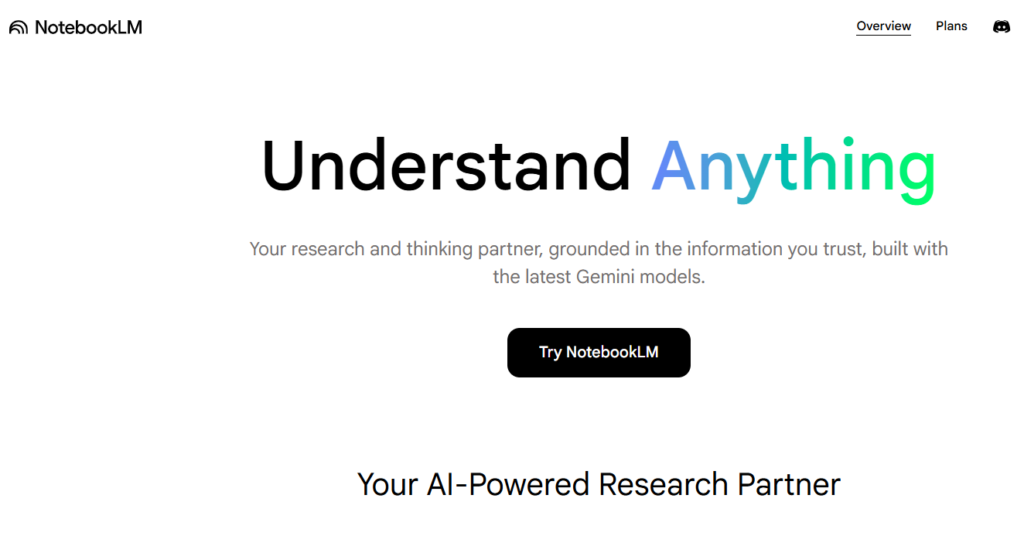
Go to the official NotebookLM website and sign in with your Google account.
Once you open NotebookLM, you can create a new notebook.
A notebook is like a project folder. For example:
- Biology Notes
- Flutter Documentation
- Medical Research Papers
- Engineering Thermodynamics
- Business Strategy Reports
- Legal Case Study
- PhD Literature Review
- YouTube Script Research
Each notebook should focus on one topic or project.
Step 2: Create Your First Notebook
Click on New Notebook or the option available in your interface.
Give it a clear name.
Example:
NotebookLM Tutorial Researchor
Flutter App Development Notesor
Medical Case Study ReviewGood notebook names help you organize your work later.
Step 3: Add Sources
Sources are the most important part of NotebookLM.
You can add different types of material depending on current support, such as PDFs, websites, copied text, Google Docs, YouTube links, and other supported files. The NotebookLM mobile app listing mentions support for PDFs, websites, YouTube videos, and text uploads.
Examples of sources:
PDF research paperWebsite articleYouTube lecture URLClass notesTechnical documentationMedical guideline PDFBusiness reportStep 4: Ask Your First Question
After adding sources, you can ask NotebookLM:
Summarize all sources in simple language.What are the most important points in this notebook?Explain this topic like I am a beginner.Create a 10-point summary.What questions can be asked from this material?NotebookLM will answer based on your uploaded sources.
Step 5: Check Citations
One of the best parts of NotebookLM is that it can give source references or citations. This helps you verify where the answer came from.
However, Google’s FAQ notes that users may not always get citations in every response.
So the best practice is:
- Always check the source
- Do not blindly trust the answer
- Open the cited section if available
- Compare with the original document
- Use NotebookLM as a research assistant, not as a final authority
Main Features of NotebookLM in 2026
1. Source-Based Question Answering
This is the core feature of NotebookLM.
You upload sources, then ask questions from them.
Example:
What are the main arguments in this research paper?Explain the methodology section.What are the limitations of this study?Create a table of all important terms and definitions.This is useful for students, researchers, developers, lawyers, doctors, and business professionals.
2. Document Summarization
NotebookLM can summarize long documents into simple points.
Useful prompts:
Summarize this PDF in 500 words.Create a beginner-friendly summary of this document.Give me the executive summary.Summarize this source in bullet points.Explain this document in Hindi and English mixed language.3. Audio Overviews
Audio Overview is one of the most popular NotebookLM features. It can turn uploaded content into a podcast-style explanation.
The NotebookLM mobile app listing says users can listen to podcast-style Audio Overviews on the go, with background playback and offline support.
This is useful when:
- You do not want to read long PDFs
- You are traveling
- You want revision while walking
- You want to understand a topic casually
- You prefer audio learning
Example use cases:
Turn my lecture notes into an Audio Overview.Create an audio-style explanation of this research paper.Make this document easy to understand like a podcast.4. Mind Maps
NotebookLM can create Mind Maps from your uploaded sources. Google’s help page explains that Mind Maps visually summarize uploaded sources by showing main topics and related ideas as a branching diagram.
Mind Maps are useful for:
- Students preparing for exams
- Researchers organizing literature
- Developers understanding architecture
- Doctors studying disease classification
- Engineers understanding system design
- Teachers planning lessons
Example prompt:
Create a mind map of this topic.Show the relationship between all major concepts.Create a chapter-wise mind map.5. Study Guides
NotebookLM can help create structured study guides.
Example:
Create a study guide from these sources.
Include key concepts, definitions, examples, and revision questions.
A good study guide can include:
- Topic overview
- Important definitions
- Key points
- Diagrams or concept structure
- Exam questions
- Short answers
- Long answers
- Revision checklist
6. Flashcards and Quizzes
Google’s student-focused NotebookLM updates have highlighted flashcards and quizzes as useful learning tools. The official Google blog notes that students can use NotebookLM to generate flashcards, quizzes, professional reports, and more.
Useful prompts:
Create 30 flashcards from this chapter.Create multiple-choice questions with answers.Create beginner, intermediate, and advanced quiz questions.Create viva questions from this document.7. Reports and Writing Assistance
NotebookLM can help transform sources into structured reports.
Example:
Create a professional report from these sources.
Use introduction, background, key findings, analysis, conclusion, and references.
This is useful for:
- Students
- Researchers
- Business analysts
- Engineers
- Doctors
- Teachers
- Content writers
8. Video Overviews and Studio Features
Google announced Video Overviews and an upgraded Studio panel for NotebookLM in July 2025. Video Overviews are designed to turn complex information into clear, digestible content.
This is useful for people who understand better through visual explanation.
Use cases:
- Explaining research papers
- Creating learning videos
- Understanding complex reports
- Making revision material
- Preparing presentations
NotebookLM for Students
NotebookLM is one of the best AI tools for students in 2026.
Students can use it for:
- Lecture notes
- Class PDFs
- Textbook chapters
- Exam preparation
- Assignment research
- Flashcards
- Quizzes
- Study guides
- Audio revision
- Mind Maps
- Project reports
Student Workflow
Upload class notes → Ask for summary → Generate study guide → Create flashcards → Take quiz → Revise weak areasBest Student Prompts
Explain this chapter like I am a beginner.Create exam notes from this PDF.Make 50 MCQs with answers from this chapter.Create a revision plan for this topic.Find the most important questions from this material.Explain all difficult terms in simple language.Example for Exam Preparation
I have uploaded my Environmental Studies notes.
Create a complete exam preparation guide with definitions,
short answers, long answers, important questions, and MCQs.
NotebookLM for Researchers
Researchers can use NotebookLM for literature review, paper comparison, methodology analysis, and research gap identification.
Research Use Cases
- Summarizing academic papers
- Comparing multiple papers
- Extracting methodology
- Finding limitations
- Identifying research gaps
- Creating literature review notes
- Building annotated bibliography
- Preparing conference summaries
- Organizing thesis material
Research Workflow
Upload papers → Summarize each paper → Compare findings → Extract methods → Identify gaps → Create literature reviewBest Research Prompts
Summarize this research paper using:
objective, methodology, findings, limitations, and future scope.
Compare these five papers in a table.
Include author, year, objective, method, sample size, result, and limitation.Find the research gaps from these uploaded papers.Create a literature review draft from these sources.Extract all citations and key references mentioned in these documents.Explain the methodology section in simple language.NotebookLM for Developers
NotebookLM is not only for students. Developers can use it as a documentation and project understanding tool.
Developer Use Cases
- Understand framework documentation
- Summarize API docs
- Compare SDK versions
- Learn new libraries
- Create technical notes
- Understand project requirements
- Analyze software architecture documents
- Prepare developer onboarding guides
- Convert documentation into implementation checklists
Read : Notebook LLM: Advanced Features & Practical Use Cases For Developer
Example Sources for Developers
- Flutter documentation
- Android documentation
- API documentation
- Backend requirement document
- GitHub README
- Architecture document
- Error logs
- Flutter SDK migration guide
- Product requirement document
Read : Notebook LM for Flutter Developers: Research Faster, Build Better
Developer Workflow
Upload docs → Ask implementation questions → Create checklist → Generate code plan → Identify risks → Prepare developer notesBest Developer Prompts
Explain this technical documentation like I am a junior developer.Create an implementation checklist from this API documentation.Find all endpoints, parameters, request body, response body, and errors.Create a developer onboarding guide from these project documents.Convert this PRD into frontend tasks, backend tasks, database tasks, and testing tasks.Explain the architecture of this system using simple language.NotebookLM for Flutter Developers
Flutter developers can use NotebookLM to understand:
- Flutter documentation
- Package documentation
- Firebase setup guides
- Play Console policies
- API integration documents
- App architecture documents
- UI/UX requirements
- Client project briefs
Prompt:
I have uploaded Flutter project requirements.
Create a complete development plan with screens, models,
API services, state management, folder structure, and testing checklist.
NotebookLM for Engineers
Engineers can use NotebookLM to study technical manuals, design documents, standards, reports, and research papers.
Engineering Use Cases
- Summarize technical manuals
- Understand design specifications
- Compare materials or methods
- Study engineering standards
- Create calculation notes
- Generate project reports
- Prepare presentations
- Convert manuals into troubleshooting guides
Best Engineering Prompts
Summarize this engineering manual in simple language.Create a troubleshooting guide from this document.Extract all formulas and explain where each formula is used.Create a table of specifications from this PDF.Explain this system design step by step.NotebookLM for Doctors and Medical Students
Doctors, medical students, and healthcare researchers can use NotebookLM to organize medical literature, guidelines, case notes, and research material.
Important note: NotebookLM should not replace professional medical judgment. It can help summarize and organize documents, but medical decisions should always be verified with trusted clinical guidelines and qualified professionals.
Medical Use Cases
- Summarizing clinical guidelines
- Understanding research papers
- Preparing case discussions
- Creating medical study notes
- Comparing treatment protocols
- Preparing patient education material
- Reviewing drug information
- Creating exam revision notes
Best Medical Prompts
Summarize this clinical guideline in simple bullet points.Create a table comparing diagnosis, symptoms, investigations, and treatment.Explain this research paper for a medical student.Extract all drug names, doses, contraindications, and side effects mentioned in this source.Create patient-friendly education content from this medical document.NotebookLM for Teachers
Teachers can use NotebookLM to convert study material into classroom-ready content.
Teacher Use Cases
- Lesson plans
- Quiz creation
- Assignment questions
- Lecture summaries
- Presentation outlines
- Student handouts
- Viva questions
- MCQ question banks
Best Teacher Prompts
Create a lesson plan from this chapter for a 45-minute class.Create 30 MCQs with answer key.Create short-answer and long-answer questions.Create a classroom activity based on this topic.Create a beginner-friendly explanation for students.NotebookLM for Content Writers and Bloggers
Content writers can use NotebookLM for research-heavy articles.
Blogger Use Cases
- Topic research
- Source summarization
- Outline creation
- FAQ generation
- Fact extraction
- Article planning
- Competitor research notes
- Content repurposing
Best Blogger Prompts
Create a detailed SEO article outline from these sources.Extract all important facts from these documents.Create FAQs from this topic.Create a beginner-friendly blog post structure.Find content gaps in these sources.NotebookLM for Business Professionals
Business users can use NotebookLM for:
- Market research
- Competitor analysis
- Meeting notes
- Strategy documents
- Internal policy documents
- Product requirement documents
- Sales training material
- Customer feedback analysis
Best Business Prompts
Summarize this business report for leadership.Create an executive summary.Find risks, opportunities, and action items.Create a meeting brief from these documents.Convert this report into a presentation outline.NotebookLM Advanced Guide
1. Use Source Groups
For advanced work, do not upload everything into one messy notebook.
Instead, organize sources by purpose.
Example for a PhD researcher:
Notebook 1: Literature Review
Notebook 2: Methodology
Notebook 3: Data Analysis
Notebook 4: Thesis Writing
Notebook 5: References and Notes
Example for developers:
Notebook 1: Flutter Documentation
Notebook 2: Firebase Documentation
Notebook 3: API Documentation
Notebook 4: Client Requirements
Notebook 5: Play Store Policy
This keeps answers more focused.
2. Ask for Tables
Tables make complex information easier.
Prompt:
Compare all sources in a table with columns:
source name, main topic, key points, limitations, and action items.
For research:
Create a literature review matrix from these papers.For developers:
Create an API endpoint table with method, URL, parameters,
request body, response body, and error codes.
3. Ask for Multiple Difficulty Levels
This is very powerful.
Prompt:
Explain this topic in three levels:
beginner, intermediate, and expert.
This helps anyone understand complex material step by step.
4. Ask NotebookLM to Challenge You
For learning, ask:
Ask me 20 questions from this material.
After each answer, tell me whether I am correct or wrong.
This turns NotebookLM into a study coach.
5. Ask for Actionable Output
Instead of asking:
Summarize this.Ask:
Create an actionable checklist from this document.
Divide it into immediate actions, important actions, and optional actions.
This gives better practical results.
Best NotebookLM Prompts 2026
Beginner Prompt
Explain this source in simple language for a beginner.
Use examples and avoid technical jargon.
Summary Prompt
Summarize this notebook in 10 key points.
Highlight the most important concepts.
Study Prompt
Create a complete study guide from this material.
Include definitions, key concepts, examples, MCQs, and short answers.
Research Prompt
Analyze these research papers.
Create a table with objective, methodology, findings, limitations,
and research gaps.
Developer Prompt
Convert this technical documentation into an implementation roadmap.
Include frontend tasks, backend tasks, database tasks, API tasks,
testing tasks, and deployment checklist.
Doctor Prompt
Summarize this medical guideline for quick revision.
Include symptoms, diagnosis, investigations, treatment, and warnings.
Engineer Prompt
Extract all technical specifications from this document.
Create a structured table and explain each specification.
Business Prompt
Create an executive summary from these sources.
Include key findings, risks, opportunities, and next steps.
Content Writer Prompt
Create a complete SEO blog outline from these sources.
Include title, meta description, headings, FAQs, and keyword ideas.
NotebookLM Limitations
NotebookLM is powerful, but it has limitations.
Google’s FAQ mentions source import limitations, including a 500,000-word limit per source, 200MB file size limit, and issues with copy-protected PDFs.
Other practical limitations include:
- It may miss context if sources are poorly organized
- It may not always provide citations
- It may misunderstand unclear questions
- It may not replace subject experts
- It depends heavily on source quality
- It may summarize but not deeply verify facts
- It should not be used blindly for medical, legal, or financial decisions
Best practice:
Use NotebookLM to understand and organize information, but verify important decisions from original sources.
NotebookLM vs ChatGPT
NotebookLM
Best for:
- Working with uploaded sources
- Research papers
- PDFs
- Study notes
- Source-grounded answers
- Citations
- Audio Overviews
- Mind Maps
- Study guides
ChatGPT
Best for:
- General explanation
- Creative writing
- Coding help
- Brainstorming
- Article writing
- Strategy planning
- Conversation-based problem solving
Simple Difference
NotebookLM = Best for your documents
ChatGPT = Best for general thinking, writing, coding, and problem solving
Both tools are useful. For serious research, NotebookLM is very strong because it focuses on your sources.
Best Workflow: NotebookLM + ChatGPT
A powerful workflow is:
Use NotebookLM for source research
Use ChatGPT for writing, planning, editing, coding, and formatting
Example:
- Upload research papers to NotebookLM.
- Ask NotebookLM for summary, gaps, and key findings.
- Copy your structured notes.
- Use ChatGPT to create article, report, presentation, or implementation plan.
- Verify final facts from original sources.
This workflow is excellent for bloggers, researchers, students, and professionals.
Common Mistakes Beginners Make in NotebookLM
1. Uploading Too Many Unrelated Sources
If you upload unrelated documents, answers become confusing.
Better:
One notebook = one topic2. Asking Vague Questions
Bad prompt:
Explain.Good prompt:
Explain chapter 3 in simple language with examples and key definitions.3. Not Checking Sources
Always verify important points from original material.
4. Ignoring Citations
Citations help you trust but also verify.
5. Using It as a Final Expert
NotebookLM is a tool. It is not a doctor, lawyer, professor, or certified engineer.
Expert Tips to Use NotebookLM Better
Tip 1: Start with a Master Summary
Give me a complete overview of this notebook.Tip 2: Generate a Glossary
Create a glossary of important terms from all sources.Tip 3: Ask for Missing Information
What important information is missing from these sources?Tip 4: Ask for Contradictions
Find contradictions or differences between these sources.Tip 5: Ask for Next Steps
Based on these sources, what should I do next?Tip 6: Create Revision Material
Create flashcards, MCQs, short notes, and a final revision checklist.Tip 7: Create Professional Output
Convert this notebook into a professional report with headings,
subheadings, key findings, conclusion, and action points.
NotebookLM Use Case Examples
Example 1: Student Preparing for Exam
Sources:
- Lecture PDF
- Class notes
- Textbook chapter
Prompt:
Create a complete exam preparation guide from these sources.
Include key points, definitions, MCQs, short answers, long answers,
and final revision notes.
Example 2: Developer Learning New API
Sources:
- API documentation
- GitHub README
- Integration guide
Prompt:
Create a developer implementation plan.
Include authentication, endpoints, request format, response format,
error handling, and testing checklist.
Example 3: Researcher Writing Literature Review
Sources:
- 20 research papers
Prompt:
Create a literature review matrix.
Include author, year, objective, methodology, findings, limitations,
and research gap.
Example 4: Doctor Reviewing Guidelines
Sources:
- Clinical guideline PDF
- Research paper
- Hospital protocol
Prompt:
Summarize the diagnosis and treatment protocol.
Create a table of symptoms, investigations, treatment, warnings,
and follow-up recommendations.
Example 5: Business Team Reviewing Market Report
Sources:
- Market report
- Customer feedback
- Competitor analysis
Prompt:
Create an executive summary with market opportunity,
customer pain points, competitor weaknesses, and recommended strategy.
Conclusion
NotebookLM is one of the most useful AI research and learning tools in 2026. It helps users understand long documents, summarize complex topics, generate study materials, create Audio Overviews, build Mind Maps, compare sources, and organize knowledge.
For students, it can become a study partner.
For researchers, it can speed up literature review.
For developers, it can simplify documentation and project planning.
For engineers, it can explain technical manuals.
For doctors, it can organize medical literature.
For teachers, it can create lesson plans and quizzes.
For bloggers and professionals, it can turn research into structured content.
The best way to use NotebookLM is simple:
Upload high-quality sources.
Ask clear questions.
Check citations.
Save useful notes.
Generate structured outputs.
Verify important information.
NotebookLM is not just a note-taking tool. It is a powerful AI research partner for modern learning, professional work, and knowledge management.
For anyone who works with documents, research, study notes, technical material, or complex information, NotebookLM is a must-learn AI tool in 2026.
NotebookLLM FAQs
NotebookLM is Google’s AI-powered research and note-taking tool that helps users analyze their uploaded sources, ask questions, create summaries, and generate learning materials.
NotebookLM has free access for many users, while advanced limits or business features may depend on region, account type, or Google plans. Always check the official NotebookLM page for current availability.
Yes. NotebookLM is very useful for students because it can summarize notes, create study guides, generate flashcards, make quizzes, and explain difficult topics.
Yes. NotebookLM can summarize uploaded PDFs, but files may fail if they exceed size or word limits or if the PDF is copy-protected. Google’s FAQ mentions a 500,000-word limit per source and 200MB file limit.
Yes. NotebookLM can create Mind Maps that visually summarize uploaded sources into main topics and related ideas.
Yes. NotebookLM can create podcast-style Audio Overviews from your sources. The mobile app also supports listening to Audio Overviews on the go.
Yes. Developers can use NotebookLM to understand documentation, summarize APIs, create implementation checklists, analyze project requirements, and prepare developer onboarding notes.
Doctors and medical students can use NotebookLM to summarize medical papers, guidelines, and study notes. However, it should not replace professional medical judgment.
NotebookLM is best for working with your uploaded documents and source-based research. ChatGPT is better for general conversation, coding, writing, brainstorming, and problem-solving.
NotebookLM is more source-focused than many general AI tools, but users should still verify important answers from original documents and citations.