

Android Studio AI: Complete Guide to Building Apps with AI-Powered Project Generation


In 2026, software development workflows are evolving rapidly. Developers are no longer spending hours setting up project structures, configuring dependencies, and writing boilerplate code. Instead, generative AI tools are transforming how applications are built from the ground up.
Introduction: Why Android Studio AI Is Changing App Development
This shift is especially visible inside Android Studio AI — Google’s AI-powered development assistant integrated directly into Android Studio. Powered by Gemini models, Android Studio AI enables developers to go from a simple idea to a working Android app prototype in minutes.
Rather than manually creating activities, navigation graphs, and dependency configurations, Android Studio AI can:
- Generate full project scaffolding
- Create multi-screen navigation
- Add API integrations
- Suggest architecture
- Fix build errors automatically
- Generate modern Material 3 UI layouts
For startups, enterprise teams, and solo developers alike, Android Studio AI reduces development friction and accelerates product validation cycles.
This guide explains how Android Studio AI works, how to create a new project using AI, how to enhance performance using a Google AI Studio API key, and how to maximize its capabilities.
What Is Android Studio AI?
Android Studio AI is an AI-powered agent built into Android Studio that uses Gemini models to generate and refine Android projects based on natural language prompts.
Instead of starting from a blank template, developers can describe their app idea in plain English, and Android Studio AI generates:
- Project structure
- Activities / Compose screens
- Navigation
- Dependencies
- API integration
- UI layout
- Basic logic implementation
This feature is currently available in Android Studio Latest Version.
What You Can Build with Android Studio AI
Android Studio AI supports generating different types of applications.
1. Single-Screen Apps
You can build simple applications such as:
- Profile screens
- Settings screens
- Calculators
- Static UI layouts
Example prompt:
Create a profile screen using Material 3 with editable name and email fields.
2. Multi-Page Apps
Android Studio AI can generate multi-screen apps with navigation.
Examples:
- Flashcard app
- To-do app
- Study app
- List-detail architecture
Example prompt:
Build a flashcard app with list-detail view and Material 3 design.
The AI automatically configures navigation and screen transitions.
3. AI-Enhanced Apps (Gemini Integration)
You can integrate generative AI directly into your app.
Examples:
- Chatbot interface
- Text summarizer
- AI assistant
- Content generator
Example prompt:
Build a chatbot app using Gemini API with chat UI and response streaming.
4. Public API Integration Apps
Android Studio AI can generate apps that fetch data from public APIs.
Examples:
- Weather app
- News reader
- Crypto tracker
- Movie database app
Example prompt:
Build a weather app using OpenWeather API with search functionality and dynamic background.
How to Create a New Project with Android Studio AI
Follow this step-by-step process.
Step 1: Start Android Studio
- Open Android Studio ( Download newer version Like Panda1).
- On the Welcome screen, select:
- New Project
- Or inside an existing project:
- File > New > New Project
Read Articles : Android Studio Download and Android SDK Setup steps for Flutter Development
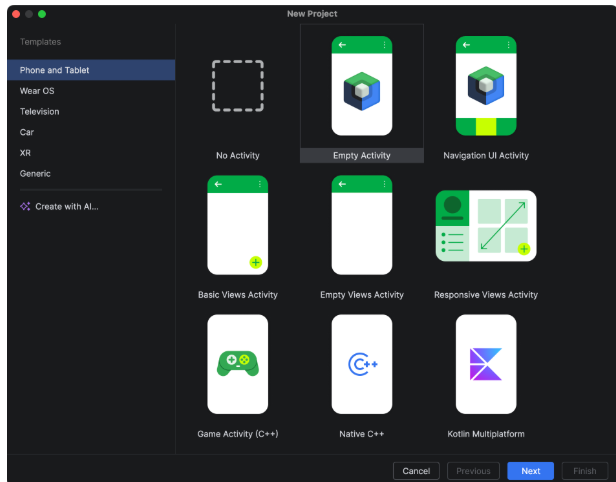
Step 2: Select “Create with AI”
- In the New Project dialog, you will see:
- Create with AI
- This activates Gemini inside Android Studio AI.
Step 3: Enter Your Prompt
Describe your app idea clearly.
Example:
Build a San Francisco Bay Area hiking app with top 3 hikes, list-detail view, and Material 3 design.
The more specific your prompt, the better the result.
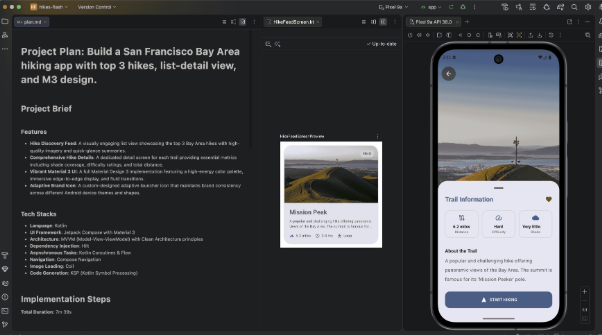
Step 4: Review the AI-Generated Plan
Android Studio AI generates a structured development plan:
- Screens
- Architecture
- Dependencies
- Navigation setup
You can modify or regenerate the plan.
Step 5: Approve and Generate
Once approved, Android Studio AI enters an autonomous loop:
- Generates all necessary files
- Builds the project
- Detects build errors
- Self-corrects code
- Rebuilds until successful
This dramatically reduces setup time.
How Android Studio AI Works Internally
Android Studio AI follows an iterative generation model:
- Natural language prompt parsing
- Architecture proposal
- Code scaffolding
- Dependency injection
- Build validation
- Error correction loop
This self-correcting generation process is what differentiates Android Studio AI from simple code suggestions.
Enhance Android Studio AI with Your Own API Key
While Android Studio AI works out-of-the-box, providing your own Google AI Studio API key unlocks advanced features.
Benefits of Adding API Key
1. Improved Model Performance
- Access to latest Gemini models
- Better code quality
- More accurate scaffolding
2. Larger Context Window
The AI can process longer prompts and more project context.
3. Enhanced Design Generation
Access to Nano Banana for generating modern UI mockups.
How to Add API Key
- Go to:
- Settings > Tools > AI > Model Providers
- Select:
- Google AI Studio
Add your Gemini API key.
Best Practices for Using Android Studio AI
To maximize results:
1. Be Specific in Prompts
Bad prompt:
Create a note app.
Good prompt:
Create a note-taking app using Room database, Material 3, and allow add, edit, delete notes with a floating action button.
2. Specify Architecture
Mention:
- MVVM
- Clean Architecture
- Repository pattern
- Compose vs XML
Read : How to Design Flutter Enterprise App Architecture : Scalable & AI-Ready App Systems
3. Mention Form Factors
Example:
Generate for phone and tablet with responsive layouts.
4. Upload Design Mockups
Providing UI references improves generated layout quality.
5. Iterate
If output isn’t ideal, refine the prompt.
Android Studio AI improves with detailed instructions.
Android Studio AI vs Traditional Project Setup
| Feature | Traditional Setup | Android Studio AI |
|---|---|---|
| Project scaffolding | Manual | AI-generated |
| Navigation setup | Manual | Automated |
| Dependency config | Manual | AI-configured |
| Error fixing | Developer-driven | Self-correcting |
| Time to prototype | Hours | Minutes |
Android Studio AI dramatically reduces boilerplate overhead.
Is Android Studio AI Suitable for Enterprise Teams?
Yes.
Enterprises benefit from:
- Faster MVP development
- Standardized project structure
- Reduced onboarding time
- Automated best practices
- Accelerated prototyping
However, generated code should still be reviewed and refactored according to internal standards.
Read : GenUI + Firebase AI in Flutter: Building Dynamic, AI-Driven User Interfaces
Limitations of Android Studio AI
- Still in preview stage
- Not perfect for complex architecture
- Requires refinement for production apps
- May require manual dependency tuning
AI accelerates setup, but senior engineers should validate structure.
Read : Codex CLI, OpenAI Codex, ChatGPT Codex — How to Build Flutter Apps Smartly in 2026
Conclusion
Android Studio AI represents a major shift in Android development workflows. By integrating Gemini-powered generative AI directly into the IDE, Google has reduced the friction involved in app scaffolding, navigation setup, dependency management, and even UI creation.
Whether you’re building a simple prototype, integrating AI features, or developing enterprise applications, Android Studio AI enables faster iteration cycles and smarter project setup.
As AI-powered development tools mature, developers who understand how to leverage Android Studio AI effectively will gain a significant productivity advantage.
FAQ – Android Studio AI
Android Studio AI is a Gemini-powered agent inside Android Studio that generates Android project scaffolding based on natural language prompts.
Yes, it works with default Gemini models. Advanced features require a Google AI Studio API key.
It can generate prototypes and scaffolding. Production apps require refinement and testing.
Yes. It can scaffold networking and API calls.
References
- Android Developers – Gemini in Android Studio Overview
https://developer.android.com/studio/ - Android Developers – Android Studio Preview Releases
https://developer.android.com/studio/preview - Google AI Studio – Generate and Manage API Keys
https://aistudio.google.com/app/apikey - Android Developers – Add Your Own Gemini API Key in Android Studio
https://developer.android.com/studio/gemini/add-api-key - Android Developers – Create a New Project with AI in Android Studio
https://developer.android.com/studio/gemini/create-a-new-project-with-ai