

How to Use Postman with Flutter Apps for API Integration and Debugging (2026 Complete Guide)

Modern mobile applications are heavily dependent on APIs. Whether you are building an eCommerce app, food delivery app, social media platform, or fintech application using Flutter, your app constantly communicates with servers using APIs. This is where Postman Official Website becomes one of the most important tools for Flutter developers.
In this complete guide, you will learn how to use Postman with Flutter apps for API integration, testing, debugging, authentication handling, and performance optimization in 2026.
This article is designed for beginners, intermediate Flutter developers, and advanced API testers who want to build production-ready Flutter applications.
What is Postman?
Postman is an API development and testing platform that helps developers:
- Test APIs
- Send HTTP requests
- Debug API responses
- Handle authentication tokens
- Automate API testing
- Monitor API performance
- Create API collections
- Share APIs with teams
Flutter developers use Postman before integrating APIs into their mobile applications because it helps identify issues quickly without rebuilding the app repeatedly.
if you are beginner in postman Read : Postman Tutorial 2026: From Beginner to Expert (Complete Guide)
Why Flutter Developers Should Use Postman
Without Postman, debugging APIs directly inside Flutter can become time-consuming and frustrating.
Using Postman helps you:
- Verify APIs before Flutter integration
- Check JSON response structure
- Test authentication systems
- Validate headers and tokens
- Reduce debugging time
- Handle backend issues faster
- Improve app stability
For large applications like food delivery apps, fintech apps, or hyperlocal apps, Postman becomes essential.
How Flutter and APIs Work Together
Flutter applications communicate with servers using HTTP requests.
Common API methods include:
| Method | Purpose |
|---|---|
| GET | Fetch data |
| POST | Send data |
| PUT | Update data |
| DELETE | Remove data |
Flutter apps usually interact with:
- Laravel APIs
- Node.js APIs
- Django APIs
- Firebase APIs
- Spring Boot APIs
- GraphQL APIs
Before integrating these APIs into Flutter, developers test them in Postman.
Installing Postman in 2026
Step 1: Download Postman
Visit:
Available for:
- Windows
- macOS
- Linux
Read : How to Download Postman in Windows: Complete Guide 2026
Step 2: Install Postman
After downloading:
- Run installer
- Create free account
- Open workspace
Now Postman is ready.
Setting Up a Flutter Project for API Integration
Create Flutter project:
flutter create flutter_postman_demoNavigate to project:
cd flutter_postman_demoAdd HTTP package:
dependencies:
  http: ^1.2.0
Run:
flutter pub getUnderstanding API Testing in Postman
Suppose your backend API endpoint is:
https://api.example.com/usersYou can test this endpoint in Postman before adding it into Flutter.
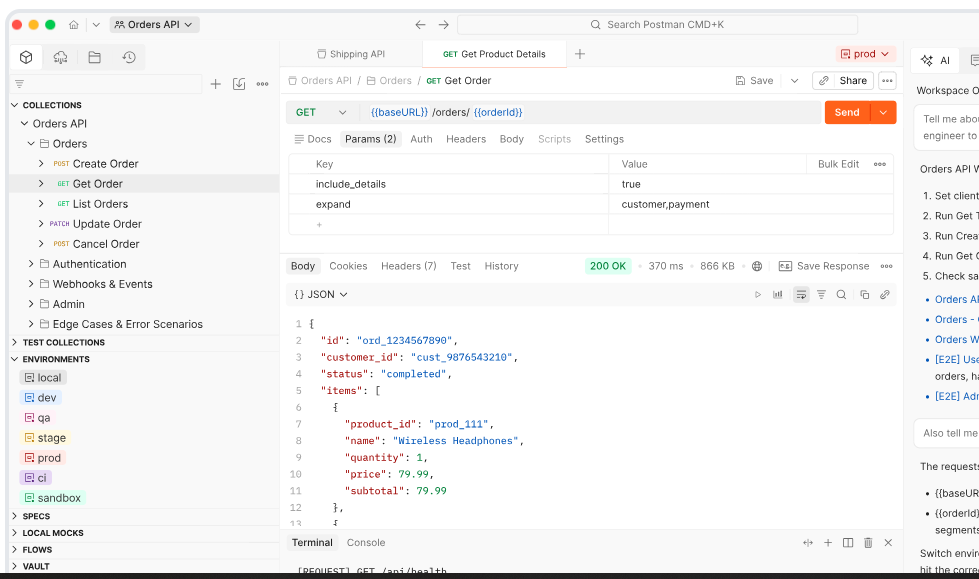
Sending Your First GET Request in Postman
Step 1
Open Postman.
Step 2
Select:
- Method → GET
Step 3
Enter API URL:
https://jsonplaceholder.typicode.com/usersStep 4
Click Send.
You will receive JSON response instantly.
Example:
[
  {
    "id": 1,
    "name": "Leanne Graham"
  }
]
Integrating API into Flutter
Now integrate same API in Flutter.
Flutter API Service Example
import 'dart:convert';
import 'package:http/http.dart' as http;

class ApiService {

  Future<List<dynamic>> fetchUsers() async {

    final response = await http.get(
      Uri.parse('https://jsonplaceholder.typicode.com/users'),
    );

    if (response.statusCode == 200) {
      return jsonDecode(response.body);
    } else {
      throw Exception('Failed to load users');
    }
  }
}
Displaying API Data in Flutter
FutureBuilder(
  future: ApiService().fetchUsers(),
  builder: (context, snapshot) {

    if (snapshot.hasData) {

      final users = snapshot.data!;

      return ListView.builder(
        itemCount: users.length,
        itemBuilder: (context, index) {
          return ListTile(
            title: Text(users[index]['name']),
          );
        },
      );
    }

    return CircularProgressIndicator();
  },
)
Debugging APIs with Postman
One of the biggest advantages of Postman is debugging.
You can inspect:
- Response body
- Status codes
- Headers
- Authentication tokens
- Request payload
- API latency
Common HTTP Status Codes
| Status Code | Meaning |
|---|---|
| 200 | Success |
| 201 | Created |
| 400 | Bad Request |
| 401 | Unauthorized |
| 403 | Forbidden |
| 404 | Not Found |
| 500 | Server Error |
When Flutter API fails, first test the API inside Postman.
Testing POST APIs in Postman
POST requests are used for:
- Login
- Registration
- Creating products
- Uploading data
Example:
{
  "email": "test@gmail.com",
  "password": "123456"
}
Sending POST Request
Step 1
Select:
- POST
Step 2
Go to:
- Body → raw → JSON
Step 3
Paste JSON.
Step 4
Click Send.
Flutter POST API Example
Future<void> login() async {

  final response = await http.post(
    Uri.parse('https://api.example.com/login'),
    headers: {
      'Content-Type': 'application/json',
    },
    body: jsonEncode({
      'email': 'test@gmail.com',
      'password': '123456',
    }),
  );

  print(response.body);
}
Authentication Testing Using Postman
Most APIs require authentication.
Common authentication methods:
- Bearer Token
- JWT Token
- OAuth 2.0
- API Keys
Testing Bearer Token in Postman
Step 1
Login API returns token:
{
  "token": "abc123xyz"
}
Step 2
Go to:
- Authorization
- Select Bearer Token
Step 3
Paste token.
Now protected APIs will work.
Using Token in Flutter
headers: {
  'Authorization': 'Bearer $token',
}
Handling JSON Responses
Postman helps understand complex JSON structures.
Example:
{
  "user": {
    "id": 1,
    "name": "John"
  }
}
Flutter parsing:
final data = jsonDecode(response.body);

print(data['user']['name']);
Free tool by Flutterfever : API Response Viewer Online Tool – Format and Inspect JSON Instantly
Using Environment Variables in Postman
Environment variables make testing easier.
Example:
base_url = https://api.example.comThen use:
{{base_url}}/usersBenefits:
- Easy switching between dev/staging/production
- Faster testing
- Cleaner API collections
Creating API Collections in Postman
Collections organize APIs professionally.
Example collection:
- Login API
- User API
- Product API
- Order API
This becomes extremely useful in large Flutter projects.
Exporting Postman Collections
You can export API collections and share with:
- Backend developers
- QA teams
- Flutter developers
This improves collaboration.
Postman vs Flutter Debugging
| Feature | Postman | Flutter |
|---|---|---|
| API Testing | Excellent | Limited |
| JSON Viewing | Easy | Manual |
| Token Debugging | Easy | Moderate |
| Error Tracking | Fast | Slower |
| Automation | Supported | Manual |
| Team Collaboration | Excellent | Limited |
Common API Errors in Flutter
1. CORS Errors
Mostly web issue.
2. Invalid JSON
Fix backend response.
3. Authentication Failed
Check token.
4. Timeout Errors
Increase timeout duration.
Example:
await http.get(
  url,
).timeout(Duration(seconds: 30));
Best Practices for Flutter API Integration
Use Repository Pattern
Separate API logic from UI.
Use Dio Instead of HTTP for Large Apps
Dio Package on Pub.dev provides:
- Interceptors
- Better error handling
- Upload progress
- Retry support
Example Dio Setup
final dio = Dio();

final response = await dio.get(
  'https://api.example.com/users',
);
Read : How to Use Dio in Flutter with Full Example (2026)
Logging API Requests
Use interceptors:
dio.interceptors.add(LogInterceptor(
  requestBody: true,
  responseBody: true,
));
This helps debug APIs faster.
Using Postman for Firebase APIs
Flutter developers frequently use:
- Firebase Auth
- Firestore APIs
- Cloud Functions
Postman can test Firebase REST APIs efficiently.
Testing GraphQL APIs with Postman
GraphQL is growing rapidly in 2026.
Example GraphQL query:
query {
  users {
    name
  }
}
Postman now supports GraphQL APIs directly.
API Automation with Newman CLI
Newman is Postman’s command-line runner.
Install:
npm install -g newmanRun collection:
newman run collection.jsonUseful for:
- CI/CD
- Automated testing
- Regression testing
Integrating Postman into CI/CD
Modern Flutter teams integrate Postman with:
- GitHub Actions
- Jenkins
- GitLab CI/CD
This automatically validates APIs before app deployment.
Read : Flutter CI/CD for Android: Build, Sign, Version, and Deploy to Google Play
Best Folder Structure for Flutter APIs
lib/
 ├── services/
 ├── repositories/
 ├── models/
 ├── controllers/
 ├── views/
Security Tips for Flutter APIs
Never:
- Store tokens in plain text
- Hardcode secrets
- Expose API keys
Use:
- Secure Storage
- HTTPS
- Token refresh systems
Recommended package:
Advanced Debugging Tips
Use Postman Console
View:
- Request logs
- Response logs
- Errors
- Network details
Monitor API Performance
Postman helps track:
- Response time
- Server latency
- Failed requests
Read : How to Test WebSocket APIs in Postman in 2026 (Complete Guide)
Real World Use Cases
Flutter developers use Postman for:
- eCommerce apps
- Food delivery apps
- Ride booking apps
- Hyperlocal apps
- Banking apps
- AgriTech apps
- Social media apps
Future of Postman in 2026
The API ecosystem is evolving rapidly.
Major trends:
- AI-powered API testing
- Automated debugging
- API monitoring
- GraphQL growth
- AI agents using APIs
- API-first development
Postman remains one of the most important tools for developers.
Read : Mock API Playground for Flutter Developers – Test Fake REST APIs Online
Final Thoughts
Learning Postman is no longer optional for Flutter developers in 2026.
If you want to build scalable, production-ready Flutter applications, you must understand:
- API testing
- Authentication handling
- JSON debugging
- API automation
- Error management
Using Postman alongside Flutter dramatically improves development speed, debugging efficiency, and application stability.
Whether you are a beginner Flutter developer or building enterprise-level applications, mastering Postman will make you a better mobile app developer.
FAQ ( Related to Postman Tutorials)
Yes, Postman simplifies API testing and debugging before integrating APIs into Flutter apps.
For small apps use http. For advanced apps use dio.
Yes, Postman supports Firebase REST APIs.
Yes, using Newman CLI and Postman Collections.
Yes, Postman fully supports GraphQL queries and mutations.
Postman allows developers to send API requests like GET, POST, PUT, and DELETE without writing frontend code. You simply enter the API URL, choose the request type, and click Send. It helps developers test APIs quickly before integrating them into Flutter apps.
Open the Authorization tab in Postman and select Bearer Token from the dropdown. Paste your authentication token into the token field. This helps access secure APIs that require user authentication.
Flutter developers use Postman to test APIs before writing Flutter integration code. It ensures APIs are working correctly and returning proper JSON responses. This helps avoid unnecessary errors inside the Flutter application.
Postman provides built-in GraphQL support where developers can write queries and mutations directly. It also shows schema suggestions and API responses. This makes GraphQL testing easier in modern applications.