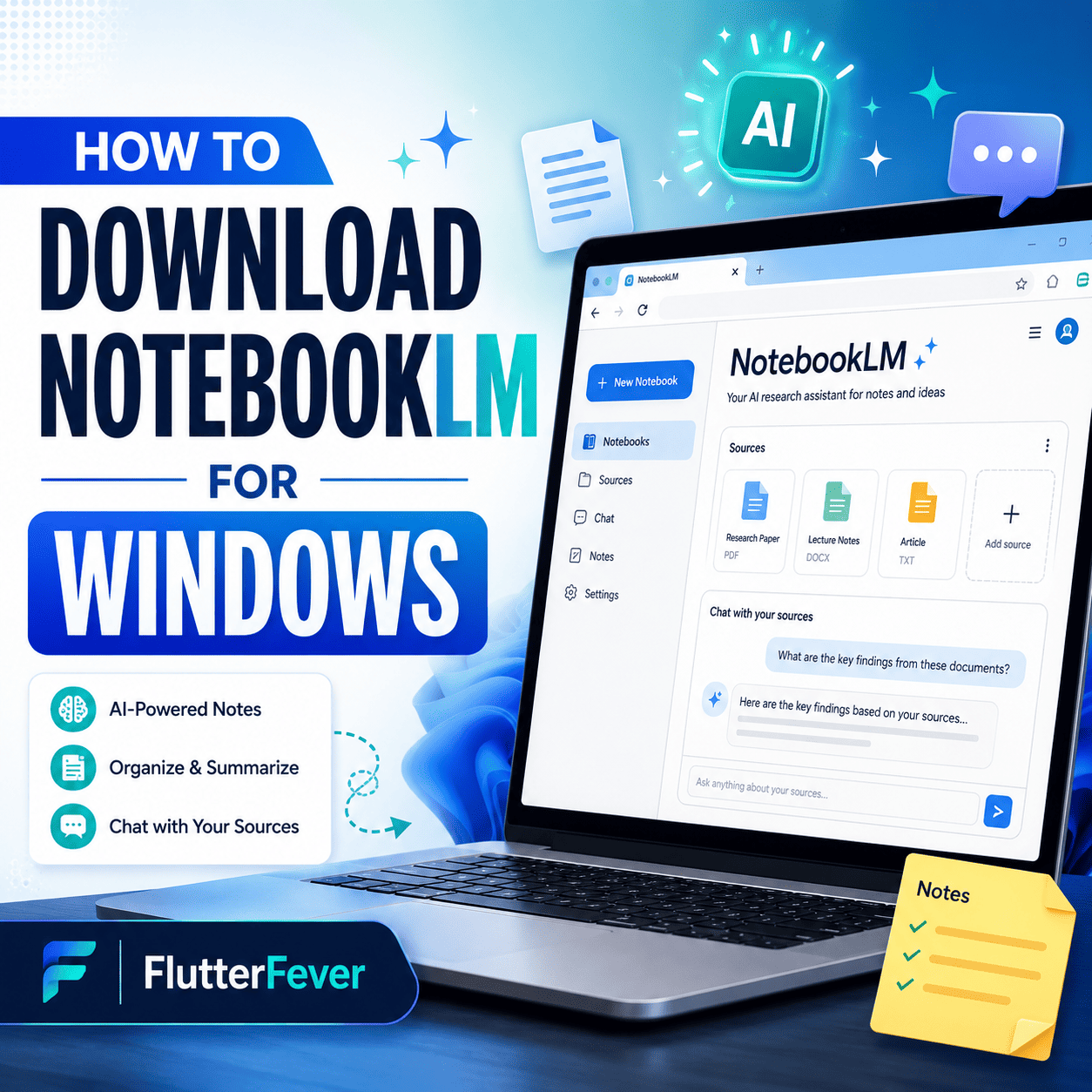
If you are searching for how to download NotebookLM for Windows, you may be expecting a normal .exe setup file like other Windows software. But the important thing is: NotebookLM does not currently have a dedicated official Windows desktop app installer. NotebookLM is mainly available as a web-based AI research tool through Google’s official NotebookLM website, while official mobile apps are available for Android and iOS. Google’s official NotebookLM app page mentions iOS and Android availability, not a separate Windows installer.
- 01What is NotebookLM?
- 02Can You Download NotebookLM for Windows?
- 03How to Use NotebookLM on Windows 10 or Windows 11
- 04How to Install NotebookLM on Windows Like an App
- 05Is NotebookLM Safe for Windows?
- 06NotebookLM for Windows 10
- 07NotebookLM for Windows 11
- 08Key Features of NotebookLM
- 09Why Students Should Use NotebookLM on Windows
- 10Why Bloggers and Developers Should Use NotebookLM
- 11Common Mistakes While Downloading NotebookLM for Windows
- 12Best Way to Access NotebookLM Quickly on Windows
- 13Conclusion
- 14FAQ: How to Download NotebookLM for Windows
So, the safest way to use NotebookLM for Windows is through your browser on Windows 10 or Windows 11. You can also install it like an app using Chrome or Microsoft Edge if the browser provides an install option. This article explains the complete process in beginner-friendly steps.
What is NotebookLM?
NotebookLM is Google’s AI-powered research and study assistant. It helps users upload or add sources such as documents, PDFs, websites, YouTube links, and other study material, then ask questions based on those sources. Google describes NotebookLM as an AI research tool and thinking partner that can analyze sources and turn complex information into clear explanations.
For students, bloggers, developers, teachers, researchers, and content creators, NotebookLM can be useful for summarizing notes, preparing study guides, understanding long documents, and generating structured insights.
if you are beginner in Notebook LLM follow : NotebookLM Tutorial 2026: From Beginner to Expert Complete Guide
Can You Download NotebookLM for Windows?
At present, there is no official Windows .exe file from Google for NotebookLM. Many third-party websites may show pages like “NotebookLM download for Windows,” but users should be careful because these may not be official Google installers.
The correct and safest method is:
Use NotebookLM through the official web app:
You can open it in Chrome, Edge, or another modern browser on Windows.
How to Use NotebookLM on Windows 10 or Windows 11
Follow these steps:
Step 1: Open a Browser
Open Google Chrome or Microsoft Edge on your Windows laptop or desktop.
Step 2: Visit NotebookLM
Search on Google:
NotebookLM Google
Then open the official Google NotebookLM website.
Step 3: Sign in With Google Account
NotebookLM works with a Google account. Sign in using your Gmail or Google Workspace account.
Step 4: Create a New Notebook
After login, click on the option to create a new notebook.
Step 5: Add Sources
You can add study material, documents, PDFs, website links, or YouTube links depending on the available options in your account.
Step 6: Ask Questions
Once your sources are added, you can ask NotebookLM questions. It will answer mainly based on your uploaded or added content.
How to Install NotebookLM on Windows Like an App
Even though there is no official Windows desktop installer, you can make NotebookLM feel like a desktop app using Chrome or Edge.
Method 1: Install NotebookLM Using Google Chrome
- Open Chrome on Windows.
- Visit the official NotebookLM website.
- Sign in with your Google account.
- Click the three-dot menu in the top-right corner.
- Go to Cast, save, and share or similar option.
- Click Install page as app or Create shortcut.
- Select Open as window if available.
- Click Create or Install.
Now NotebookLM can open in a separate app-like window from your desktop or Start Menu.
Method 2: Install NotebookLM Using Microsoft Edge
- Open Microsoft Edge.
- Visit NotebookLM.
- Click the three-dot menu.
- Go to Apps.
- Select Install this site as an app.
- Name it “NotebookLM”.
- Click Install.
This creates a Windows app-like shortcut for NotebookLM.
Is NotebookLM Safe for Windows?
Yes, NotebookLM is safe when used through Google’s official website. The main safety rule is simple: do not download unknown .exe files claiming to be NotebookLM unless they are provided directly by Google.
For Windows users, the safest option is always the official NotebookLM web app.
NotebookLM for Windows 10
If you are using Windows 10, you can use NotebookLM through Chrome or Edge. You do not need a powerful setup for basic use because NotebookLM runs online. A stable internet connection and updated browser are enough.
Recommended setup:
- Windows 10 updated version
- Google Chrome or Microsoft Edge
- Active Google account
- Stable internet connection
NotebookLM for Windows 11
NotebookLM works smoothly on Windows 11 through a browser. You can also pin the NotebookLM shortcut to the Taskbar or Start Menu for faster access.
Best method for Windows 11 users:
Open NotebookLM in Edge or Chrome, install it as an app-like shortcut, and pin it to the Taskbar.
Key Features of NotebookLM
NotebookLM can help with:
- Document summarization
- Research notes
- Study guide preparation
- Question-answering from uploaded sources
- Audio overview generation
- Content understanding
- Lecture note analysis
- YouTube and web source understanding
The official Android app listing also highlights features like creating notebooks, asking questions, listening to Audio Overviews, and uploading long or complex sources.
Read : Notebook LLM: Advanced Features & Practical Use Cases For Developer
Why Students Should Use NotebookLM on Windows
Students can use NotebookLM to understand long PDFs, prepare exam notes, generate summaries, and revise topics faster. Instead of reading a 100-page document again and again, students can upload the source and ask specific questions.
Example questions:
- “What are the main points of this chapter?”
- “Explain this topic in simple language.”
- “Create short notes from this PDF.”
- “Make possible viva questions from this document.”
Why Bloggers and Developers Should Use NotebookLM
For bloggers, NotebookLM can help organize research before writing long articles. For developers, it can summarize documentation, compare technical concepts, and explain project notes.
For example, a Flutter developer can upload Flutter documentation links or project notes and ask NotebookLM to explain architecture, state management, or API integration steps.
Common Mistakes While Downloading NotebookLM for Windows
Many users search for download NotebookLM app for PC and click on third-party download websites. This can be risky. Since Google has not provided a dedicated official Windows installer, you should avoid random setup files.
Common mistakes include:
- Downloading unofficial
.exefiles - Using fake NotebookLM apps
- Ignoring the official Google website
- Confusing Android APK with Windows software
- Thinking NotebookLM needs local installation
Best Way to Access NotebookLM Quickly on Windows
The best method is to create a shortcut:
- Open NotebookLM in Chrome or Edge
- Install it as an app or create a shortcut
- Pin it to Taskbar
- Use it like a desktop app
This gives almost the same feeling as a Windows application without downloading unsafe software.
if you are Flutter developers Follow : Notebook LM for Flutter Developers: Research Faster, Build Better
Conclusion
If your main question is how to download NotebookLM for Windows, the correct answer is: you do not need to download a separate Windows installer. NotebookLM works through the official Google web app. For Windows 10 and Windows 11 users, the safest method is to open NotebookLM in Chrome or Microsoft Edge and optionally install it as an app-like shortcut.
NotebookLM is especially useful for students, teachers, researchers, bloggers, and developers who work with long documents, notes, PDFs, and research material. Always use the official Google NotebookLM website and avoid unofficial download files.
FAQ: How to Download NotebookLM for Windows
You can use NotebookLM on Windows through the official NotebookLM website. Currently, Google does not provide a dedicated official Windows .exe installer.
Open NotebookLM in Chrome or Edge, sign in with your Google account, and use the browser’s install app or create shortcut option.
Use Google Chrome or Microsoft Edge, open the official NotebookLM website, and create a desktop shortcut or install it as a browser app.
There is no official separate PC app installer from Google. The recommended way is to use the NotebookLM web app.
Open the official NotebookLM website in your browser, log in with your Google account, create a notebook, and add your sources.
Open NotebookLM in Chrome or Edge, go to browser menu, choose create shortcut or install site as app, and save it to your desktop.
Open NotebookLM in any modern browser on your laptop, sign in with Google, upload your study or research sources, and start asking questions.
Use only Google’s official NotebookLM website or official mobile app pages. Avoid unknown third-party Windows download files.
Upload your PDFs, documents, or links into a notebook and ask NotebookLM to summarize, explain, or create revision notes.
Update your browser, clear cache, check internet connection, sign in again with your Google account, or try another browser like Chrome or Edge.