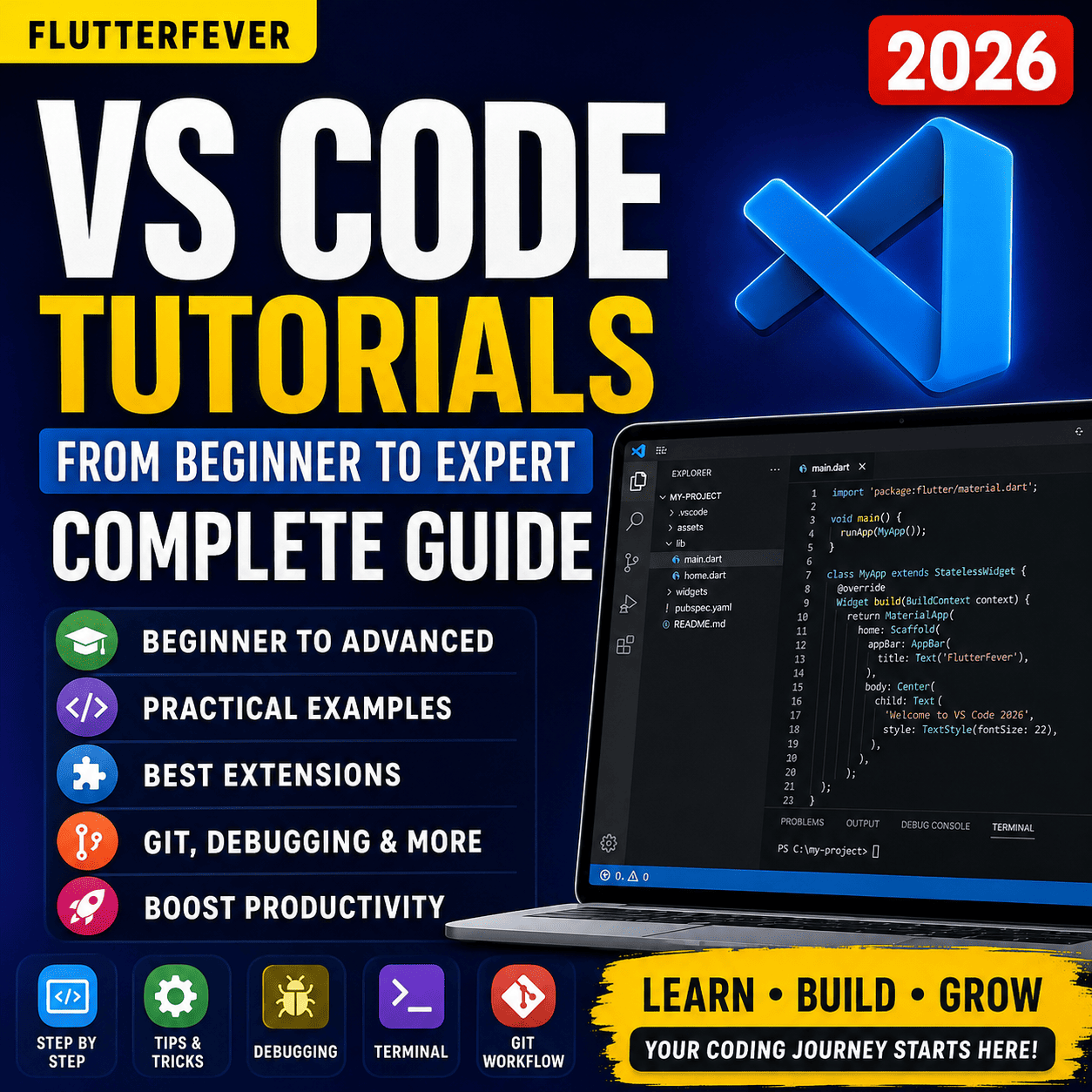
Visual Studio Code, commonly known as VS Code, has become one of the most popular code editors for students, beginners, web developers, Flutter developers, Python programmers, JavaScript developers, and professional software engineers. In 2026, VS Code is no longer just a simple text editor. It has become a powerful development environment with extensions, debugging tools, Git integration, terminal support, remote development, and AI-powered coding features.
- 01What is VS Code?
- 02Why Learn VS Code in 2026?
- 03VS Code vs Visual Studio Difference
- 041. How to Download VS Code
- 052. How to Install VS Code on Windows
- 063. Understanding the VS Code Interface
- 074. How to Open a Folder in VS Code
- 085. How to Create a New File
- 096. Basic VS Code Shortcuts for Beginners
- 107. Install Language Extensions
- 118. How to Install Extensions in VS Code
- 129. Best VS Code Settings for Beginners
- 1310. How to Use Integrated Terminal
- 1411. Create Your First HTML Project in VS Code
- 1512. Why Live Server is Useful
- 1613. Why Flutter Developers Should Use VS Code
- 1714. Setup VS Code for Flutter
- 1815. Useful VS Code Shortcuts for Flutter
- 1916. Understanding Command Palette
- 2017. How to Use Git in VS Code
- 2118. How to Connect VS Code with GitHub
- 2219. How to Use Debugging in VS Code
- 2320. How to Format Code Automatically
- 2421. Multi-Cursor Editing
- 2522. Snippets in VS Code
- 2623. Workspace Settings vs User Settings
- 2724. Tasks in VS Code
- 2825. Remote Development in VS Code
- 2926. AI Coding in VS Code
- 3028. Professional Folder Structure
- 3129. Must-Have VS Code Extensions for Experts
- 3230. VS Code for API Testing
- 3331. VS Code for Markdown Writing
- 34Beginner Roadmap
- 35Intermediate Roadmap
- 36Advanced Roadmap
- 37Expert Roadmap
- 38Problem 1: VS Code Terminal Not Working
- 39Problem 2: Extensions Not Working
- 40Problem 3: Code Formatting Not Working
- 41Problem 4: Git Not Detected in VS Code
- 42Problem 5: Flutter Not Detected in VS Code
This VS Code tutorials 2026 complete guide is written for everyone who wants to learn VS Code from zero level to expert level. Whether you are a beginner who has never written code before or a developer who wants to improve productivity, this guide will help you understand how to use VS Code professionally.
According to the official Visual Studio Code documentation, VS Code supports Windows, macOS, and Linux, and includes features like editor customization, extensions, source control, debugging, and integrated terminal support. Recent VS Code releases also focus strongly on AI-assisted development and agent-based workflows.
What is VS Code?
VS Code is a free and lightweight source code editor developed by Microsoft. It is used to write, edit, run, debug, and manage code projects. It supports many programming languages such as:
- Python
- JavaScript
- TypeScript
- HTML
- CSS
- Dart
- Flutter
- Java
- C++
- PHP
- Go
- Rust
- C#
- SQL
VS Code is popular because it is fast, easy to use, highly customizable, and supports thousands of extensions.
For beginners, VS Code works like a simple code editor. For experts, it works like a complete development environment.
Why Learn VS Code in 2026?
Learning VS Code in 2026 is important because modern software development is becoming faster, smarter, and more automated. Developers now need tools that can help them write better code, debug errors quickly, manage Git repositories, use AI assistants, and work across multiple programming languages.
VS Code is useful because:
- It is free and beginner-friendly.
- It works on Windows, Linux, and macOS.
- It supports almost every popular programming language.
- It has built-in Git support.
- It includes an integrated terminal.
- It supports debugging.
- It has thousands of extensions.
- It supports AI coding assistants and agent-based workflows.
- It is lightweight compared to heavy IDEs.
- It is suitable for web development, app development, backend development, and scripting.
The official VS Code release archive shows continuous updates in 2026, including versions focused on AI agents, Copilot improvements, extension updates, and developer productivity features.
VS Code vs Visual Studio Difference
| Feature | VS Code | Visual Studio |
|---|---|---|
| Type | Lightweight code editor | Full IDE |
| Best For | Web, Flutter, Python, JavaScript, general coding | .NET, C#, enterprise apps |
| Speed | Fast and lightweight | Heavy compared to VS Code |
| Extensions | Huge extension marketplace | Built-in enterprise tools |
| Beginner Friendly | Very beginner friendly | Slightly complex for beginners |
| Cost | Free | Free and paid editions |
| Platform | Windows, macOS, Linux | Mainly Windows, macOS support also available |
| Best Use Case | Multi-language development | Large .NET and C++ projects |
Part 1: Beginner Level VS Code Tutorial
1. How to Download VS Code
To start using VS Code, first download it from the official Visual Studio Code website.
Steps:
- Open your browser.
- Search for Visual Studio Code download.
- Open the official VS Code website.
- Choose your operating system: Windows, macOS, or Linux.
- Download the installer.
- Run the installer and complete the setup.
For Windows users, VS Code provides a normal installer. For Linux users, you can install VS Code using .deb, .rpm, Snap, or other package methods. However, many developers prefer official packages because they are easier to manage in professional workflows.
2. How to Install VS Code on Windows
After downloading VS Code on Windows:
- Open the downloaded
.exefile. - Accept the license agreement.
- Choose installation location.
- Select useful options like “Add to PATH”.
- Enable “Open with Code” options.
- Click Install.
- Open VS Code after installation.
Important options to select during installation:
Add to PATH
This allows you to open VS Code from the command line using the code command.
Open with Code
This adds VS Code to the right-click menu in Windows Explorer.
Register Code as an editor
This helps Windows recognize VS Code as a code editor.
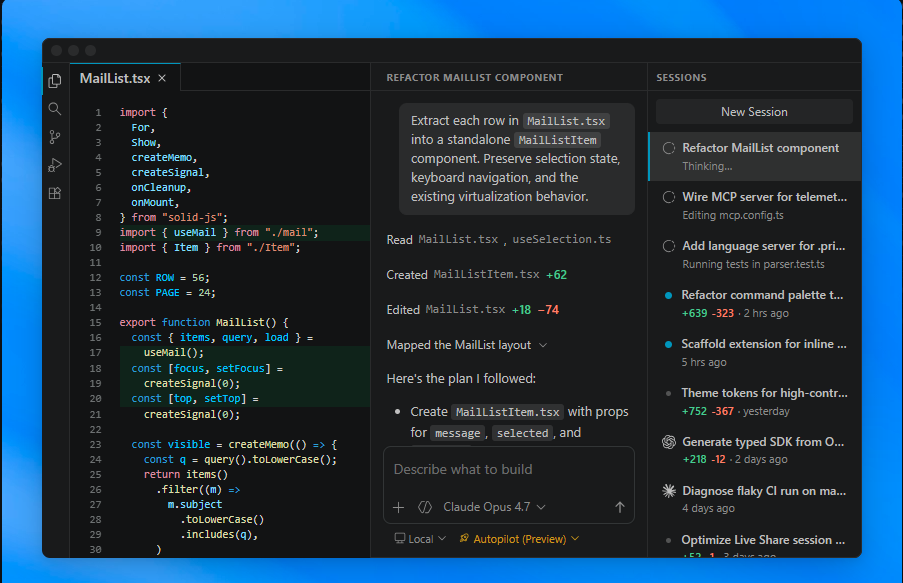
3. Understanding the VS Code Interface
When you open VS Code for the first time, you will see different sections.
Activity Bar
The Activity Bar appears on the left side. It contains important icons such as:
- Explorer
- Search
- Source Control
- Run and Debug
- Extensions
Explorer
Explorer shows your project files and folders. This is where you can open, create, rename, and delete files.
Editor Area
This is the main area where you write code.
Terminal
The integrated terminal allows you to run commands without opening Command Prompt or PowerShell separately.
Status Bar
The Status Bar appears at the bottom. It shows information like current branch, file type, line number, encoding, and errors.
4. How to Open a Folder in VS Code
VS Code works best when you open a full project folder.
Steps:
- Open VS Code.
- Click File.
- Click Open Folder.
- Select your project folder.
- Click Select Folder.
After opening a folder, you can see all files in the Explorer section.
For example, if you are working on a Flutter project, open the main project folder where pubspec.yaml is located. If you are working on a Node.js project, open the folder where package.json is located.
5. How to Create a New File
To create a new file:
- Open Explorer.
- Click the New File icon.
- Enter file name with extension.
Examples:
index.htmlstyle.cssmain.jsapp.pymain.dart
File extension is important because VS Code uses it to understand the programming language.
6. Basic VS Code Shortcuts for Beginners
Learning shortcuts will make you faster.
Important VS Code shortcuts:
Ctrl + S — Save fileCtrl + C — CopyCtrl + V — PasteCtrl + X — CutCtrl + Z — UndoCtrl + Y — RedoCtrl + F — FindCtrl + H — ReplaceCtrl + P — Quick file searchCtrl + Shift + P — Command PaletteCtrl + B — Show or hide sidebarCtrl + J — Show or hide terminalAlt + Shift + F — Format documentCtrl + / — Comment or uncomment line
The most important shortcut is Ctrl + Shift + P because it opens the Command Palette. From there, you can access almost every VS Code command.
Part 2: VS Code Setup for Programming
7. Install Language Extensions
VS Code supports many languages, but for better development you should install language-specific extensions.
Best VS Code Extensions for Web Development
- HTML CSS Support
- JavaScript and TypeScript Nightly
- Prettier
- ESLint
- Live Server
- Auto Rename Tag
- Path Intellisense
Best VS Code Extensions for Flutter Development
- Flutter
- Dart
- Pubspec Assist
- Flutter Widget Snippets
- Awesome Flutter Snippets
- Error Lens
Read : Best Extension for Flutter in VS Code (2026 Guide for Developers)
Best VS Code Extensions for Python
- Python
- Pylance
- Jupyter
- Black Formatter
- Python Debugger
Best VS Code Extensions for Git
- GitLens
- Git Graph
- GitHub Pull Requests
- GitHub Copilot
Extensions make VS Code more powerful. But beginners should not install too many extensions at once. Install only what you need.
8. How to Install Extensions in VS Code
Steps:
- Open VS Code.
- Click the Extensions icon from the left sidebar.
- Search for the extension name.
- Click Install.
- Reload VS Code if required.
Example:
- Search Prettier and install it.
- Search Live Server and install it.
- Search Dart and install it.
- Search Flutter and install it.
9. Best VS Code Settings for Beginners
VS Code allows you to customize settings. You can open settings by pressing:
Ctrl + ,
Recommended beginner settings:
- Enable Auto Save.
- Enable Format on Save.
- Set default formatter.
- Enable word wrap.
- Increase font size if needed.
- Enable bracket pair colorization.
- Enable minimap only if useful.
- Use a clean theme.
Recommended settings for better coding:
{
  "editor.formatOnSave": true,
  "editor.wordWrap": "on",
  "editor.tabSize": 2,
  "editor.fontSize": 14,
  "files.autoSave": "afterDelay",
  "editor.bracketPairColorization.enabled": true
}
10. How to Use Integrated Terminal
The integrated terminal is one of the most useful features of VS Code.
To open terminal:
Press Ctrl + J
or
Click Terminal > New Terminal
You can run commands like:
npm install
npm run dev
python app.py
flutter pub get
flutter run
git status
git add .
git commit -m "message"
This saves time because you do not need to switch between VS Code and another terminal window.
Part 3: VS Code for Web Development
11. Create Your First HTML Project in VS Code
Create a folder named:
my-first-websiteOpen this folder in VS Code.
Create three files:
index.html
style.css
script.js
Add this code in index.html:
<!DOCTYPE html>
<html>
<head>
  <title>My First Website</title>
  <link rel="stylesheet" href="style.css">
</head>
<body>
  <h1>Hello VS Code</h1>
  <p>This is my first website using VS Code.</p>

  <script src="script.js"></script>
</body>
</html>
Add this code in style.css:
body {
  font-family: Arial, sans-serif;
  background: #f5f5f5;
  padding: 30px;
}

h1 {
  color: #007acc;
}
Add this code in script.js:
console.log("VS Code tutorial 2026");Now install the Live Server extension. Right-click on index.html and click Open with Live Server.
12. Why Live Server is Useful
Live Server automatically refreshes your browser whenever you save changes in HTML, CSS, or JavaScript files.
It is useful for:
- HTML practice
- CSS design
- JavaScript testing
- Landing page development
- Frontend projects
- Beginner web development
Part 4: VS Code for Flutter Development
13. Why Flutter Developers Should Use VS Code
VS Code is very popular among Flutter developers because it is lightweight, fast, and supports Flutter extensions.
For Flutter development, VS Code helps with:
- Flutter project creation
- Dart code suggestions
- Widget tree editing
- Hot reload
- Debugging
- Terminal commands
- Emulator support
- Code formatting
- Error detection
Read : Flutter Installation and SDK Setup Guide Using VS Code in 2026
Flutter developers can use VS Code as a complete app development editor.
14. Setup VS Code for Flutter
To use Flutter in VS Code, you need:
- Flutter SDK
- Dart SDK
- Android Studio or Android SDK
- VS Code
- Flutter extension
- Dart extension
Steps:
- Install Flutter SDK.
- Install Android Studio or Android SDK.
- Install VS Code.
- Install Flutter and Dart extensions.
- Run
flutter doctor. - Fix all setup issues.
- Create a Flutter project.
- Run the project.
Command to check setup:
flutter doctorCommand to create Flutter project:
flutter create my_appRead : How to Build Your First App with Flutter: Beginner-Friendly Step-by-Step Tutorial
Command to run Flutter app:
flutter run15. Useful VS Code Shortcuts for Flutter
Ctrl + . — Quick fixAlt + Shift + F — Format codeF5 — Start debuggingCtrl + F5 — Run without debuggingCtrl + Shift + P — Command PaletteCtrl + Space — SuggestionsCtrl + J — Terminal
For Flutter, the most useful feature is Hot Reload. It allows you to see UI changes quickly without restarting the app.
Part 5: Intermediate VS Code Tutorial
16. Understanding Command Palette
The Command Palette is the control center of VS Code.
Shortcut:
Ctrl + Shift + PYou can use it to:
- Format document
- Change theme
- Open settings
- Run tasks
- Select interpreter
- Create Flutter project
- Start debugging
- Open keyboard shortcuts
- Install extensions
- Reload window
Beginners should develop the habit of using Command Palette frequently.
17. How to Use Git in VS Code
VS Code has built-in Git support. You can manage code changes directly from the Source Control panel.
Basic Git workflow:
- Check changes.
- Stage files.
- Write commit message.
- Commit changes.
- Push to GitHub.
Common Git commands:
git status
git add .
git commit -m "initial commit"
git push
In VS Code, you can do the same work using the Source Control icon.
VS Code Git features include:
- File change tracking
- Side-by-side comparison
- Commit history
- Branch switching
- Merge conflict handling
- GitHub integration
18. How to Connect VS Code with GitHub
Steps:
- Install Git on your computer.
- Create a GitHub account.
- Open your project in VS Code.
- Initialize Git repository.
- Commit your files.
- Add GitHub remote URL.
- Push code to GitHub.
Commands:
git init
git add .
git commit -m "first commit"
git remote add origin https://github.com/username/repository-name.git
git push -u origin main
For professional developers, Git and GitHub are must-have skills.
19. How to Use Debugging in VS Code
Debugging means finding and fixing errors in code.
VS Code supports debugging for many languages including JavaScript, Python, Dart, Flutter, C++, and more.
Debugging features:
- Breakpoints
- Step over
- Step into
- Watch variables
- Call stack
- Debug console
- Conditional breakpoints
To start debugging:
- Open your code file.
- Click beside the line number to add a breakpoint.
- Press
F5. - Run your program in debug mode.
- Check variable values step by step.
Debugging is one of the biggest differences between beginner and expert developers.
20. How to Format Code Automatically
Clean formatting makes code readable.
Install formatter extensions like:
- Prettier for JavaScript, HTML, CSS
- Black for Python
- Dart formatter for Flutter
- ESLint for JavaScript and TypeScript
Enable format on save:
{
  "editor.formatOnSave": true
}
Now every time you save the file, VS Code will format your code automatically.
Read : Postman Tutorial 2026: From Beginner to Expert (Complete Guide)
Part 6: Advanced VS Code Tutorial
21. Multi-Cursor Editing
Multi-cursor editing allows you to edit multiple lines at the same time.
Useful shortcuts:
Alt + Click — Add cursorCtrl + Alt + Down — Add cursor belowCtrl + Alt + Up — Add cursor aboveCtrl + D — Select next same word
This feature is very useful when editing repeated text, variables, HTML tags, and JSON data.
22. Snippets in VS Code
Snippets are reusable code templates.
Example:
In HTML, type:
!Then press Enter. VS Code creates a full HTML boilerplate.
You can also create custom snippets.
Example JavaScript snippet:
{
  "Console Log": {
    "prefix": "clg",
    "body": [
      "console.log($1);"
    ],
    "description": "Console log shortcut"
  }
}
Now typing clg will create:
console.log();Snippets save time and improve productivity.
23. Workspace Settings vs User Settings
VS Code has two main setting levels:
User Settings
These settings apply to all VS Code projects.
Workspace Settings
These settings apply only to the current project.
For team projects, workspace settings are useful because every developer can follow the same formatting and editor rules.
Example workspace settings file:
{
  "editor.formatOnSave": true,
  "editor.tabSize": 2
}
24. Tasks in VS Code
Tasks help you automate commands.
For example, you can create tasks for:
- Running tests
- Building project
- Starting development server
- Running Flutter commands
- Compiling TypeScript
- Running scripts
Example task:
{
  "version": "2.0.0",
  "tasks": [
    {
      "label": "Run App",
      "type": "shell",
      "command": "npm run dev",
      "group": "build"
    }
  ]
}
Tasks are useful for professional project workflows.
25. Remote Development in VS Code
VS Code supports remote development. You can connect to:
- Remote servers
- WSL
- Docker containers
- GitHub Codespaces
- SSH machines
This is very useful for backend developers, DevOps engineers, cloud developers, and full-stack developers.
Remote development helps you code on one machine while the project runs on another environment.
Part 7: VS Code AI Features in 2026
26. AI Coding in VS Code
In 2026, AI-assisted coding is becoming a major part of software development. VS Code supports AI features through tools like GitHub Copilot and agent-based workflows.
Recent VS Code releases include features related to agents, Copilot improvements, BYOK model options, and AI-assisted workflows. The VS Code 1.120 release notes mention the Agents window in Stable, BYOK improvements, Markdown improvements, and agent safety features.
AI tools can help with:
- Code suggestions
- Bug fixing
- Test generation
- Code explanation
- Documentation writing
- Refactoring
- Project navigation
- Terminal command help
But beginners should not depend completely on AI. First understand programming basics, then use AI to improve speed.Way to Use AI in VS Code
Use AI for:
- Understanding errors
- Generating boilerplate code
- Explaining unfamiliar code
- Writing comments
- Creating test cases
- Improving code structure
- Learning new concepts
Do not blindly copy AI-generated code. Always check:
- Does the code run?
- Is the logic correct?
- Is it secure?
- Is it optimized?
- Does it follow project structure?
AI is a helper, not a replacement for learning.
Read : Android Studio AI: Complete Guide to Building Apps with AI-Powered Project Generation
Part 8: Expert VS Code Workflow
28. Professional Folder Structure
A good folder structure makes projects easy to manage.
Example web project structure:
project-name/
│
├── src/
│   ├── components/
│   ├── pages/
│   ├── assets/
│   └── utils/
│
├── public/
├── package.json
├── README.md
└── .gitignore
Example Flutter project structure:
lib/
│
├── core/
├── data/
├── domain/
├── presentation/
├── routes/
├── services/
└── main.dart
Example Python project structure:
project-name/
│
├── app/
├── tests/
├── requirements.txt
├── README.md
└── main.py
Experts use proper structure from the beginning.
29. Must-Have VS Code Extensions for Experts
For expert workflow, use these extensions carefully:
- Prettier
- ESLint
- GitLens
- Error Lens
- REST Client
- Docker
- Remote SSH
- Dev Containers
- Thunder Client
- Path Intellisense
- Todo Tree
- Markdown All in One
- GitHub Copilot
- Project Manager
Do not install unnecessary extensions because too many extensions can slow down VS Code.
30. VS Code for API Testing
Developers often use Postman for API testing, but VS Code also has extensions like:
- REST Client
- Thunder Client
With REST Client, you can create .http files and test APIs directly from VS Code.
Example:
GET https://api.example.com/users
Content-Type: application/json
For backend developers, this is very useful.
31. VS Code for Markdown Writing
VS Code is also useful for writing documentation.
You can write:
- README files
- Technical documentation
- API documentation
- Blog drafts
- Project notes
- Changelog files
Markdown file example:
# Project Title

## Installation

Run this command:

```bash
npm install
Markdown is important for GitHub documentation and professional projects.

---

## 32. VS Code Performance Tips

If VS Code becomes slow, try these steps:

Disable unused extensions.
Avoid opening very large folders.
Exclude build folders from search.
Clear unnecessary workspace files.
Keep VS Code updated.
Use lightweight themes.
Restart VS Code when extensions hang.
Use workspace-specific extensions only when needed.

Add this in settings to exclude heavy folders:

```json
{
  "files.exclude": {
    "**/node_modules": true,
    "**/build": true,
    "**/.dart_tool": true
  },
  "search.exclude": {
    "**/node_modules": true,
    "**/build": true,
    "**/.dart_tool": true
  }
}
Part 9: VS Code Learning Roadmap 2026
Beginner Roadmap
- Learn how to install VS Code.
- Understand the interface.
- Create files and folders.
- Use terminal.
- Install basic extensions.
- Learn shortcuts.
- Write HTML, CSS, and JavaScript.
- Use Live Server.
Intermediate Roadmap
- Learn Git and GitHub.
- Use debugging.
- Configure settings.
- Use formatters.
- Use extensions properly.
- Learn workspace settings.
- Use snippets.
- Manage projects.
Advanced Roadmap
- Use remote development.
- Use Docker extension.
- Create custom snippets.
- Use tasks.
- Use launch configurations.
- Use GitLens.
- Debug large applications.
- Use AI coding tools carefully.
- Optimize VS Code performance.
Expert Roadmap
- Build complete project workflows.
- Use Dev Containers.
- Create team workspace settings.
- Use advanced Git workflows.
- Automate development tasks.
- Use AI agents for productivity.
- Work with multiple languages.
- Create professional documentation.
- Maintain clean project architecture.
Part 10: Common VS Code Problems and Solutions
Problem 1: VS Code Terminal Not Working
Solution:
- Restart VS Code.
- Check default terminal profile.
- Update shell path.
- Run VS Code as administrator if required.
- Check PowerShell execution policy on Windows.
Problem 2: Extensions Not Working
Solution:
- Reload VS Code.
- Disable and enable extension.
- Update extension.
- Check extension compatibility.
- Open correct project folder.
- Check language mode.
Problem 3: Code Formatting Not Working
Solution:
- Install correct formatter.
- Set default formatter.
- Enable format on save.
- Check project config files.
- Resolve formatter conflicts.
Example:
{
  "editor.defaultFormatter": "esbenp.prettier-vscode",
  "editor.formatOnSave": true
}
Problem 4: Git Not Detected in VS Code
Solution:
- Install Git.
- Restart VS Code.
- Check Git path.
- Run
git --versionin terminal. - Open a Git initialized folder.
Problem 5: Flutter Not Detected in VS Code
Solution:
- Install Flutter SDK.
- Add Flutter to PATH.
- Install Dart and Flutter extensions.
- Run
flutter doctor. - Restart VS Code.
- Open Flutter project root folder.
Read : Flutter Installation and SDK Setup Guide Using VS Code in 2026
Best Practices for VS Code in 2026
- Use meaningful file names.
- Keep project folders clean.
- Use Git from the beginning.
- Install only required extensions.
- Use keyboard shortcuts.
- Enable format on save.
- Write README files.
- Use debugging instead of only printing logs.
- Learn terminal commands.
- Use AI tools for support, not dependency.
- Keep VS Code updated.
- Create project-specific settings.
Conclusion
VS Code is one of the best code editors for beginners and professional developers in 2026. It is lightweight, powerful, customizable, and suitable for almost every type of development. From basic HTML pages to Flutter apps, Python scripts, backend APIs, cloud projects, and AI-assisted coding, VS Code can handle modern development workflows easily.
This VS Code tutorials 2026 guide covered everything from installation to expert-level workflow. If you are a beginner, start with basic file creation, terminal usage, extensions, and shortcuts. If you are an intermediate developer, focus on Git, debugging, formatting, and project settings. If you want to become an expert, learn remote development, tasks, snippets, Dev Containers, AI tools, and professional project structure.
For FlutterFever readers, VS Code is especially useful because it works smoothly with Flutter, Dart, web development, backend development, and modern AI-powered coding workflows.
FAQs: VS Code Tutorials 2026
VS Code is used for writing, editing, running, and debugging code. It supports many programming languages like Python, JavaScript, Dart, Flutter, HTML, CSS, Java, PHP, and C++.
Yes, VS Code is free to download and use. It is available for Windows, macOS, and Linux.
Yes, VS Code is very good for beginners because it has a simple interface, useful extensions, integrated terminal, and strong community support.
Yes, VS Code is one of the best editors for Flutter development. You need to install Flutter SDK, Dart extension, and Flutter extension.
Yes, you can run Python in VS Code by installing the Python extension and selecting the correct Python interpreter.
Some useful beginner extensions are Prettier, Live Server, Python, Dart, Flutter, Auto Rename Tag, Error Lens, and GitLens.
The shortcut to open or close the terminal in VS Code is Ctrl + J.
You can format code using Alt + Shift + F. You can also enable format on save from settings.
VS Code is lightweight and suitable for many languages. Visual Studio is a full IDE mainly used for large .NET, C#, and enterprise projects. For beginners, web developers, Flutter developers, and Python developers, VS Code is often easier.
Yes, VS Code supports AI tools like GitHub Copilot and agent-based coding features. These tools can help with code suggestions, debugging, explanations, and productivity.