

How to Run Gemma 3 1B On-Device AI in Flutter – Complete Offline AI Guide

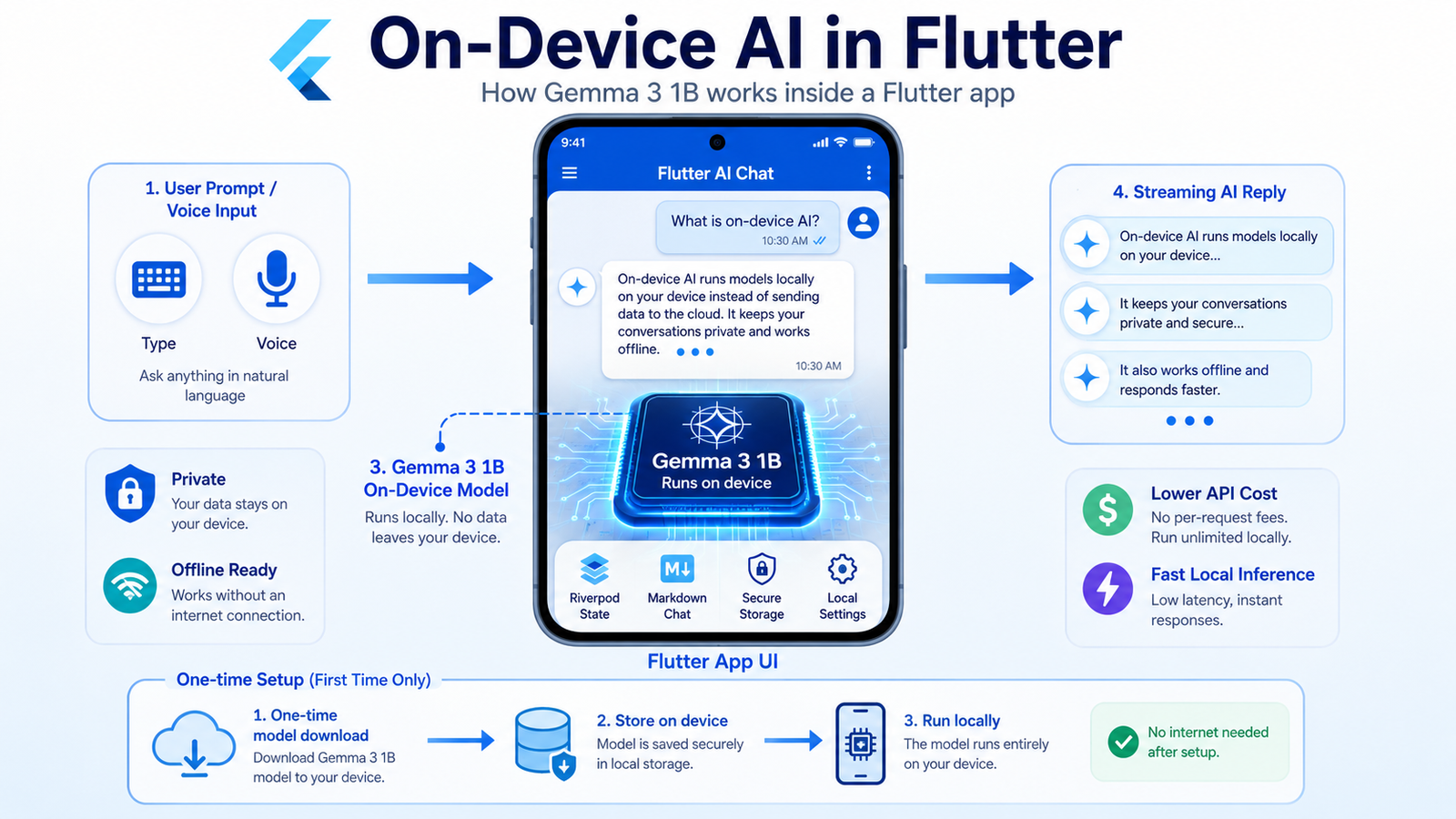
Running AI directly inside a mobile app is becoming one of the most useful trends in Flutter development.
Instead of sending every prompt to OpenAI, Gemini, or another cloud API, you can run a small AI model directly on the user’s device.
In this guide, we will explain how to build a Flutter on-device AI chat app using Gemma 3 1B, how local AI works, why it is useful, how to download a Gemma model from Hugging Face, how to stream responses, and what limitations you should expect.
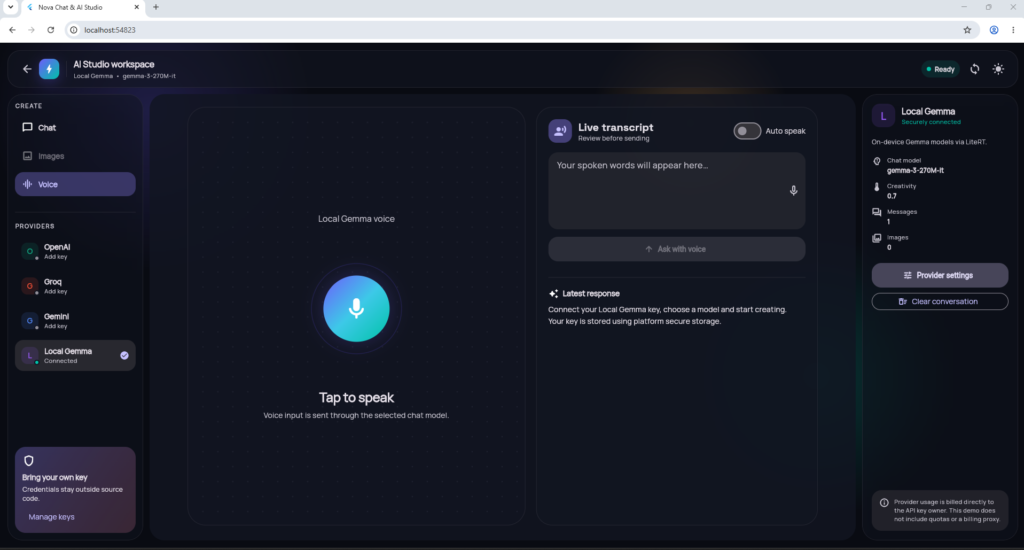
The example project used in this guide is a Flutter application called Nova Chat UI + AI Studio, built with Riverpod and local Gemma model support.
What Is On-Device AI in Flutter?
On-device AI means the AI model runs directly on the phone, tablet, laptop, or browser instead of sending every request to a remote server.
A traditional AI application usually works like this:
Flutter App → Internet → AI API → AI Server → Response
An on-device AI app works more like this:
Flutter App → Local Gemma Model → Response
Once the model is downloaded, many requests can be processed locally.
This can make Flutter apps more private, reduce API usage, and allow some AI features to work without a continuous internet connection.
Google describes Gemma as a family of lightweight open models designed for a wide range of environments, including devices with limited resources.
Why Use Gemma 3 1B in Flutter?
Gemma 3 1B is an interesting option for mobile AI because it is significantly smaller than large cloud models while still being capable of useful text-generation tasks.
Google released Gemma 3 in multiple model sizes, including a 1B parameter version.
The 1B model can be useful for features such as:
- Offline chatbot
- Text rewriting
- Simple question answering
- Notes assistant
- Local app help
- Basic summarization
- Smart suggestions
- Form assistance
- Private text processing
It is not designed to replace large cloud models for every task, but it can be a practical local assistant.
Why On-Device AI Is Helpful
There are several reasons Flutter developers may want to run AI locally.
1. Better Privacy
User prompts can remain on the device instead of being sent to a third-party AI server.
This can be useful for apps handling:
- Personal notes
- Private documents
- Internal company information
- Offline productivity data
- Sensitive text
2. Lower AI API Cost
Cloud AI APIs normally charge based on usage.
If thousands of users repeatedly call a cloud model, those costs can increase quickly.
With on-device AI, inference happens on the user’s hardware after the model has been downloaded.
3. Offline AI Features
Once the model files are installed, some AI features can continue working even if the device loses internet access.
Internet may still be required for the first model download.
4. Faster Small Tasks
For simple prompts, local inference can avoid network latency.
Instead of:
send request → wait for server → receive response
the model processes the request locally.
Actual speed still depends heavily on the device hardware and model configuration.
5. Cloud AI Fallback
A useful architecture is:
Gemma local AI when possible → Cloud AI when more capability is required
For example, your Flutter app could use Gemma 3 1B for small local requests and switch to Gemini, OpenAI, or Groq for heavier tasks.
What We Built
Our Flutter testing application includes:
- Gemma 3 1B on-device model
- Gemma 3 270M option
- Local AI chat
- Streaming responses
- Riverpod state management
- Markdown AI responses
- Hugging Face model downloads
- Local model switching
- OpenAI provider
- Groq provider
- Gemini provider
- Voice input
- Text-to-speech
- Secure API/token storage
- Responsive Flutter UI
The main goal was to test whether a Flutter app could provide a ChatGPT-style experience while running Gemma locally.
Flutter Gemma Package
The project uses the flutter_gemma ecosystem.
At the time of writing, the package has moved to a modular structure where inference engines can be added separately. The current package documentation lists optional modules including flutter_gemma_litertlm and flutter_gemma_mediapipe.
Example dependencies:
dependencies:
  flutter_riverpod: ^3.3.2
  http: ^1.6.0
  flutter_secure_storage: ^10.3.1
  flutter_markdown_plus: ^1.0.12
  speech_to_text: ^7.4.0
  flutter_tts: ^4.2.5

  flutter_gemma: ^1.0.0-rc.1
  flutter_gemma_litertlm: ^1.0.0-rc.1
  flutter_gemma_mediapipe: ^1.0.0-rc.1
For a new production project, always check the latest compatible versions on pub.dev before copying version numbers.
MediaPipe vs LiteRT-LM
The project supports two types of local model runtimes.
MediaPipe
MediaPipe is used for compatible .task model files.
For example:
gemma3-1b-it-int4.taskThe flutter_gemma_mediapipe package provides MediaPipe-based on-device inference support for Flutter.
LiteRT-LM
LiteRT-LM is Google’s newer runtime layer designed for running language models efficiently on edge devices.
Google describes LiteRT-LM as a production-ready, high-performance framework for deploying LLMs on devices.
The Flutter integration can register both engines when required.
Example:
await FlutterGemma.initialize(
  webStorageMode: WebStorageMode.streaming,
  inferenceEngines: [
    LiteRtLmEngine(),
    MediaPipeEngine(),
  ],
);
This lets the application work with different supported model formats.
Gemma 3 1B Model for Android
One useful ready-to-run version of Gemma 3 1B is available through the LiteRT community on Hugging Face.
The repository provides variants of Google’s Gemma 3 1B instruction-tuned model prepared for Android using LiteRT and MediaPipe LLM inference.
Example model:
Model:
Gemma 3 1B IT

File:
gemma3-1b-it-int4.task

Format:
.task

Runtime:
MediaPipe
Model page:
https://huggingface.co/litert-community/Gemma3-1B-ITDownloading Gemma 3 1B in a Flutter App
Instead of packaging a large AI model inside the APK, a more practical approach is to download it when the user selects local AI.
Example:
await FlutterGemma.installModel(
  modelType: spec.modelType,
  fileType: spec.fileType,
)
    .fromNetwork(
      spec.url,
      token: huggingFaceToken.isEmpty
          ? null
          : huggingFaceToken,
      foreground: true,
    )
    .withProgress((progress) {
      onStatus?.call(
        'Downloading ${spec.label}: $progress%',
      );
    })
    .install();
This allows the UI to display download progress.
Before downloading again, check whether the model already exists:
final installed =
    await FlutterGemma.isModelInstalled(
  spec.fileName,
);
If it is already installed, simply load the model.
Hugging Face Access and Gemma License
Some Gemma repositories on Hugging Face require users to accept Google’s Gemma terms before downloading model files.
The Gemma 3 1B LiteRT repository is gated and requires the user to review and accept the Gemma license before accessing files.
Typical setup:
- Create a Hugging Face account.
- Open the Gemma model page.
- Accept the required Gemma conditions.
- Create a read-access Hugging Face token.
- Add the token to your app settings.
- Download the model.
Token page:
https://huggingface.co/settings/tokensDo not hard-code your own personal Hugging Face token inside a publicly distributed Flutter application.
Opening Gemma 3 1B
After the model has been downloaded, the app can activate it.
Example:
final model = await FlutterGemma.getActiveModel(
  maxTokens: spec.maxTokens,
  preferredBackend: backend,
  supportImage: false,
  supportAudio: false,
  maxConcurrentSessions: 1,
);
Our testing configuration uses CPU for .task models:
final backend =
    spec.fileType == gemma.ModelFileType.task
        ? gemma.PreferredBackend.cpu
        : gemma.PreferredBackend.gpu;
This was chosen for compatibility in our test app.
Performance will vary depending on the phone and inference backend.
Streaming Gemma Responses in Flutter
A local chatbot feels much better when the response appears gradually instead of waiting for the entire answer.
Our app uses asynchronous streaming:
chat.generateChatResponseAsync()The UI updates the assistant message whenever new text arrives.
The user sees:
Hello → Hello! How → Hello! How can I → Hello! How can I help you?
instead of waiting for the whole response.
This creates a much more familiar AI chat experience.
Riverpod for AI State Management
Riverpod manages:
- Current provider
- Selected model
- Download state
- AI loading state
- Streaming text
- Conversation history
- Errors
- Provider settings
A simplified architecture looks like:
UI
 ↓
Riverpod Controller
 ↓
AI Gateway
 ↓
Local Gemma / OpenAI / Gemini / Groq
This keeps local and cloud providers behind a common interface.
Read : Riverpod Tutorials 2026 – Advanced Level Guide
Local Gemma + Cloud AI Provider Switching
One of the most useful features in this architecture is provider switching.
The user can choose:
Local Gemma
OpenAI
Gemini
Groq
A possible strategy is:
Simple private request
        ↓
Gemma 3 1B

Complex request
        ↓
Cloud AI
This hybrid approach gives developers more control over privacy, quality, speed, and API costs.
Markdown AI Responses
AI models frequently return Markdown.
Example:
## Steps

1. Install Flutter
2. Download the model
3. Run the app

**Done**
Our app renders AI messages using:
flutter_markdown_plusInstead of showing raw symbols, users see formatted headings, lists, bold text, and code blocks.
This is especially important when displaying programming answers.
Handling Incomplete Markdown During Streaming
Streaming creates an interesting UI problem.
The model may currently return:
**Flutter isbut the closing Markdown characters have not arrived yet.
If rendered immediately, the formatting can appear broken.
The app temporarily fixes incomplete Markdown while streaming and re-renders the final response when generation completes.
This creates a cleaner ChatGPT-style experience.
Voice Input with On-Device AI
Our app also supports speech input.
The flow is:
User speaks
   ↓
Speech-to-text
   ↓
Prompt
   ↓
Gemma 3 1B
   ↓
Local response
You can optionally combine this with text-to-speech:
Gemma response
     ↓
Flutter TTS
     ↓
Device speaks answer
This provides a simple foundation for building a local voice assistant.
Is Gemma 3 1B Completely Offline?
Not necessarily during initial setup.
The first time the user chooses the model, the app may need internet access to download the model file.
After it has been stored locally, inference can run on the device.
This is an important distinction when describing an offline Flutter AI app.
A more accurate description is:
Download once, then run supported AI inference locally without sending each prompt to a cloud model.
Gemma 3 270M vs Gemma 3 1B
If your priority is speed and lower resource usage, a smaller model is usually the easier starting point.
Gemma 3 270M
Best for:
- Lightweight tasks
- Lower-end devices
- Faster testing
- Simple responses
Gemma 3 1B
Best for:
- Better text quality
- More useful chat
- More complex instructions
- Devices with more available RAM and compute
The 1B model offers a better balance if the target hardware can run it comfortably.
Gemma 3 1B vs Cloud AI
There is no universal winner.
Local Gemma 3 1B
Advantages:
- Better privacy
- No per-message API fee
- Can work without continuous internet
- Lower network latency
- Data stays locally for supported workflows
Limitations:
- Uses phone storage
- Consumes RAM
- Can increase battery usage
- Smaller model capability
- Device-dependent performance
Cloud AI
Advantages:
- Larger and more capable models
- Better complex reasoning
- No large model stored on device
- Consistent server hardware
Limitations:
- Internet required
- API cost
- Network latency
- Prompts leave the device
The best architecture may use both.
Android Support
Android is currently one of the strongest targets for this Gemma setup.
Google provides mobile deployment guidance for Gemma and supports running compatible models through Google AI Edge technologies such as MediaPipe and LiteRT.
The LiteRT Community Gemma 3 1B build is specifically described as ready for Android deployment.
What About Flutter Web?
Running large AI models directly in a browser is more demanding.
Web AI depends on factors including:
- Browser support
- WebGPU/WebNN availability
- GPU compatibility
- Browser storage
- Available RAM
- Model size
Google is actively developing LiteRT.js for running AI directly in web applications using technologies such as WebGPU and WebNN.
For production apps, developers should still provide a cloud fallback when local browser inference is unavailable.
Common Error: HTTP 401 from Hugging Face
If you see:
HTTP 401check:
- Hugging Face token
- Token read permission
- Whether Gemma conditions were accepted
- Correct model URL
The Gemma repository may allow users to see the repository page while still preventing model file downloads until the license terms are accepted.
Error: No Inference Engine Can Handle .task
A .task model needs an inference engine that supports the format.
Make sure MediaPipe is registered:
await FlutterGemma.initialize(
  inferenceEngines: [
    LiteRtLmEngine(),
    MediaPipeEngine(),
  ],
);
The newer modular flutter_gemma architecture requires apps to register the inference engines they actually use.
Should You Use Gemma 3 1B for a Flutter App?
Gemma 3 1B is worth testing if you are building:
- Offline AI apps
- Private AI assistants
- Local chatbots
- Note-taking AI apps
- Education apps
- Local coding helpers
- Productivity tools
- AI features with limited API budget
- Hybrid local + cloud AI apps
For very advanced reasoning, large code generation, or complex multimodal workloads, you may still want a cloud model.
For small private tasks, however, on-device AI opens many interesting possibilities.
Practical Flutter Architecture
A production-ready architecture could look like:
Flutter UI
   ↓
Riverpod
   ↓
AI Provider Interface
   ↓
┌───────────────────────┐
│ Local Gemma 3 1B      │
│ Gemini                │
│ OpenAI                │
│ Groq                  │
└───────────────────────┘
The app can decide which model to use depending on:
- Network availability
- User preference
- Privacy requirement
- Model availability
- Task complexity
Future of On-Device AI in Flutter
On-device AI is becoming increasingly important as runtimes such as Google’s LiteRT continue improving.
LiteRT is Google’s framework for high-performance machine learning and generative AI deployment on edge devices, with support for accelerated inference.
For Flutter developers, this means future applications may combine:
Flutter UI + Local LLM + Cloud AI + Device APIs
inside one application.
Possible future app ideas include:
- Offline farming assistant
- Local study assistant
- Private document assistant
- Travel assistant
- Offline customer-support bot
- Local coding assistant
- AI keyboard
- Voice assistant
- Smart note app
- Enterprise private AI app
Try on Github Repo https://github.com/coderbaba0/flutter-Ondevice_Gemma_test
Conclusion
Running Gemma 3 1B on-device in Flutter is now a practical option for developers experimenting with private and offline AI experiences.
Using flutter_gemma, MediaPipe, LiteRT-LM, Riverpod, streaming responses, and local model downloads, you can create a Flutter AI chat application where supported prompts are processed directly on the user’s device.
The biggest benefits are privacy, lower API usage, offline capability, and the ability to build hybrid apps that combine local AI with cloud providers.
If you’re new to on-device AI development, start with a smaller model, test performance across real Android devices, and then move to Gemma 3 1B when you need better response quality.
Frequently Asked Questions
1. Can Flutter run AI models directly on a phone?
Yes. Flutter apps can use compatible native AI runtimes and packages to execute supported models locally on devices.
2. Can Gemma 3 1B run inside a Flutter app?
Yes. Compatible Gemma 3 1B builds are available for Android deployment through LiteRT and MediaPipe-based runtimes.
3. Is Gemma 3 1B completely offline?
Inference can run locally after the model is installed, although internet access may initially be needed to download the model.
4. Does on-device AI require an API key?
Local inference itself does not require a cloud AI API key. However, a Hugging Face token may be required to download gated Gemma files.
5. Why does Hugging Face return HTTP 401?
You may not have accepted the Gemma terms, your token may be missing, or the token may not have the required access.
6. Is Gemma 3 1B free?
Gemma is an open model family provided under Google’s Gemma terms. Developers should review the applicable license and usage terms before distribution.
7. Is Gemma 3 1B better than Gemma 3 270M?
The 1B model generally provides more model capacity, while a smaller model can require fewer device resources. The best choice depends on your app and target hardware.
8. Does Gemma 3 1B work on Android?
Yes. The LiteRT Community provides Gemma 3 1B variants specifically prepared for Android deployment.
9. Can I stream Gemma responses in Flutter?
Yes. Flutter Gemma integrations can support asynchronous response generation, allowing your chat interface to update as output is generated.
10. Can I combine Gemma with OpenAI or Gemini?
Yes. A Flutter app can expose multiple AI providers and allow the user or app logic to switch between local and cloud models.
11. Does on-device AI reduce API costs?
Yes. Requests processed locally do not require a paid cloud inference request, although other infrastructure or download costs may still exist.
12. Is on-device AI more private?
It can provide stronger privacy because supported prompts can be processed locally rather than sent to a remote AI service.
13. Does Gemma 3 1B use phone storage?
Yes. The model has to be stored locally, so developers should clearly tell users about download and storage requirements.
14. Will Gemma 3 1B work on every Android phone?
No. Performance and compatibility depend on available RAM, processor/GPU capabilities, operating system, runtime, and model configuration.
15. Can Flutter run Gemma in a browser?
Local browser AI is possible in supported environments, but compatibility depends on technologies such as WebGPU/WebNN, hardware acceleration, browser storage, and the runtime being used.
16. What is LiteRT?
LiteRT is Google’s on-device runtime framework for machine learning and generative AI workloads.
17. What is LiteRT-LM?
LiteRT-LM is Google’s LLM-focused orchestration/runtime layer for running language models on edge devices.
18. What is MediaPipe used for here?
MediaPipe can run compatible .task model packages and is one of the runtime options used by Flutter Gemma integrations.
19. Should I bundle Gemma inside my APK?
For large models, downloading the model separately is often more practical because bundling it directly can dramatically increase application size.
20. What is the best use case for Gemma 3 1B in Flutter?
Gemma 3 1B is especially interesting for private assistants, offline chat, lightweight text processing, local productivity features, and hybrid local/cloud AI apps.
Try on Github Repo https://github.com/coderbaba0/flutter-Ondevice_Gemma_test
References
Google Gemma Documentation
https://ai.google.dev/gemma/docs
Gemma 3 Documentation
https://ai.google.dev/gemma/docs/core/model_card_3
Google Mobile Gemma Deployment Guide
https://ai.google.dev/gemma/docs/integrations/mobile
Google LiteRT
https://developers.google.com/edge/litert
Google LiteRT-LM
https://developers.google.com/edge/litert-lm/overview
Gemma 3 1B LiteRT Model
https://huggingface.co/litert-community/Gemma3-1B-IT
flutter_gemma Package
https://pub.dev/packages/flutter_gemma