

Flutter Build Doctor by FlutterFever Studio: Free Smart Tool to Diagnose Flutter Build Errors Faster

Flutter development is fast when everything works.
But a single Android build error can quickly turn a normal development session into hours of searching through Gradle files, Java versions, Kotlin compatibility tables, Stack Overflow threads, package issues and old migration guides.
A typical Flutter developer may suddenly see errors such as:
FAILURE: Build failed with an exception.or:
Android Gradle plugin requires Java 17or:
Minimum supported Gradle version is 8.9
Current version is 7.6
or:
Namespace not specifiedFor experienced developers, these errors are inconvenient.
For someone who has only recently started learning Flutter, they can be extremely confusing.
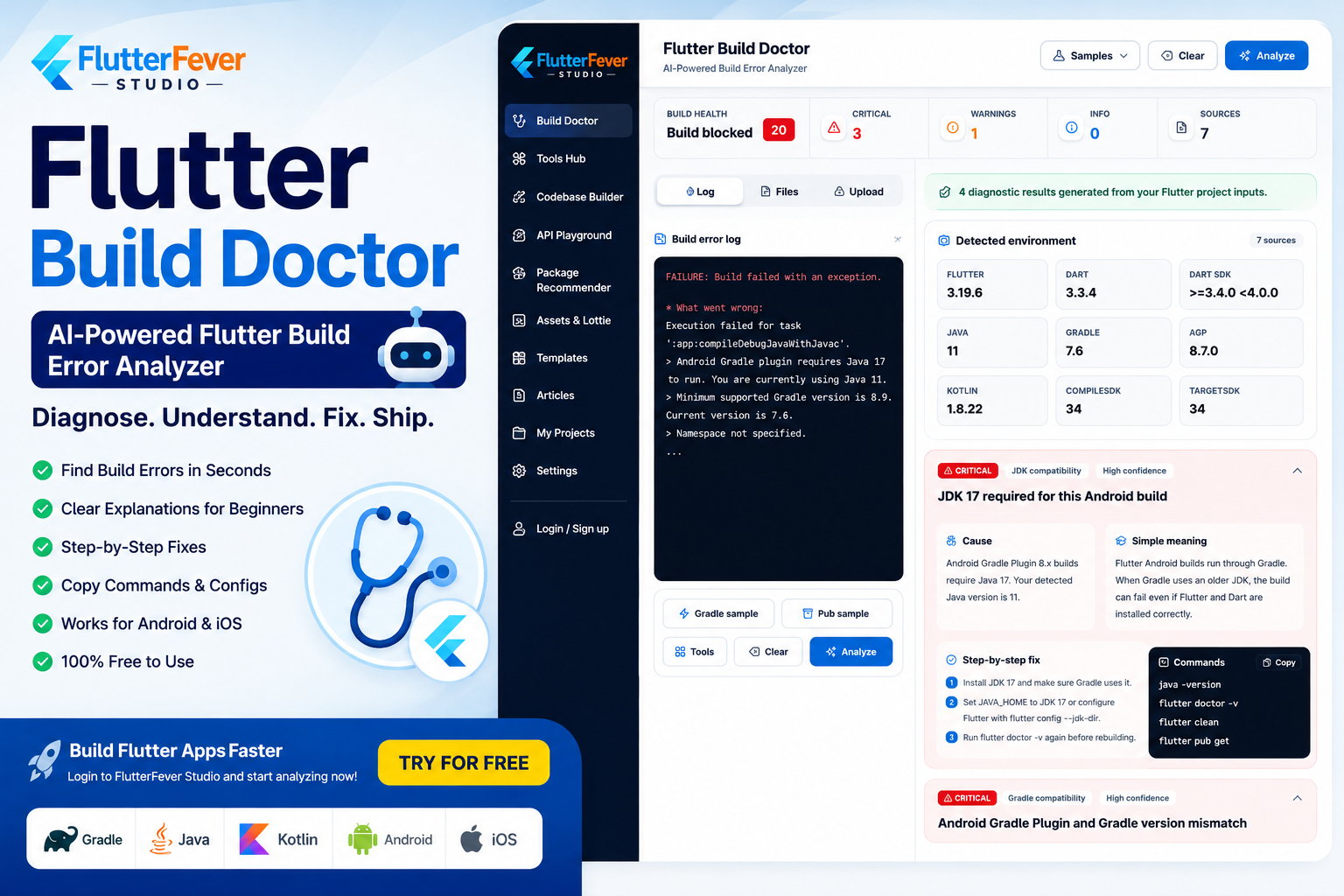
Flutter Build Doctor is a smart Flutter diagnostic tool available inside FlutterFever Studio that is designed to help developers understand these build failures more clearly.
Instead of only showing an error message, the tool is designed around a more useful question:
What failed, why did it fail, which file caused it, and what should the developer change next?
That approach makes Flutter Build Doctor useful for both beginners and experienced developers working with increasingly complex Flutter projects.
Why Flutter Build Errors Are Difficult to Diagnose
A Flutter application may look like a Dart project from the outside, but a production Flutter app depends on multiple development environments.
An Android Flutter build can involve:
- Flutter SDK
- Dart SDK
- Java
- JDK
- Gradle
- Android Gradle Plugin
- Kotlin
- Android SDK
- compileSdk
- targetSdk
- Android Manifest
- signing configuration
- Flutter plugins
- pub dependencies
An iOS build can introduce another set of technologies:
- Xcode
- CocoaPods
- Swift
- deployment target
- Podfile
- certificates
- provisioning profiles
A failure in any one of these layers may prevent the entire Flutter application from building.
This is why simply searching the final error line is not always enough.
A build failure is often the result of multiple versions that no longer agree with one another.
Flutter Build Doctor Turns Build Logs Into Actionable Diagnostics
Flutter Build Doctor is designed to analyze the information a developer provides and organize the result into understandable diagnostic findings.
Based on the tool interface, the diagnostic workflow can surface information such as:
- overall build health
- critical issues
- warnings
- informational findings
- detected development environment
- affected files
- causes
- simple explanations
- step-by-step fixes
- commands to run
- configuration snippets
This is much easier to act on than an unstructured terminal log.
A Practical Example: Java 17 Build Failure
Consider a common Android error:
Android Gradle plugin requires Java 17 to run.
You are currently using Java 11.
A developer who is new to Flutter may assume that Flutter itself is broken.
But the actual problem is not Dart or Flutter UI code.
The Android Gradle Plugin requires a newer Java runtime.
Flutter Build Doctor can turn that error into a structured finding such as:
Critical: JDK compatibility
Problem: JDK 17 required for this Android build
Detected Java: Java 11
Required Java: Java 17
That is immediately easier to understand.
It Explains the Cause, Not Just the Error
One of the useful parts of Flutter Build Doctor is its Cause section.
For the Java example, the explanation can clarify that Android Gradle Plugin 8.x builds require Java 17, while the detected environment is still using Java 11.
That matters because developers often make the wrong change when they do not understand the underlying cause.
For example, they may:
- downgrade Flutter
- reinstall Android Studio
- change Kotlin randomly
- delete Gradle caches
- modify package dependencies
when the real issue is simply the active JDK.
A diagnosis should reduce unnecessary trial and error.
Simple Meaning Helps Beginners Understand Technical Errors
Flutter Build Doctor also presents a Simple meaning section.
This is particularly valuable for fresh Flutter developers.
Instead of assuming the developer already understands the relationship between Flutter, Gradle and Java, the tool can explain the situation in plain language.
For example:
Flutter Android builds run through Gradle. If Gradle is using an older JDK than the Android Gradle Plugin requires, the Android build can fail even though Flutter and Dart themselves are installed correctly.
That explanation teaches the developer something while helping solve the immediate issue.
Flutter Build Doctor Shows the Affected Files
A build error often involves multiple configuration files.
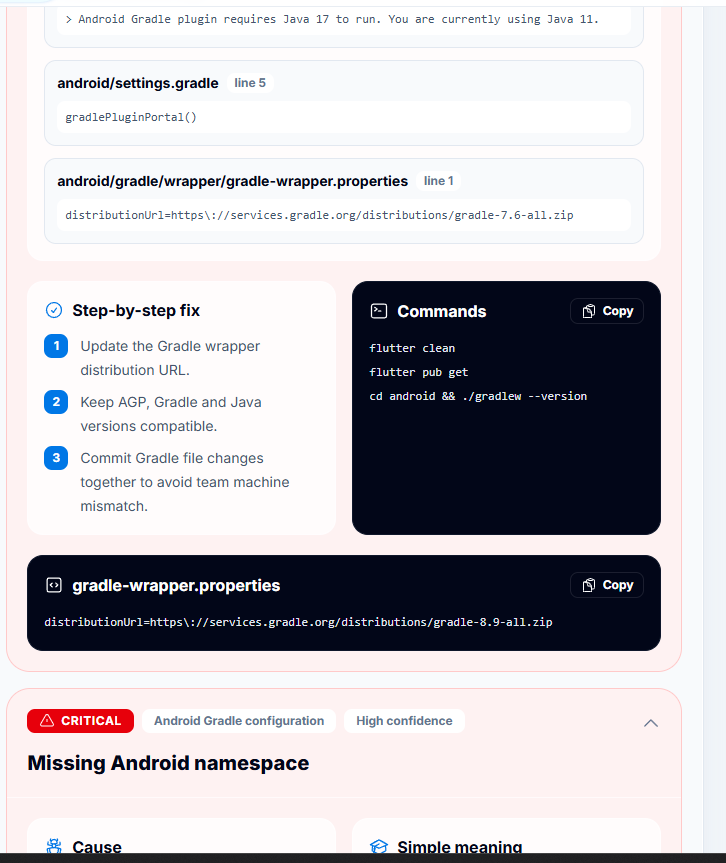
Flutter Build Doctor can associate findings with specific files or inputs, such as:
flutter doctor -vandroid/settings.gradleandroid/app/build.gradleandroid/gradle/wrapper/gradle-wrapper.propertiesAndroidManifest.xmlpubspec.yamlInstead of saying only “Gradle is wrong,” the tool can direct the developer toward the configuration that actually needs attention.
This can save significant debugging time.
Line-Level Context Makes Diagnosis More Useful
The interface can also surface the relevant line or configuration entry.
For example:
id "com.android.application" version "8.7.0" apply falseor:
distributionUrl=https://services.gradle.org/distributions/gradle-7.6-all.zipThis lets the developer compare the detected configuration with the recommended compatibility requirements.
It is much more practical than a generic message such as:
Update Gradle.
Step-by-Step Fixes
One of Flutter Build Doctor’s strongest usability features is the Step-by-step fix section.
For a JDK compatibility issue, the workflow may look like:
- Install JDK 17.
- Configure Flutter or
JAVA_HOMEto use JDK 17. - Run
flutter doctor -vagain. - Clean the project.
- Rebuild.
This approach is much easier for beginners than receiving one long technical explanation.
Copyable Commands
Flutter Build Doctor can also provide commands directly beside a finding.
For example:
java -versionflutter doctor -vflutter cleanflutter pub getA JDK configuration suggestion may include:
flutter config --jdk-dir "C:\Program Files\Java\jdk-17"This reduces the chance that a beginner searches for the right command and accidentally uses an unrelated solution.
Configuration Snippets Can Be Copied Directly
Some Flutter build errors require file changes rather than only terminal commands.
Flutter Build Doctor can provide configuration examples that developers can review and copy.
For example:
org.gradle.java.home=C:\Program Files\Java\jdk-17or for Android namespace configuration:
android {
    namespace "com.example.app"
}
The tool does not need to automatically rewrite the developer’s project to be useful.
Showing the exact recommended change while leaving the developer in control is often safer.
Flutter Build Doctor Does Not Automatically Modify Your Project
An important design decision is that Flutter Build Doctor provides diagnostic recommendations rather than silently changing application files.
That means developers can:
- inspect the recommendation
- understand why it is required
- copy the suggested command
- review a code snippet
- apply the change themselves
- rebuild the project
This is especially useful in professional projects where automatic changes to Gradle, signing or native configuration could be risky.
AI-Assisted Flutter Debugging Without Blind Code Changes
Flutter Build Doctor fits well into the growing trend of AI-assisted development.
A smart diagnostic system can help organize large amounts of technical information and explain relationships between:
- error messages
- SDK versions
- configuration files
- environment information
- dependency constraints
The important difference is that Flutter Build Doctor focuses on Flutter build diagnostics rather than acting as a general-purpose chatbot.
That focused workflow can make the output more useful for common Flutter build problems.
What Can Flutter Build Doctor Detect?
Flutter Build Doctor is designed to cover many common build blockers.
Flutter and Dart SDK Mismatch
Different package or project configurations may require specific Flutter or Dart SDK ranges.
Build Doctor can help identify incompatible SDK requirements.
Example:
Dart SDK >=3.4.0 <4.0.0If a project environment does not satisfy that constraint, the developer needs to know immediately.
Package Dependency Conflicts
Flutter’s package ecosystem is extremely useful, but dependency resolution can become complicated.
A project may encounter problems such as:
Because package A depends on package B ^2.0.0
and package C depends on package B ^1.0.0,
version solving failed.
Flutter Build Doctor can help interpret common package-solving problems and direct developers toward actions such as:
flutter pub outdatedor dependency cleanup.
This makes it useful as a Flutter dependency conflict checker as well as a build diagnostic tool.
Android Gradle Plugin and Gradle Mismatch
This is one of the most common Android build failures.
For example:
AGP: 8.7.0
Gradle: 7.6
These versions may not be compatible.
Flutter Build Doctor can detect this relationship rather than analyzing each number separately.
A diagnostic can explain that the Android Gradle Plugin version requires a newer Gradle version.
That is much more useful than telling the developer that “Gradle failed.”
Java and JDK Compatibility Errors
Java compatibility is another frequent source of Flutter Android problems.
For example:
Java: 11
AGP: 8.x
may result in a build failure if the Android Gradle Plugin requires JDK 17.
Flutter Build Doctor can identify:
- detected Java version
- required Java version
- related AGP requirement
- commands to verify Java
- possible Flutter JDK configuration
This makes it particularly useful after Android Studio, Gradle or Flutter upgrades.
Kotlin Version Mismatch
Flutter plugins frequently contain Kotlin code.
A project can therefore break because of an incompatible Kotlin version even if the Dart code is perfectly valid.
Flutter Build Doctor can help surface mismatches involving:
- Kotlin Gradle Plugin
- Android Gradle Plugin
- plugin requirements
- project configuration
This can prevent developers from spending hours debugging Dart code that has nothing to do with the failure.
compileSdk and targetSdk Problems
Android builds rely on several SDK configuration values.
Common examples include:
compileSdk 34and:
targetSdk 34Plugins may require newer SDK levels.
An Android build can fail if a dependency expects a higher compileSdk than the project currently uses.
Flutter Build Doctor can help identify these configuration mismatches.
Missing Android Namespace
Modern Android Gradle Plugin versions require a namespace inside the module Gradle configuration.
Older Flutter applications may have only defined the package in AndroidManifest.xml.
That can produce errors such as:
Namespace not specified.Flutter Build Doctor can identify the affected build.gradle configuration and show an example such as:
android {
    namespace "com.example.app"
}
This is a perfect example of a build error that is easy to fix once the developer knows exactly what changed.
Manifest Permission Issues
Flutter apps frequently use plugins requiring Android permissions.
Examples include:
- camera
- microphone
- location
- Bluetooth
- notifications
- storage
- internet access
Missing or incorrectly configured permissions can create runtime or build problems.
Flutter Build Doctor is designed to help identify relevant manifest configuration issues when sufficient project context is provided.
CocoaPods and iOS Deployment Target Errors
Flutter Build Doctor is not limited to Android.
iOS Flutter applications can encounter problems involving:
- CocoaPods
- Podfile
- deployment target
- incompatible pods
- native iOS plugin requirements
Providing the related terminal output and project configuration can help the diagnostic process identify common iOS build blockers.
APK and AAB Signing Configuration Errors
Android production builds introduce another category of problems.
A debug build may work perfectly while:
flutter build apk --releaseor:
flutter build appbundlefails.
Common causes include:
- missing keystore
- incorrect key alias
- bad signing configuration
- missing properties
- release configuration problems
Flutter Build Doctor is designed to include release and signing configuration among its diagnostic areas.
Deprecated Flutter APIs
Flutter evolves quickly.
Code that worked in an older SDK may eventually generate warnings or fail after an upgrade.
Flutter Build Doctor can help identify build or migration problems related to older APIs when relevant information is included in the analysis.
This makes the tool useful during Flutter SDK upgrades.
Flutter Upgrade Migration Problems
Upgrading from one Flutter version to another can affect:
- Gradle
- Kotlin
- Java
- Android SDK
- plugins
- deprecated APIs
- iOS build configuration
A build may expose one error at a time.
Flutter Build Doctor is designed for this layered debugging workflow.
Fix the first blocker.
Rebuild.
Then analyze the next error.
That is often the correct way to handle major Flutter migrations.
How to Use Flutter Build Doctor
A good diagnosis begins with good input.
Flutter Build Doctor follows a clean workflow.
Step 1: Paste the Full Flutter Error
Start with the complete terminal output.
Do not paste only:
Build failed.Include useful context such as:
FAILURE: Build failed with an exception.

What went wrong:

Execution failed for task...
and the first meaningful stack trace or dependency-solving message.
The beginning of the error often contains the most useful information.
Step 2: Add flutter doctor -v
Run:
flutter doctor -vand add the output to the analysis.
This helps identify the environment, including relevant SDK and tooling information.
It may reveal issues involving:
- Flutter version
- Dart version
- Java
- Android SDK
- Android Studio
- Xcode
- connected tooling
The more accurate the environment context, the more precise the diagnosis can become.
Step 3: Add Important Project Files
For Android problems, useful files often include:
pubspec.yamlandroid/settings.gradleandroid/build.gradleandroid/app/build.gradleandroid/gradle/wrapper/gradle-wrapper.propertiesandroid/app/src/main/AndroidManifest.xmlFor iOS problems, related Podfile and terminal information may be useful.
You do not necessarily need to provide every file.
Start with the relevant files for the error.
Step 4: Run Analyze Flutter Build
Once the log and project context are available, run the analysis.
The tool can organize findings according to severity.
For example:
- Critical
- Warning
- Info
This helps developers prioritize problems rather than trying to fix everything at once.
Step 5: Fix Critical Findings First
If the tool finds:
3 Critical
1 Warning
0 Info
start with the critical blockers.
A warning may not prevent the project from compiling.
A critical issue usually will.
This simple priority model prevents wasted effort.
Step 6: Read Cause and Simple Meaning
Before copying commands, understand the finding.
Look at:
Cause
and:
Simple meaning
This helps prevent unnecessary project modifications.
If the problem is JDK compatibility, you should not start changing Flutter packages.
If the problem is Gradle compatibility, changing Dart code will not help.
Step 7: Review Affected Files
Check which files contributed to the finding.
For example:
flutter doctor -vmay show Java 11.
Meanwhile:
android/settings.gradlemay show AGP 8.7.
And:
gradle-wrapper.propertiesmay show Gradle 7.6.
The combination can explain the entire build failure.
Step 8: Copy Suggested Commands or Snippets
After understanding the problem, use the provided commands.
Example:
java -version
flutter doctor -v
flutter clean
flutter pub get
or a project-specific command such as:
flutter config --jdk-dir "C:\Program Files\Java\jdk-17"Review configuration snippets before applying them.
Step 9: Apply One Fix at a Time
This is extremely important.
Do not change:
- Java
- Gradle
- Kotlin
- compileSdk
- dependencies
all at once unless there is a clear migration plan.
Fix the highest-confidence blocker first.
Then run:
flutter clean
flutter pub get
and rebuild.
This makes it easier to understand which change actually solved the issue.
Step 10: Analyze the Next Error
Build systems often fail in layers.
For example:
Error 1: Java 11 incompatibleAfter fixing it:
Error 2: Gradle version incompatibleAfter fixing that:
Error 3: Missing namespaceThat does not mean the first diagnosis was wrong.
The first blocker simply prevented Gradle from reaching the next stage.
Flutter Build Doctor is especially useful for this iterative troubleshooting process.
Real Example: Multiple Problems in One Flutter Project
Consider a project with:
Java: 11
Gradle: 7.6
AGP: 8.7.0
Kotlin: 1.8.22
compileSdk: 34
targetSdk: 34
A developer may initially see only a Java-related build failure.
But there can be several configuration problems.
Flutter Build Doctor may identify separate findings such as:
Critical Finding 1
JDK 17 required for this Android build
Cause:
AGP 8.x requires Java 17 while the current project environment uses Java 11.
Critical Finding 2
Android Gradle Plugin and Gradle version mismatch
Cause:
AGP 8.7.0 requires a newer compatible Gradle version than the project currently uses.
Critical Finding 3
Android namespace missing
Cause:
Newer Android Gradle Plugin versions expect the app namespace to be configured in Gradle.
This structured approach is far easier to understand than one long terminal log.
Why Flutter Build Doctor Is Useful for Beginners
New Flutter developers often know Dart before they understand Android build tooling.
They may be comfortable writing:
class HomePage extends StatelessWidget {
  const HomePage({super.key});

  @override
  Widget build(BuildContext context) {
    return const Scaffold();
  }
}
but suddenly encounter:
Could not resolve all files for configurationor:
Unsupported class file major versionor:
Namespace not specifiedThese errors belong to completely different technologies.
Flutter Build Doctor helps bridge that knowledge gap.
It Can Teach While It Diagnoses
A beginner should not only know:
Change Gradle to version X.
They should ideally understand:
Android Gradle Plugin and Gradle must use compatible versions.
This difference matters.
The first approach solves one project.
The second helps the developer solve future projects.
Flutter Build Doctor’s combination of Cause + Simple meaning + Step-by-step fix can make debugging educational rather than purely mechanical.
Why Experienced Flutter Developers Can Benefit Too
Experienced developers already know many of these concepts.
But they still spend time collecting information.
A senior developer debugging a migrated project may need to inspect:
- Flutter SDK
- JDK
- AGP
- Gradle wrapper
- Kotlin
- namespace
- compileSdk
Flutter Build Doctor can organize these signals quickly.
The value for experienced developers is less about learning what Gradle is and more about reducing diagnostic time.
Useful for Flutter Freelancers
Freelancers frequently inherit old applications.
A client may send a project that has not been updated for two years.
The developer runs:
flutter pub getand suddenly gets multiple dependency and Android migration errors.
Flutter Build Doctor can be useful for understanding the project’s current state before blindly upgrading everything.
That can make project estimation more realistic as well.
Useful When Taking Over Legacy Flutter Projects
Legacy Flutter projects commonly contain:
- old Gradle versions
- outdated Kotlin
- deprecated plugins
- old Android manifests
- old package constraints
- older iOS deployment targets
Flutter Build Doctor can help provide a more systematic starting point for modernization.
Instead of:
Update everything and hope
the workflow becomes:
Analyze → prioritize → update → rebuild → analyze again
Useful After Flutter SDK Upgrades
Flutter SDK upgrades often trigger native build changes even when application Dart code barely changes.
After an upgrade, Flutter Build Doctor can help developers identify whether the failure relates to:
- Java
- Gradle
- AGP
- Kotlin
- Android SDK
- dependencies
- deprecated configuration
This makes it complementary to FlutterFever Studio’s broader Flutter upgrade tools.
Use Flutter Build Doctor Before Asking Random Questions Online
Searching the web for Flutter errors can help, but there is a major problem:
Many old answers remain indexed for years.
A solution written for:
Flutter 2.x
Gradle 6.x
Java 8
may be completely inappropriate for a modern Flutter project.
A project-aware diagnostic workflow is more useful because it considers the versions and files you actually provide.
Why Full Error Logs Matter
Developers sometimes paste only one red line.
That often removes critical context.
For example:
Execution failed for task ':app:compileDebugJavaWithJavac'does not fully explain the problem.
But the next lines may reveal:
Android Gradle plugin requires Java 17 to run.
You are currently using Java 11.
Always provide enough context for the tool to diagnose the real cause.
What Should You Upload for the Best Diagnosis?
For many Android Flutter errors, the strongest combination is:
- Full terminal error
flutter doctor -vpubspec.yamlsettings.gradleapp/build.gradlegradle-wrapper.propertiesAndroidManifest.xml
This allows the tool to compare environment details with project configuration.
Keep Sensitive Information Out of Diagnostic Uploads
Build configuration can sometimes contain secrets.
Do not upload:
- keystore passwords
- private signing keys
- production API keys
- private tokens
- service account secrets
Provide only the configuration needed to diagnose the build issue.
Flutter Build Doctor vs a General AI Chatbot
A general AI assistant can help explain Flutter errors.
Flutter Build Doctor has a different advantage: it is designed specifically around Flutter build diagnostics.
The interface organizes output into development-focused categories such as:
- environment
- build health
- severity
- affected files
- cause
- simple meaning
- commands
- fixes
That focused presentation is particularly helpful when the developer is dealing with multiple native configuration files.
Flutter Build Doctor vs flutter doctor
These two tools serve different purposes.
flutter doctor primarily checks whether the Flutter development environment is configured correctly.
Run:
flutter doctor -vto inspect Flutter, Android toolchain, Java and other environment components.
Flutter Build Doctor can then use that information together with:
- build logs
- Gradle files
- pubspec
- manifest
- other configuration
to analyze the specific project failure.
In simple terms:
flutter doctor checks your development environment.
Flutter Build Doctor helps diagnose why your particular project build is failing.
Flutter Build Doctor vs Stack Overflow Searching
Stack Overflow remains useful, but manual searching has limitations.
You need to identify the correct keywords.
You need to determine which answer applies to your versions.
You need to distinguish old answers from current configurations.
You need to map somebody else’s project to your own.
Flutter Build Doctor aims to shorten that process by starting with your actual error and project files.
A Better Flutter Build Debugging Workflow
A practical troubleshooting workflow is:
Build fails
     ↓
Copy complete terminal error
     ↓
Add flutter doctor -v
     ↓
Add relevant project files
     ↓
Run Flutter Build Doctor
     ↓
Review critical finding
     ↓
Understand cause
     ↓
Apply one fix
     ↓
flutter clean
     ↓
flutter pub get
     ↓
Rebuild
     ↓
Analyze next error if required
This is significantly more controlled than changing random configuration values.
Commands Every Flutter Developer Should Know
Flutter Build Doctor may recommend several standard Flutter commands depending on the issue.
Check Flutter Environment
flutter doctor -vCheck Flutter Version
flutter --versionCheck Java
java -versionClean Flutter Project
flutter cleanResolve Packages
flutter pub getCheck Outdated Dependencies
flutter pub outdatedBuild Android APK
flutter build apkBuild Android App Bundle
flutter build appbundleUnderstanding these commands makes troubleshooting much easier.
A Smart Tool Should Help You Make Fewer Random Changes
One of the biggest problems in build troubleshooting is what might be called configuration guessing.
A developer changes Java.
Then Kotlin.
Then Gradle.
Then Flutter.
Then Android Studio.
Eventually the build works—but nobody knows which change actually mattered.
Flutter Build Doctor encourages the opposite workflow:
- Detect.
- Understand.
- Prioritize.
- Fix.
- Verify.
That is a much healthier development process.
Flutter Build Doctor Is Part of FlutterFever Studio
Flutter Build Doctor is one of the developer utilities available through FlutterFever Studio.
FlutterFever Studio is designed as a broader workspace for Flutter developers, with tools covering different parts of the app-development lifecycle.
Other tool categories can assist with tasks such as:
- JSON and Dart models
- pubspec configuration
- API testing
- package compatibility
- dependency checking
- Flutter upgrades
- Android configuration
- responsive testing
- permissions
- deep links
- localization
- asset optimization
- release readiness
- Flutter packages
- starter codebases
- Lottie and visual assets
This makes Flutter Build Doctor part of a larger idea:
Build, diagnose, test, optimize and release Flutter apps from a developer-focused toolkit.
How FlutterFever Studio Can Help Fresh Flutter Developers
One of the strongest use cases for FlutterFever Studio is helping developers move beyond basic tutorials.
Learning:
Container()and:
Row()is only the beginning.
Real Flutter development quickly introduces:
- APIs
- Gradle
- Android SDK
- iOS
- packages
- permissions
- responsive layouts
- release builds
Tools such as Flutter Build Doctor can make this transition less intimidating.
Login and Start Using Flutter Build Doctor
Flutter Build Doctor is designed to make getting started simple.
A developer can:
- Visit FlutterFever Studio.
- Login or create an account.
- Open Flutter Build Doctor.
- Paste the Flutter error.
- Add supporting project files when needed.
- Run the analysis.
- Review critical findings.
- Apply the recommended fixes.
- Rebuild the application.
There is no need to build your own diagnostics dashboard or manually compare every environment version before you can begin investigating the problem.
When Should You Use Flutter Build Doctor?
Use Flutter Build Doctor when you encounter errors involving:
flutter runflutter build apkflutter build appbundleflutter pub get- Gradle
- Java
- Kotlin
- Android SDK
- packages
- namespace
- AndroidManifest
- CocoaPods
- iOS deployment
- release signing
- Flutter upgrades
It is particularly useful when the terminal error is large and you are unsure which part matters.
When Flutter Build Doctor May Need More Information
No diagnostic tool can infer information that is not present.
If no useful finding is detected, provide more context.
Good additional inputs include:
flutter doctor -vplus relevant project configuration.
Rare plugin-specific or native SDK errors may also require more detailed logs.
The general rule is:
Better context produces better diagnostics.
Best Practices When Using Flutter Build Doctor
To get the best result:
- Paste complete error output.
- Include the first meaningful stack trace.
- Add
flutter doctor -v. - Upload only relevant project configuration.
- Remove secrets before uploading.
- Start with critical findings.
- Read the explanation before changing files.
- Apply one major fix at a time.
- Run
flutter clean. - Run
flutter pub get. - Rebuild after every major change.
- Analyze the next error separately if one appears.
Why Flutter Build Doctor Can Save Development Time
A traditional build debugging session may involve:
Google search
↓
Stack Overflow
↓
GitHub issue
↓
Gradle documentation
↓
Flutter documentation
↓
Try command
↓
Build again
↓
Search again
Flutter Build Doctor attempts to shorten the initial diagnostic stage:
Paste error
↓
Add project context
↓
Analyze
↓
Understand issue
↓
Apply suggested fix
↓
Rebuild
It does not eliminate the need to understand your project.
It helps developers reach the relevant problem faster.
Final Thoughts
Flutter Build Doctor by FlutterFever Studio is designed around one of the most frustrating parts of Flutter development: native build failures.
Flutter itself may be easy to learn, but Android and iOS builds involve an ecosystem of tooling that can confuse both beginners and experienced developers.
A failed Android project may involve Java 17, Android Gradle Plugin, Gradle wrapper, Kotlin, compileSdk and namespace configuration at the same time.
A failed iOS project may involve CocoaPods or deployment targets.
A dependency error may come from pubspec.yaml.
Flutter Build Doctor helps organize these different signals into understandable findings.
Instead of only presenting a technical error, it aims to answer:
- What failed?
- Why did it fail?
- Which files are involved?
- How serious is it?
- What should I change?
- Which commands should I run next?
That is particularly valuable for new Flutter developers who have not yet learned every part of Android and iOS build tooling.
For experienced developers, the benefit is speed.
For freelancers, it can help diagnose legacy projects.
For development teams, it can provide a more consistent troubleshooting workflow.
And because it is part of FlutterFever Studio, developers can move from diagnosing builds to other Flutter development utilities without constantly switching between unrelated tools.
If your Flutter project is failing with Gradle, Java, Kotlin, Android SDK, dependency or release configuration errors, Flutter Build Doctor gives you a focused place to start.
Login to FlutterFever Studio, open Flutter Build Doctor, paste your build error and start analyzing the problem.
Flutter Build Doctor FAQ
1. What is Flutter Build Doctor?
Flutter Build Doctor is a Flutter-focused diagnostic tool from FlutterFever Studio designed to analyze common Flutter build problems and explain what failed, why it failed, which files are affected and what developers can try next.
2. What does Flutter Build Doctor check?
It is designed to detect common problems involving Flutter and Dart SDK compatibility, Gradle, Android Gradle Plugin, Java/JDK, Kotlin, Android SDK configuration, pub dependencies, namespace, manifest settings, iOS configuration and release builds.
3. Is Flutter Build Doctor useful for beginners?
Yes. Each diagnostic finding can include a simple explanation, cause, affected files and step-by-step suggested actions, making complex Android and iOS build errors easier to understand.
4. What should I paste first?
Start with the full terminal error, especially the sections containing FAILURE, What went wrong, the first relevant stack trace or the package version-solving error.
5. Which project files provide the best diagnosis?
Useful inputs often include flutter doctor -v, pubspec.yaml, settings.gradle, android/app/build.gradle, gradle-wrapper.properties and AndroidManifest.xml.
6. Can Flutter Build Doctor detect Java 17 errors?
Yes. It is designed to identify common JDK compatibility issues, including situations where Android Gradle Plugin 8.x requires Java 17 but the development environment is using an older JDK.
7. Can it detect Android Gradle Plugin and Gradle mismatches?
Yes. Flutter Build Doctor can analyze common compatibility problems where the project’s AGP version requires a newer or different Gradle wrapper version.
8. Can Flutter Build Doctor detect Kotlin problems?
Yes. Kotlin version compatibility is included among the Android build areas the tool is designed to analyze when sufficient project information is supplied.
9. Can it detect Flutter package conflicts?
Yes. It can help interpret common dependency version-solving failures and guide developers toward dependency review, flutter pub outdated and package cleanup.
10. Can Flutter Build Doctor fix missing Android namespace errors?
It can detect common missing namespace problems and show which Gradle file needs attention along with an example configuration. Developers remain in control of applying the change.
11. Does Flutter Build Doctor automatically edit my files?
No. The workflow presents suggested commands and configuration snippets so developers can review the changes before applying them to the project.
12. Does Flutter Build Doctor support iOS build issues?
It is designed to help with common iOS build problems such as CocoaPods and deployment target issues when the appropriate terminal output and configuration are provided.
13. Can it help with APK or AAB release errors?
Yes. Release and signing configuration are among the build areas the tool is intended to help diagnose.
14. What should I do if no issue is detected?
Provide more context. Add flutter doctor -v, relevant project configuration files and a larger portion of the terminal output. Rare or plugin-specific failures may require additional logs.
15. Is Flutter Build Doctor free to use?
Flutter Build Doctor is available as part of FlutterFever Studio’s developer tools. Developers can login to FlutterFever Studio and start using the available tool workflow.
Flutter Build Failed? Diagnose It Before Guessing.
Don’t randomly change Gradle, Java, Kotlin and Flutter versions hoping the project will start working.
Paste your build error, add relevant project configuration and let Flutter Build Doctor help organize the problem into clear diagnostic findings.
Understand the cause. Review affected files. Copy suggested commands. Apply one fix at a time.
Start Using Flutter Build Doctor
Visit FlutterFever Studio → Login → Open Flutter Build Doctor → Analyze Your Flutter Build
About Flutter Build Doctor: Flutter Build Doctor is a smart Flutter build diagnostic tool inside FlutterFever Studio designed to help developers identify common Flutter, Gradle, Java, Kotlin, Android SDK, dependency, iOS and release configuration problems.
FlutterFever Studio — Build. Diagnose. Test. Optimize. Release.
Website: FlutterFever.com/ffstudio
Last Updated: August 2026