

How to Handle AI API Timeouts and Retries in Flutter Apps

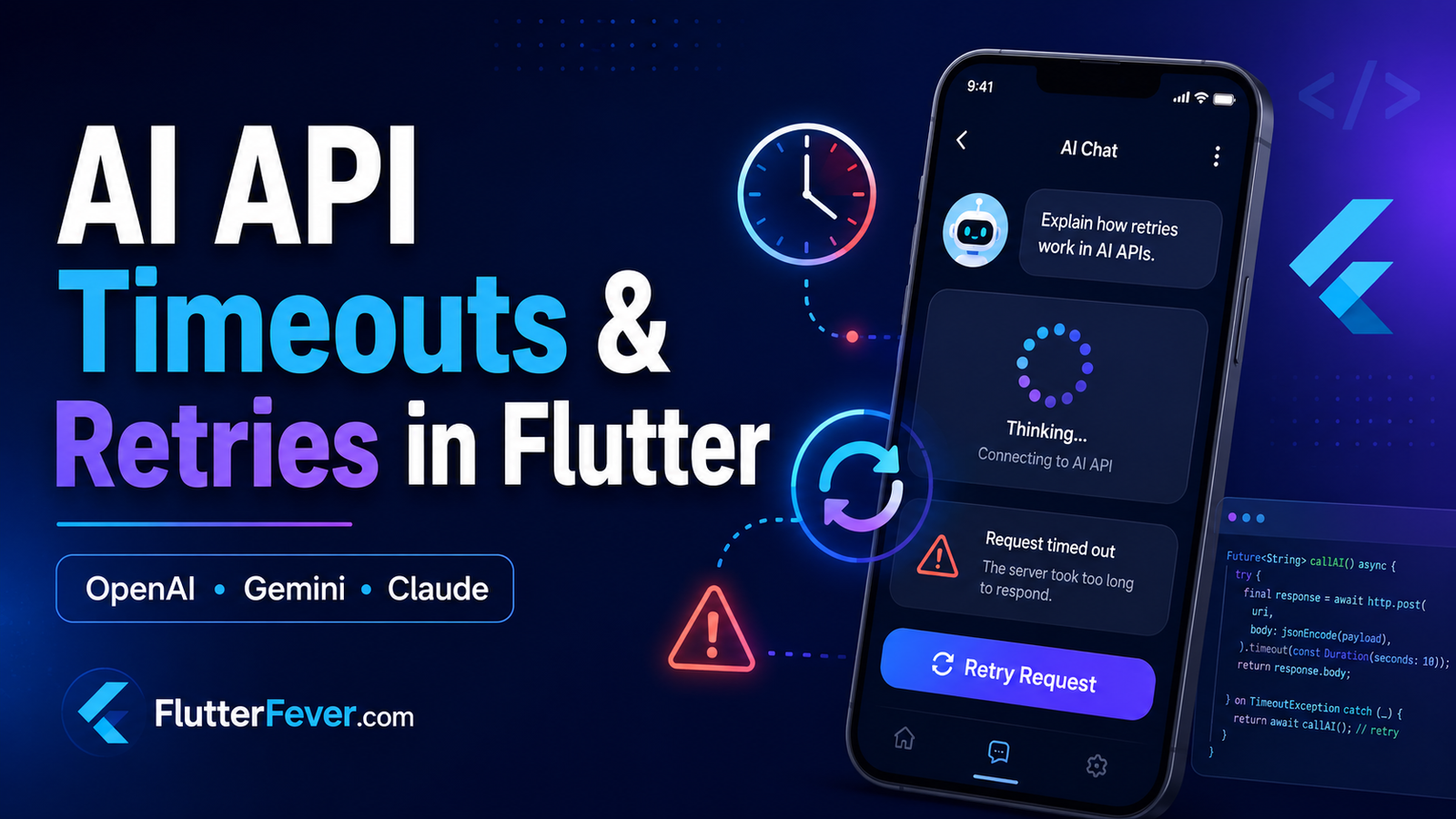
AI-powered Flutter apps depend heavily on external APIs such as OpenAI, Gemini, Claude, or your own AI backend. While these APIs usually work reliably, network issues, slow model responses, server overload, and temporary failures can cause requests to timeout.
If your Flutter app does not handle these situations correctly, users may see endless loading indicators, frozen chat screens, or failed AI responses.
In this guide, you will learn how to properly handle AI API timeouts, retries, and temporary failures in Flutter without creating duplicate requests or a poor user experience.
Why AI API Requests Timeout in Flutter
Traditional REST APIs often return responses within a few hundred milliseconds.
AI APIs are different.
A request may take several seconds because the model needs to process the prompt and generate a response.
Timeouts can occur because of:
- Slow internet connections
- Large prompts
- Large AI responses
- Temporary API server overload
- Network switching between Wi-Fi and mobile data
- Backend latency
- Rate limiting
- Model processing delays
Your Flutter application should therefore assume that an AI request can fail temporarily.
Basic AI API Request in Flutter
A typical request might look like this:
final response = await http.post(
  Uri.parse(apiUrl),
  headers: {
    'Content-Type': 'application/json',
    'Authorization': 'Bearer $apiKey',
  },
  body: jsonEncode({
    'model': model,
    'messages': messages,
  }),
);
The problem is that if the server becomes slow, your app may continue waiting longer than expected.
A better approach is to define a timeout.
Read : How to Fix AI API 429 Rate Limit Errors in Flutter — OpenAI, Gemini and Claude
Add a Timeout to AI Requests
Dart provides the .timeout() method.
final response = await http
    .post(
      Uri.parse(apiUrl),
      headers: {
        'Content-Type': 'application/json',
        'Authorization': 'Bearer $apiKey',
      },
      body: jsonEncode(requestBody),
    )
    .timeout(
      const Duration(seconds: 30),
    );
Now the request will stop waiting after 30 seconds.
Handle the timeout using TimeoutException.
try {
  final response = await http
      .post(
        Uri.parse(apiUrl),
        headers: headers,
        body: jsonEncode(requestBody),
      )
      .timeout(
        const Duration(seconds: 30),
      );

  // Process response
} on TimeoutException {
  print('AI request timed out');
}
For many AI applications, a timeout between 30 and 60 seconds is more reasonable than the very short timeout commonly used for traditional APIs.
Read : How to Run Gemma 3 1B On-Device AI in Flutter – Complete Offline AI Guide
Do Not Immediately Retry Every Failed Request
One common mistake is retrying every API error.
For example:
if (requestFailed) {
  sendRequestAgain();
}
This can cause serious problems.
Suppose the first AI request actually reached the server but the response was delayed.
If your app sends another request immediately, you may create:
- Duplicate AI generations
- Extra API costs
- More rate-limit errors
- Duplicate chat messages
Retries should therefore only happen for errors that are likely to be temporary.
Which Errors Should Be Retried?
Retries generally make sense for errors such as:
408 Request Timeout
429 Too Many Requests
500 Internal Server Error
502 Bad Gateway
503 Service Unavailable
504 Gateway Timeout
However, errors such as these usually should not be automatically retried:
400 Bad Request
401 Unauthorized
403 Forbidden
404 Not Found
For example, retrying a 401 Unauthorized response will not fix an invalid API key.
Create a Simple Retry Function in Flutter
You can implement retry logic without adding another package.
Future<http.Response> sendAIRequest() async {
  const maxRetries = 3;

  for (int attempt = 0; attempt < maxRetries; attempt++) {
    try {
      final response = await http
          .post(
            Uri.parse(apiUrl),
            headers: headers,
            body: jsonEncode(requestBody),
          )
          .timeout(
            const Duration(seconds: 30),
          );

      if (response.statusCode < 500 &&
          response.statusCode != 429) {
        return response;
      }
    } on TimeoutException {
      if (attempt == maxRetries - 1) {
        rethrow;
      }
    }

    await Future.delayed(
      Duration(seconds: attempt + 1),
    );
  }

  throw Exception('AI request failed after retries');
}
This is already safer than continuously retrying failed requests.
Read : How to Secure AI API Keys in Flutter Apps — Why .env Is Not Enough
Use Exponential Backoff
For production applications, exponential backoff is usually better.
Instead of retrying like this:
1 second
1 second
1 second
increase the delay after every failure:
1 second
2 seconds
4 seconds
Example:
final delay = Duration(
  seconds: 1 << attempt,
);

await Future.delayed(delay);
This prevents your application from repeatedly hitting an AI server that may already be overloaded.
Handle HTTP 429 Separately
429 Too Many Requests means the API is rate limiting your application.
Do not simply retry it continuously.
if (response.statusCode == 429) {
  throw Exception(
    'Too many AI requests. Please try again shortly.',
  );
}
If the API provides a Retry-After header, your application can also use that information before attempting another request.
Rate-limit handling is especially important when many users share the same backend API quota.
Show a Better UI During AI Failures
Technical error messages should usually not be shown directly to users.
Avoid displaying:
SocketException
TimeoutException
HTTP 503
ClientException
Instead show something understandable:
The AI is taking longer than expected.
Please try again.
For temporary service issues:
The AI service is temporarily unavailable.
Please try again in a moment.
A Retry button can also improve the experience.
ElevatedButton(
  onPressed: retryRequest,
  child: const Text('Try Again'),
)
Avoid Infinite Loading Indicators
A common Flutter AI UI problem looks like this:
setState(() {
  isLoading = true;
});

await sendAIRequest();

setState(() {
  isLoading = false;
});
If the request throws an exception, isLoading = false might never execute.
Use finally instead.
setState(() {
  isLoading = true;
});

try {
  await sendAIRequest();
} catch (e) {
  // Handle error
} finally {
  setState(() {
    isLoading = false;
  });
}
Now your loading indicator will stop even when the AI request fails.
Streaming AI Responses Need Different Handling
If your Flutter app streams responses token by token, the connection can fail after part of the answer has already been displayed.
In that situation, automatically restarting the entire request can produce duplicate content.
A safer UI might show:
Response interrupted.

[Retry]
You can then decide whether to regenerate the complete response or send a continuation request.
This is especially important for AI chat applications using streamed OpenAI, Gemini, or Claude responses.
Recommended Production Flow
A reliable Flutter AI request flow can follow this pattern:
User sends prompt
        ↓
Start loading state
        ↓
Send AI request
        ↓
Set reasonable timeout
        ↓
Success?
   ↓          ↓
 Yes         No
 ↓            ↓
Display     Check error
response        ↓
             Retryable?
             ↓       ↓
            Yes      No
             ↓        ↓
          Backoff   Show error
             ↓
           Retry
This architecture prevents many of the random failures users experience in production AI applications.
Final Thoughts
Adding an AI API to Flutter is easy.
Making that integration reliable is much harder.
A production Flutter AI application should handle:
- Request timeouts
- Network failures
- Rate limits
- Server errors
- Controlled retries
- Loading state cleanup
- Streaming interruptions
Do not retry every failed request automatically.
Use reasonable timeouts, retry only temporary failures, and apply exponential backoff when necessary.
These small changes can make a Flutter AI application feel significantly more stable even when the AI provider or user network is temporarily unreliable.
Read : OpenAI vs Gemini vs Claude for Flutter Apps — Cost, Speed, Features and Best Use Cases
Frequently Asked Questions
What timeout should I use for AI APIs in Flutter?
For AI generation requests, around 30–60 seconds can be a reasonable starting point, depending on the model and expected response size.
Should I retry an OpenAI 429 error?
You should avoid immediate repeated retries. Wait before retrying and respect rate-limit information returned by the API when available.
Should Flutter automatically retry a 401 error?
No. A 401 error normally indicates an authentication problem such as an invalid or missing API key.
How many times should an AI request be retried?
For most mobile applications, a small number such as 2–3 attempts is safer than unlimited retries.
What is exponential backoff?
Exponential backoff increases the waiting period between retry attempts, for example 1 second, then 2 seconds, then 4 seconds.
Why does my Flutter AI app keep showing a loading spinner after an error?
Your loading state may not be reset when an exception occurs. Using a finally block ensures the loading state is cleared.
Should streamed AI responses be automatically retried?
Be careful. If part of the response has already been received, restarting the request can generate duplicate or inconsistent content.
Read : Codex CLI, OpenAI Codex, ChatGPT Codex — How to Build Flutter Apps Smartly in 2026