

How to Set Flutter Path in Windows (Step-by-Step Guide for Beginners)

If you have already downloaded the Flutter SDK but the flutter command is not working in Command Prompt, the reason is simple — Flutter is not added to your system PATH.
In this complete guide, you will learn how to set Flutter Path in Windows 10 and Windows 11 correctly and permanently.
Why Do You Need to Set Flutter Path in Windows?
When you run this command:
flutter doctor
Windows must know where the Flutter executable file is located.
If Flutter is not added to the PATH, you will see this error:
'flutter' is not recognized as an internal or external command
To fix this issue, we need to add the Flutter bin folder to the Windows Environment Variables.
Step 1: Locate Your Flutter SDK Folder
First, find where you extracted Flutter.
Example:
C:\src\flutter
Inside that folder, open the bin directory:
C:\src\flutter\bin
This is the path you need to add.
Step 2: Open Environment Variables in Windows
For Windows 11:
- Click the Start menu
- Search for: Environment Variables
- Click Edit the system environment variables
- Click Environment Variables
For Windows 10:
- Right-click on This PC
- Click Properties
- Click Advanced system settings
- Click Environment Variables
Step 3: Add Flutter to PATH
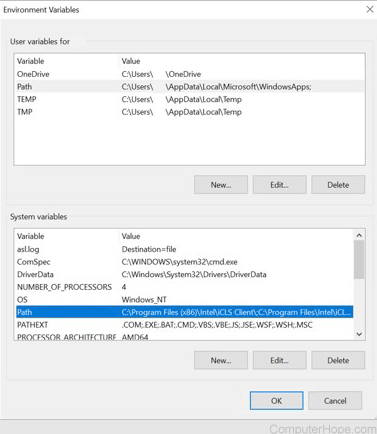
- Under User Variables, select Path
- Click Edit
- Click New
- Paste this path:
C:\src\flutter\bin
- Click OK → OK → OK to save
Step 4: Restart Command Prompt
Close any open Command Prompt windows.
Open a new Command Prompt and run:
flutter doctor
If everything is set correctly, Flutter will run successfully.
Common Errors and Fixes
1. Flutter Not Recognized Error
Cause:
- PATH not added correctly
- Command Prompt not restarted
Solution:
- Recheck the PATH value
- Restart Command Prompt
Read : Flutter Install Error Fixes Guide for Windows, Mac & Linux
2. Added Wrong Folder
Wrong:
C:\src\flutter
Correct:
C:\src\flutter\bin
Make sure you add the bin folder only.
3. PowerShell Not Detecting Flutter
If PowerShell still does not recognize Flutter:
- Restart your system
- Try running in CMD
- Make sure there are no spaces in folder names
Verify Flutter Installation
After setting Flutter Path in Windows, these commands should work:
flutter doctor
flutter --version
Read Articles : Flutter Doctor command — What is flutter doctor (2026 Complete Guide)
Best Practices for Flutter Installation
- Do not install Flutter inside Program Files
- Avoid folders with spaces
- Use a short path like:
C:\src\flutter - Restart the system if necessary
Read Articles :How to Build Your First App with Flutter: Beginner-Friendly Step-by-Step Tutorial
FAQ – Set Flutter Path in Windows
User variables are recommended.
No. Once added, it remains permanently.
Not always. Restarting Command Prompt is usually enough.
Conclusion
Setting Flutter Path in Windows is a crucial step after installing Flutter SDK. Without adding Flutter to PATH, you cannot run Flutter commands.
By following this guide, you can:
- Set Flutter Path in Windows 11
- Fix flutter not recognized error
- Successfully run flutter doctor
- Complete Flutter environment variable setup
FAQ
You should add the bin folder inside your Flutter SDK installation to the Windows Path environment variable, not just the root Flutter folder.
Adding Flutter to PATH allows you to run the flutter and dart command-line tools from terminals and IDEs without typing the full SDK location every time.
Flutter’s Windows PATH guide says to go to Advanced System Settings, open the Advanced tab, and then click Environment Variables to edit the Path entry.
Flutter’s Windows instructions specifically point to the User variables section and the Path entry there for adding the Flutter SDK bin folder.
After updating PATH, close and reopen your terminal windows and IDEs so the change takes effect, then test the setup with flutter --version and dart --version.
Open a new terminal window and run flutter --version and dart --version. Flutter docs use these commands to confirm that the SDK was added correctly to PATH.
Flutter’s troubleshooting docs say one common reason is that PATH was not added correctly for your platform, or the terminal/IDE was not restarted after the change.
Yes. Flutter’s VS Code install flow includes an “Add SDK to PATH” step, and the quick-install guide says a success notification appears when the SDK has been added.
Flutter’s Android Studio setup docs say you may need to manually specify the Flutter SDK path in the IDE, even after installing the plugin.
Yes. Flutter docs state that adding the Flutter SDK to PATH gives access to both the flutter and dart command-line tools.
No. Flutter’s Android setup docs explicitly say that installing the Flutter plugin in Android Studio is not enough; you must also install the Flutter SDK and add its bin directory to PATH to use the flutter command.