

Codemagic Flutter CI/CD for Android: Build, Sign, Version, and Deploy to Google Play

Shipping a Flutter app manually might work in the beginning, but it becomes painful very quickly. Someone runs the build on a local machine, someone checks signing, someone remembers the version code, someone uploads to Google Play, and somewhere in between, a mistake slips into production. That is exactly why Flutter teams move toward CI/CD. A good pipeline should build the app the same way every time, validate code quality, keep secrets out of the repository, and make releases repeatable instead of stressful. Flutter’s official deployment guidance recommends automating build and delivery workflows, and Codemagic provides first-class support for Flutter projects through YAML-based configuration, automated triggers, secret management, testing, signing, and publishing.
If you already wrote a beginner article explaining what Codemagic is, this is the right “next” article because it answers the question most developers ask after the basics: How do I actually use Codemagic in a real Flutter Android release workflow? This is where the search intent is stronger, the audience is more serious, and the content becomes far more useful.
“New to Codemagic? Start with our beginner-friendly guide on what Codemagic is, how CI/CD works in Flutter, and why Flutter teams use it before diving into this production-focused Android pipeline.”
What this article will help you build
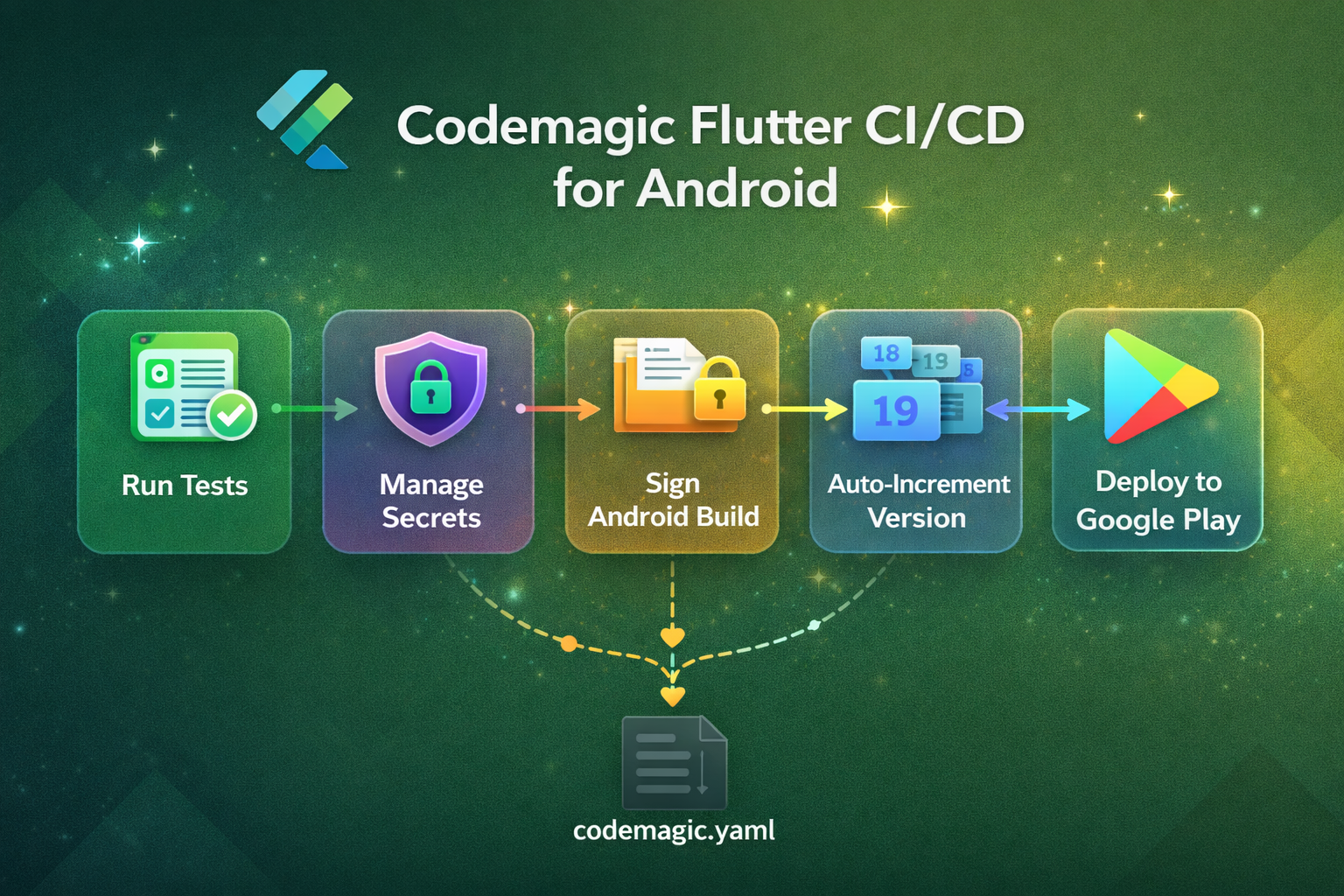
By the end of this guide, your Flutter Android pipeline should be able to do five practical things:
- Run package install, analysis, and tests automatically.
- Use secure environment variables instead of storing sensitive files in Git.
- Build a signed Android App Bundle for release.
- Keep Android version codes moving forward safely.
- Push the build to a Google Play track automatically.
That workflow maps directly to how Codemagic documents production builds for Flutter and Android apps, including YAML-based configuration, environment variable groups, Android signing, test reporting, automatic triggers, and Google Play publishing.
Why serious Flutter teams should prefer codemagic.yaml
A lot of beginners start in the visual workflow editor, and that is fine. But once your app has real release rules, codemagic.yaml is the better choice because your pipeline becomes version-controlled. It lives in the repository, changes can be reviewed in pull requests, and the same configuration is shared across the team. Codemagic’s docs state that when a codemagic.yaml file is committed in the repository root, it is automatically detected and used for builds triggered through webhooks.
This matters more than many developers realize. Your CI/CD setup becomes part of your codebase, not a hidden UI configuration that only one person remembers. That makes debugging easier, onboarding faster, and release behavior more predictable.
The production mindset before writing YAML
Before you touch the pipeline, define a release policy. For most Flutter teams, a simple structure works well:
feature/*branches for developmentdevelopfor shared integrationmainfor stable production-ready coderelease/*for controlled release preparation- Google Play
internaltrack for first rollout
Codemagic supports automatic builds for pushes, pull requests, labels, and tags, and it allows branch patterns plus cancel_previous_builds to avoid wasting build minutes on outdated commits. That makes it well suited for branch-based release workflows.
A practical recommendation is this: run validation on pull requests, build release artifacts from main, and publish first to the internal track before promoting anything wider. That keeps the pipeline useful without making it reckless.
Step 1: Store secrets the right way
CI/CD becomes dangerous when developers start committing sensitive files into the repository. Service account JSON files, keystores, and API keys should never live in public or shared Git history. Flutter’s deployment documentation explicitly recommends using encrypted environment variables for CI systems and being careful not to expose secrets in logs or pull request workflows. Codemagic also supports secret variables that are encrypted and hidden in the UI and build logs.
Codemagic organizes user-defined variables into variable groups, which is extremely useful for separating environments. For example, you can keep one group for staging and another for production, even if both use the same variable names with different values. Codemagic’s docs recommend importing these groups into the workflow so the same scripts can run against different environments cleanly.
For this Android article, the most common secrets are:
GOOGLE_PLAY_SERVICE_ACCOUNT_CREDENTIALS
Any API keys you inject with --dart-define
Keystore-related signing values, if you choose environment-based signing
Step 2: Configure Android signing properly
Android release automation is incomplete until signing is handled correctly. Codemagic’s Android signing documentation is very clear on one critical point: the app must keep using the same signing key throughout its lifespan. It also explains two practical approaches for Flutter apps: follow Flutter’s normal Gradle signing setup and let Codemagic generate key.properties during the build, or configure signing with environment variables and reference Codemagic’s built-in variables like CM_KEYSTORE_PATH, CM_KEYSTORE_PASSWORD, CM_KEY_ALIAS, and CM_KEY_PASSWORD.
Codemagic also supports uploading keystores under code signing identities and referencing them in YAML via android_signing. Team admins can upload the keystore, assign a reference name, and then use that reference in the workflow. The docs also warn that uploaded keystores cannot be downloaded back, so you must store a secure copy independently.
That warning is important in real life. Many developers focus only on “making CI work,” but the real production concern is continuity. If your signing key is lost, your release pipeline is not just broken; your app update path can be affected permanently.
Step 3: Make tests part of delivery, not an afterthought
A release pipeline that only builds is incomplete. Codemagic’s testing docs show that Flutter unit tests can be run directly in the scripts section using flutter test, and test results can be surfaced in the build overview by exporting machine-readable reports. This is useful because your pipeline stops being a blind artifact generator and starts becoming a quality gate.
At a minimum, your Android release workflow should run:
flutter pub getflutter analyzeflutter test
If you skip these and jump straight to flutter build appbundle, you are automating release speed without automating release confidence.
Step 4: Use automatic versioning before Google Play rejects your upload
One of the most common Flutter Android release failures is version code collision. Codemagic’s Google Play publishing docs explicitly remind that every new build uploaded to Google Play must have a higher version code than the previous one. The same documentation also points to automatic build versioning so the pipeline can keep version numbers moving safely.
Codemagic documents the use of the google-play get-latest-build-number action from Codemagic CLI tools to retrieve the latest build number from Google Play. It also documents the CM_ENV environment file, which can be used to make dynamically generated values available to later workflow steps.
That means your workflow can fetch the latest Play build number, increment it, and then use that number during the Flutter build. This is one of the most practical upgrades you can make because it removes a repetitive manual step that often causes failed releases.
Read : How to Deploy Flutter App on Google Play Store in 2026 (Complete Checklist)
Step 5: Build the AAB the way Flutter expects
Flutter’s deployment docs use flutter build appbundle as the standard Android release build command, and that is exactly what most production Android workflows on Codemagic should generate. An AAB is what you usually want for Google Play distribution.
So the build itself is simple. The hard part is everything around it:
- Is the keystore wired correctly?
- Are secrets injected securely?
- Did tests pass?
- Did the version code increment?
- Is the artifact going to the right Play track?
This is why a mature article on Codemagic should not stop at “click build.” Real developers need the full release chain.
Step 6: Publish to Google Play automatically
Codemagic supports automatic publishing to Google Play after you configure a service account JSON as a secret environment variable and reference it in the publishing.google_play section of codemagic.yaml. The docs show the credentials value being passed from a variable such as GOOGLE_PLAY_SERVICE_ACCOUNT_CREDENTIALS, along with the chosen track, such as internal. They also note that after the first manual upload, Codemagic can publish subsequent versions automatically.
Publishing to the internal track first is a strong practical pattern. It lets teams validate signing, store connection, rollout behavior, and artifact integrity without jumping straight to public release. For many apps, that single choice reduces release anxiety dramatically.
A practical codemagic.yaml example for Flutter Android
Below is a strong starting point for a real Flutter Android release workflow:
workflows:
  android-production:
    name: Android Production
    max_build_duration: 60    environment:
      flutter: stable
      groups:
        - google_play_credentials
      android_signing:
        - play_keystore
      vars:
        PACKAGE_NAME: "com.example.app"    triggering:
      events:
        - push
        - pull_request
      branch_patterns:
        - pattern: "main"
          include: true
        - pattern: "release/*"
          include: true
      cancel_previous_builds: true    scripts:
      - name: Get Flutter packages
        script: |
          flutter pub get      - name: Static analysis
        script: |
          flutter analyze      - name: Run unit tests
        script: |
          mkdir -p test-results
          flutter test --machine > test-results/flutter.json
        test_report: test-results/flutter.json      - name: Set build number from Google Play
        script: |
          pip3 install codemagic-cli-tools
          LATEST_BUILD_NUMBER=$(google-play get-latest-build-number \
            --package-name "$PACKAGE_NAME" \
            --tracks=internal \
            --credentials="$GOOGLE_PLAY_SERVICE_ACCOUNT_CREDENTIALS")          if [ -z "$LATEST_BUILD_NUMBER" ]; then
            NEW_BUILD_NUMBER=1
          else
            NEW_BUILD_NUMBER=$((LATEST_BUILD_NUMBER + 1))
          fi          echo "NEW_BUILD_NUMBER=$NEW_BUILD_NUMBER" >> $CM_ENV      - name: Build release app bundle
        script: |
          flutter build appbundle --release --build-number=$NEW_BUILD_NUMBER    artifacts:
      - build/**/outputs/**/*.aab
      - build/**/outputs/**/mapping.txt
      - test-results/flutter.json    publishing:
      google_play:
        credentials: $GOOGLE_PLAY_SERVICE_ACCOUNT_CREDENTIALS
        track: internal
This example reflects the documented Codemagic approach for importing variable groups, referencing Android keystores through android_signing, running tests in scripts, persisting dynamic values through CM_ENV, and publishing to Google Play through a secret service account credential. The Codemagic CLI tools can be installed with pip3 install codemagic-cli-tools when you want to use actions like fetching the latest build number.
Why this workflow is better than a basic tutorial
A basic tutorial teaches where to click. A production tutorial teaches how to avoid breakage.
This workflow is better because it does not treat release automation as only a build step. It treats release automation as a system:
- Source-controlled pipeline
- Encrypted secrets
- Stable signing
- Automated testing
- Automatic version progression
- Controlled store publishing
That is the level where CI/CD starts saving time instead of creating mystery errors.
Common mistakes Flutter developers make with Codemagic
The first common mistake is keeping secrets in Git. Flutter’s CI/CD guidance specifically warns that cloud build environments are ephemeral and untrusted, and credentials should be passed securely through encrypted environment variables.
The second mistake is signing confusion. Developers set up signing locally but never adapt Gradle for CI, or they lose the keystore after the first release. Codemagic’s Android signing docs repeatedly stress that release builds need a consistent key over the app’s lifecycle and that you must keep your own secure backup.
The third mistake is ignoring version codes until Play rejects the upload. Codemagic’s publishing docs explicitly note that every new build must have a higher version code.
The fourth mistake is building on every commit without build cancellation. Codemagic supports cancel_previous_builds, and using it on active branches helps save time and build minutes on stale commits.
The fifth mistake is treating notifications as optional. In a real team, release visibility matters. Codemagic supports Slack notifications with build status, logs, and artifact links, including optional start notifications.
Production best practices for a cleaner Flutter release pipeline
Keep separate variable groups for staging and production. Codemagic explicitly supports this pattern, and it prevents dangerous environment mix-ups.
Run flutter analyze and tests before the build step, not after. Codemagic’s testing flow is designed for checks to happen within scripts before the final build output.
Use main and release/* branch patterns intentionally. Codemagic’s branch and tag trigger system gives enough flexibility to avoid noisy pipelines.
Start with Google Play internal testing, then expand. Codemagic supports multiple tracks, but internal is the least risky way to validate the pipeline first.
Store mapping.txt and important artifacts outside the build system if you depend on them later for crash analysis and debugging. Codemagic’s docs note that old artifacts should be backed up externally if you need long-term retention.
Final thoughts
The real value of Codemagic for Flutter developers is not that it can “build an app in the cloud.” Many tools can do that. The real value is that it can turn your release process into a reliable system: code-reviewed, secure, repeatable, and scalable. Once your Flutter Android workflow can test, sign, version, and ship automatically, your team stops spending energy on release mechanics and starts spending it on product quality.
FAQ
codemagic.yaml enough? For serious projects, codemagic.yaml is enough and usually better because it is committed to version control and automatically used by Codemagic when detected in the repository root.
Yes. Codemagic variable groups are designed for exactly that use case.
Yes. Codemagic can visualize test output when you provide test reports from scripts, including Flutter’s machine-readable output.
Use Codemagic’s documented automatic build versioning approach and fetch the latest build number from Google Play, then write the incremented value to CM_ENV for later steps.