

How to Update Dart SDK (Complete Guide for Beginners)

Keeping your Dart SDK updated is essential for performance, stability, and compatibility with modern tools. Whether you are developing Flutter applications or working with standalone Dart projects, updating the Dart SDK ensures access to the latest features and bug fixes.
This guide explains how to update Dart SDK using different methods including command line, VS Code, Android Studio, and Flutter.
What is Dart SDK?
Dart SDK is the core toolkit required to run Dart programs. It includes:
- Dart Virtual Machine (VM)
- Core libraries
- Compiler
- Command-line tools
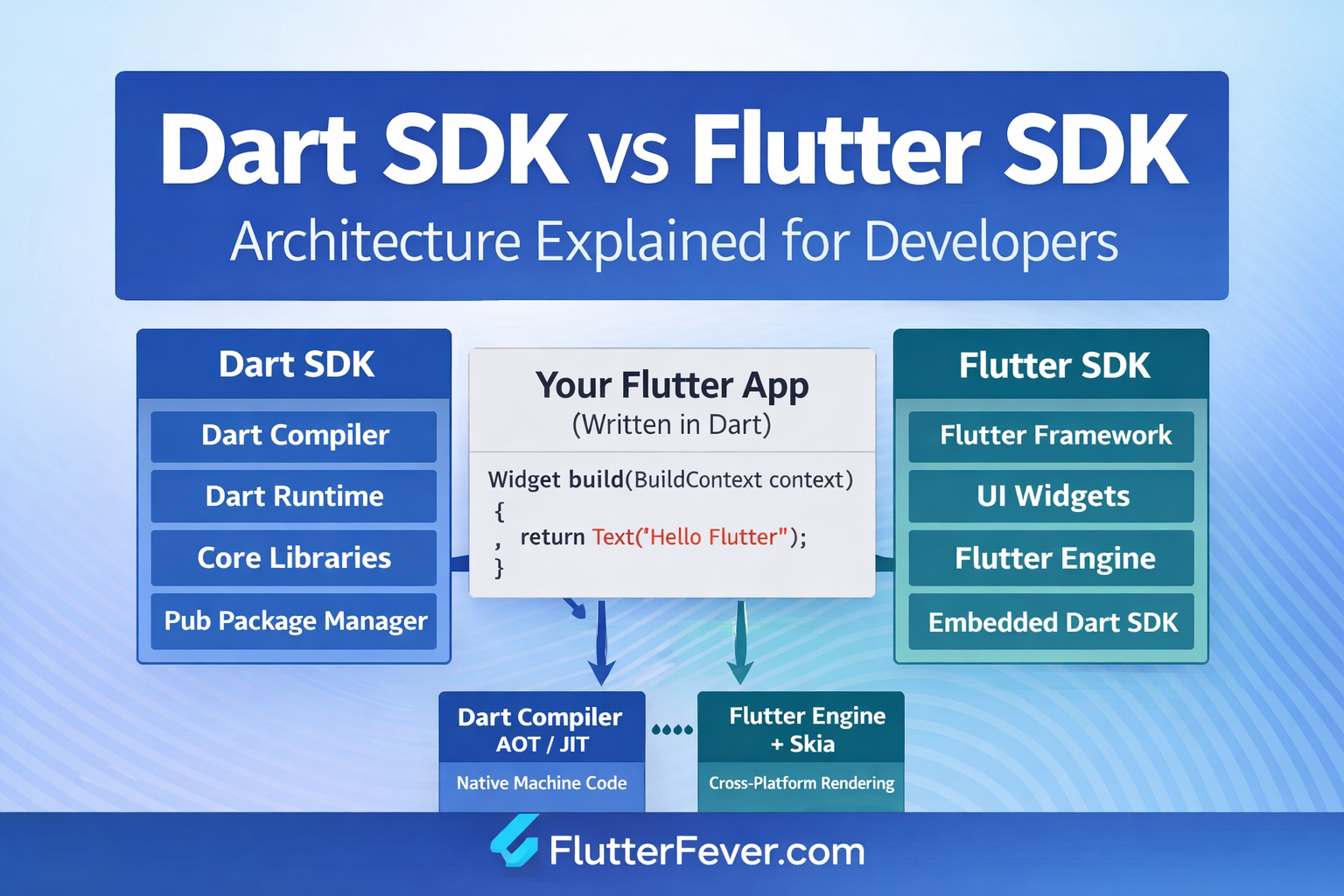
If you are using Flutter, Dart SDK is included inside Flutter.
Check Current Dart Version
Before updating Dart SDK, check the current version:
dart --versionFor Flutter users:
flutter --versionMethod 1: Update Dart SDK Using Command Line (CMD)
This method is suitable for standalone Dart installations.
Windows (Chocolatey)
choco upgrade dart-sdkmacOS (Homebrew)
brew upgrade dartLinux
sudo apt-get update
sudo apt-get install dart
Manual Update Method
- Download the latest Dart SDK
- Extract the downloaded file
- Replace the old Dart SDK folder
- Update system PATH if required
Read : How to Set Flutter Path in Windows (Step-by-Step Guide for Beginners)
Method 2: Dart SDK in VS Code
If you are using Flutter in VS Code, Dart SDK is updated through Flutter.
Steps:
- Open VS Code
- Press Ctrl + Shift + P
- Search for:
Flutter: Upgrade- Run the command
This updates both Flutter and Dart SDK.
Read: How to Update Flutter SDK (Step by Step Guide for Developers)
Method 3: Update Dart SDK in Android Studio
Steps:
- Open Android Studio
- Go to:
File > Settings > Languages & Frameworks > Dart - Check Dart SDK path
- Update using Flutter or manually replace SDK
Terminal Method in Android Studio
flutter upgradeMethod 4: Upgrade Dart SDK via Flutter (Recommended)
If you are using Flutter, this is the correct approach:
flutter upgradeFlutter automatically manages the Dart SDK version. Updating Dart separately may cause compatibility issues.
Important Note
- Do not manually upgrade Dart SDK if you are using Flutter
- Always use Flutter upgrade for Flutter projects
- Manual updates are only for standalone Dart environments
Common Errors and Fixes
Dart Version Not Updating
flutter clean
flutter upgrade
Path Issue
- Check environment variables
- Ensure correct Dart SDK path is set
Version Conflict
- Remove old SDK versions
- Reinstall clean version
Permission Error (Linux/macOS)
sudo chmod -R 755 dart-sdkBest Practices
- Keep Dart SDK updated regularly
- Use Flutter upgrade for Flutter-based projects
- Avoid multiple Dart SDK installations
- Verify version after update
Beginner Tips
- Always check Dart version before and after update
- Follow Flutter-based update if using Flutter
- Avoid manual SDK replacement unless necessary
Professional Tips
- Use version management tools like FVM
- Maintain consistent SDK versions across projects
- Integrate updates in development workflow
Read : Flutter FVM – Complete Guide to FVM (Flutter Version Management)
FAQ
Use the command palette and run:Flutter: Upgrade
Run the following command in terminal:flutter upgrade
Yes, but only for standalone Dart projects. For Flutter projects, use Flutter upgrade.
dart –version
Yes, Flutter manages and updates Dart SDK internally.
Build errors
Compatibility issues
Missing features
No, if using Flutter
Yes, if working with standalone Dart
Conclusion
Updating Dart SDK depends on your development setup. For standalone Dart, use system package managers or manual methods. For Flutter projects, always rely on Flutter upgrade to ensure compatibility and stability.
Maintaining an updated Dart SDK ensures better performance, fewer issues, and access to the latest development features.
Read : Dart SDK vs Flutter SDK: Architecture, Differences, and How Flutter Uses Dart